Book Cover

Imprint

© 2014 Smashing Magazine GmbH, Freiburg, Germany
ISBN: 978-3-94454074-0 (ePUB)
Cover Design: Veerle Pieters
eBook Strategy and Editing: Vitaly Friedman
Technical Editing: Cosima Mielke
Planning and Quality Control: Vitaly Friedman, Iris Lješnjanin
Tools: Elja Friedman. Syntax Highlighting: Prism by Lea Verou.
Idea & Concept: Smashing Magazine GmbH

About This Book

With the limitations that the <img> tag brings along, images have long been a major obstacle when wanting to create truly responsible, fast, responsive websites. Luckily, the upcoming <picture> element and srcset/sizes are about to finally change this. However, even in the meantime, while browser vendors are still busy implementing the new specification, you can already start to incorporate truly responsive images into your website. There are a number of smart solutions to close up the existing gaps: polyfills, fallbacks for legacy browsers, and clever approaches that were created on the fly due to missing alternatives. To help you review and understand different methods, we’ve compiled a selection of the different techniques in this eBook. It features practical advice on every implementation, as well as tips on tackling the art direction and resolution-switching use cases that a growing device landscape has brought along. As you will notice in the following pages, there is no reason to wait anymore; you can already cater for responsive images today!

Picturefill 2.0: Responsive Images And The Perfect Polyfill

By Tim Wright

Not since the early days of web standards have I seen our community rally around a seemingly small issue: responsive images.

Over the last four years1 (yeah, it’s been about four years), we’ve seen many permutations of images in responsive design. From the lazier days of setting max-width: 100% (the absolute minimum you should be doing) to more full-featured JavaScript implementations, such as Picturefill and Zurb’s data-interchange method, we’ve spent a lot of time spinning our wheels, banging our heads and screaming at the wall. I’m happy to say that our tireless journey is coming to a close. The W3C and browser makers got the hint.

The State Of Responsive Images

In our search for the holy grail of serving the right image to the user, our attitude towards browser makers until now has largely been, “Forget you — we’ll do it ourselves.” I’m certainly no exception. We were so attentive to responsive images and were exposed to all of the guesswork and trials that are not typically released to the public that we got impatient (rightfully so) and did it with JavaScript.

The difference between a CSS transition and a responsive image is, of course, how they degrade. If a CSS transition doesn’t work, who really cares? Your interface might be a little jumpy, but the experience as a whole won’t really suffer because your users will still be able to accomplish their goal and consume the content they need.

That really isn’t the case with images. How does a new image tag degrade? The img tag is so widely accepted that I couldn’t even find when the W3C recommended it as a standard, other than a small reference in the HTML 4.01 specification2. Replacing or even expanding on the img tag would be like telling Frank Sinatra to wear a baseball cap instead of a fedora — you’ll get some pushback.

Resource Problems

As responsive design grew in popularity and as the media through which users consume information became uncontrollable, we slowly realized that img by itself wasn’t going to cut the mustard. We started asking questions like, “What screen size is the user on?” and “What’s the pixel density of the screen?” These questions fuelled our image techniques until we realized that screen size and pixel density have absolutely no relationship to the amount of bandwidth available to serve up a huge high-definition image.

The RICG began working on the picture element, sharing its work with the W3C along the way.

The solutions got pretty complex. Talk of the picture element started, and a group called the Responsive Images Community Group (RICG) appeared. The RICG began working on the picture element, sharing its work with the W3C along the way. The result has led us to today and this discussion about all of the progress that’s been made.

The Introduction of srcset

Because most of the responsive-image community was on board with the picture element and looking forward to it because of the great polyfills, such as Picturefill, it went ahead and released a well thought-out and fleshed-out document outlining something called srcset, which is an extension of the standard img tag. Yeah, I know — it feels like it came out of nowhere. It was also super-complicated and overly limiting by restricting you to (implied) pixel values and using a microsyntax that didn’t allow for scalability with media queries in the future. Luckily, the syntax has matured into what we have today, which is a fairly robust recommendation.

Most recently, Andrew Clark said it best when he tweeted3, “Looked at the responsive images srcset & sizes attributes for the first time. Blimey it’s complicated.”

I couldn’t have said it better myself. Let’s look at what we’re dealing with:

<img alt="dog" src="dog.jpg" srcset="dog-HD.jpg 2x, dog-narrow.jpg 300w, dog-narrow-HD.jpg 600w 2x">

Three major attributes are in the snippet above: alt, src and srcset. The alt attribute is the same as it’s always been; src is the fallback if srcset isn’t supported; and srcset is obviously the meat and potatoes here.

We can see three arguments in srcset. The first is the image path. The second gives the browser information about the natural widths of the sources, so that it knows which resource to serve to the user (based on the user’s preferences and cross-referencing with the sizes attribute4 — I told you it was complicated). The last piece sets the optional pixel ratio (2x in this example specifies the high-definition image).

One thing I really love about srcset is that the specification states that the browser should contain image-allocation preferences for certain bandwidth situations. This means you don’t have to worry about serving a 2x image to a high-definition screen if that device is on a cruddy 3G connection. The user’s preferences should take over, and the browser would choose the appropriate image to serve.

Preparing for the picture Element

After much complaining about our new weird friend, srcset, the RICG continued working on the picture element, which is finally getting some serious traction with browser makers… well, that is, with Chrome. The proposed syntax for the picture element might look familiar because we saw it largely in the first version of Picturefill, and it’s not unlike how <audio> and <video> are marked up.

<picture>
  <source media="(min-width: 600px)" srcset="large-1.jpg, large-2.jpg 2x">
  <img alt="A fat dog" src="small-1.jpg">
</picture>

As you can see, a source tag is in the picture element, along with a normal img tag. Just as we saw with src in srcset, the img is a fallback. In the source tag, we have what looks like a media query, alongside a srcset attribute that contains the same image-source and pixel-density arguments as before. This seems like a nice clean way to popularize responsive images; we’re generally familiar with the syntax, so it should be easily adopted.

Browser Support

The srcset attribute has been supported in Chrome5 since version 34. At the time of writing, it is not supported anywhere else. Mozilla appears to be working on an implementation (fingers crossed). Internet Explorer is nowhere in sight.

The picture element has even worse support; it isn’t even in Chrome yet. But like Mozilla with srcset, Google is currently working on implementing it. If you can stomach reading through a specification, I highly recommend it. Even though there isn’t much of a plot and the character development is pretty weak, it’s still a pretty good read.

Picturefill 2.0 was created because native support is reasonably close. You know we’ll need a rock-solid polyfill to use when the time officially comes, so let’s take a look at it!

Introducing Picturefill 2.0

Picturefill 2.06 was recently released as beta, and it’s quite a large jump from version 1. The RICG really aimed to create a one-stop solution for responsive images. The challenge was to create a script that allows you, the developer, to use any combination of the solutions currently being standardized, without bloating it to the point that not using it at all would be more lightweight.

Imagine polyfilling an image that would normally take 2 seconds to load using a JavaScript file that takes 10 seconds to load — it wouldn’t make much sense. Picturefill 2.0 avoids this by following the specification very closely (with some intentional omissions, which we’ll go over in a bit) and letting you use either srcset or picture or a combination of the two.

Picturefill is an responsive image approach that mimics the proposed picture element using divs.
Picturefill is an responsive image approach that mimics the proposed picture element using divs. (Larger version7)

While we can’t reliably achieve everything in the specification using JavaScript (such as reasonably detecting bandwidth, which would be a user setting anyway), we can certainly take care of all of the pieces that are meant to be in HTML (i.e. elements and attributes). This version of Picturefill gets us one step closer to not needing Picturefill, which is the ultimate goal of anyone who has ever written a polyfill.

If you’re currently using version 1.0, I highly recommend upgrading to 2.0. It’s a big step towards a better solution to serving the correct image to the user. Some big changes have been made to the syntax and functionality. Let’s look at what’s new.

What’s New in 2.0

One thing that makes this polyfill different from others that I’ve seen is that it polyfills a concept, not just an unsupported block of HTML. Picturefill 1.0 used spans and custom attributes to mimic how we thought responsive images should work. For the record, it is a great solution, and I currently use it for many of my projects that haven’t been converted to 2.0.

In the last year or so, the specification for srcset and picture have matured so much, so we can now actually get to use something close to the real syntax. Picturefill is starting to look like a true polyfill, one we can strip away when real support shows up.

Installing and Using the Polyfill

If you’ve read this far, then you’ve probably dealt with some form of polyfill in the past. This one isn’t much different. Polyfills are supposed to be set-it-and-forget-it (to steal a line from Ronco8), but because this is an HTML polyfill, you’ll need either to create the picture element manually or use some form of HTML shiv to do it for you. Luckily, HTML shivs are pretty common and ship with toolkits such as Modernizr9; just verify that picture is supported in whatever shiv you choose.

<!-- Create the actual picture element if you haven't already. -->
<script>
  document.createElement( "picture" );
</script>

<!-- Asynchronously load the polyfill. -->
<script src="picturefill.js" async></script>

Other than creating the picture element, you simply have to link to the script. Using the async attribute is also recommended, so that Picturefill doesn’t block your page from loading.

Using Picturefill 2.0 With srcset

Let’s look at the syntax that provides the best support and that uses srcset. It should look familiar because it has the same attributes that we saw when discussing the specification.

<img sizes="100vw, (min-width: 40em) 80vw"
srcset="pic-small.png 400w, pic-medium.png 800w, pic-large.png 1200w" alt="Obama">

The most glaring difference between this snippet and the specification is the absence of a fallback src attribute, which was intentionally removed to prevent images from being downloaded twice in unsupported browsers. And, really, what would be the point of this if images were downloaded twice? Other than that, it’s pretty faithful to the specification, but it will probably evolve over time as the specification fleshes out and the polyfill matures.

The sizes attribute tells the browser of the image’s size relative to the viewport. This often gets overlooked because srcset is the buzzword now, but this attribute is equally important. If you’d like to learn more, Eric Portis makes a lot of sense10 of this “blimey complicated mess.”

Using Picturefill 2.0 With the picture Element

The RICG did such a good job with this second version of Picturefill that the syntax of the picture element should come as no surprise. It matches the specification very closely:

<picture>
  <source srcset="extralarge.jpg, extralarge.jpg 2x" media="(min-width: 1000px)">
  <source srcset="large.jpg, large.jpg 2x" media="(min-width: 800px)">
  <source srcset="medium.jpg">
  <img srcset="medium.jpg" alt="Cambodia Map">
</picture>

The biggest change between versions 1.0 and 2.0 is the removal of some traditional HTML (divs and spans) and the addition of newer elements (picture and source). Also, srcset support is built in (heck, why not, right? It’s in the spec!). This is great step forward for this polyfill.

Use as many or as few of these options as you’d like. In line with the specification, if you don’t want to use the 2x option, you don’t have to (and so on). The difference between this and the official picture element is the img fallback. You’ll notice here that the img fallback also has a srcset attribute, instead of a normal src (which is widely supported). Again, this is to prevent double-downloading (it’s a real problem). The srcset in the img tag would also cause double-downloading if the browser supports srcset but not picture. This bug should get worked out in the beta version.

Like many good polyfills, Picturefill 2.0 can be executed programmatically by exposing a global function, picturefill(). This allows you to use it in any ultra-hip JavaScript framework that you’d like. You can read about a few options for targeting specific images in the API documentation11.

Degrading Gracefully

Earlier in the chapter, I alluded to the challenge of degrading the img tag gracefully in unsupported browsers. This was another problem in creating Picturefill 2.0. Because it is a polyfill, the concept of unsupported browsers doesn’t really exist (kind of) — we’re using JavaScript to force it to work.

The edge case is this: If a browser doesn’t natively support picture or srcset and has JavaScript turned off, then you’ll get a frowny face. I can already feel your eyes rolling, but knowing the limitations of a system is important before you rely on it on a large scale. If a user were to come across a Picturefill’ed image in an unsupported browser with JavaScript turned off, they would see the image’s alt text — a nice little way to reinforce the importance of descriptive and meaningful alt text, isn’t it?

Alternative text is the fallback because the previous <noscript> solution caused problems with browsers that support picture or srcset but have JavaScript disabled (two images would render). The group also explored adding a src attribute to img (as in the specification), but that results in double-downloading, which defeats the purpose of allocating the appropriate image assets to the user.

We’ve come a long way with responsive images. We can see the light at the end of the tunnel, but a lot of work still has to be done. And we’d love your help!

How To Get Involved

If you’d like to get involved and help out with the responsive-images movement, join the RICG12 via the W3C. If that’s too much, we’re always looking for people to try out Picturefill’s beta version and submit bugs through the issue tracker on GitHub13.

You can also spread the word about great tools like Sizer Soze14, which calculates the performance cost of not using responsive images.

Resources and Further Reading

Responsive Images Community Group15

The picture Element16” (specification), RICG

The srcset Attribute17” (specification), W3C

@respimg18, RICG on Twitter

Responsive Images Done Right: A Guide To <picture> And srcset

By Eric Portis

This chapter complements Tim Wright’s chapter and explains exactly how we can use the upcoming <picture> element and srcset, with simple fallbacks for legacy browsers. There is no reason to wait for responsive images1; we can actually have them very, very soon2. — Ed.

Everything I’ve said so far could be summarized as: make pages which are adaptable.… Designing adaptable pages is designing accessible pages. And perhaps the great promise of the web, far from fulfilled as yet, is accessibility, regardless of difficulties, to information.

— John Allsopp, A Dao of Web Design3

Images4 are some5 of the most6 important7 pieces8 of information9 on the web10, but over the web’s 25-year history, they haven’t been very adaptable at all. Everything about them has been stubbornly fixed: their size, format and crop, all set in stone by a single src.

HTML authors began to really feel these limitations when high-resolution screens and responsive layouts hit the web like a one-two punch. Authors — wanting their images to look crisp in huge layouts and on high-resolution screens — began sending larger and larger sources to everyone; the average size of an image file ballooned11; very smart people called responsive web design “unworkably slow12”.

Images have been the number one obstacle to implementing truly adaptable and performant responsive pages — pages that scale both up and down, efficiently tailoring themselves to both the constraints and the affordances of the browsing context at hand.

That is about to change.

The latest specification of the <picture> element13 is the result of years14 (years!15) of debate on how to make images adapt. It gives authors semantic ways to group multiple versions of the same image, each version having technical characteristics that make it more or less suitable for a particular user. The new specification has achieved broad consensus and is being implemented in Chrome, Opera and Firefox (maybe even Internet Explorer!16) as I type.

The time to start learning this stuff is now!

Before we get to any of the (shiny! new!) markup, let’s look at the relevant ways in which browsing environments vary, i.e. the ways in which we want our images to adapt.

1. Our images need to be able to render crisply at different device-pixel-ratios. We want high-resolution screens to get high-resolution images, but we don’t want to send those images to users who wouldn’t see all of those extra pixels. Let’s call this the device-pixel-ratio use case.

2. If our layout is fluid (i.e. responsive), then our images will need to squish and stretch to fit it. We’ll call this fluid-image use case.

3. Note that these two use cases are closely related: To solve both, we’ll want our images to be available in multiple resolutions so that they scale efficiently. We’ll call tackling both problems simultaneously the variable-sized-image use case.

4. Sometimes we’ll want to adapt our images in ways that go beyond simple scaling. We might want to crop the images or even subtly alter their content. We’ll call this the art-direction use case.

5. Finally, different browsers support different image formats. We might want to send a fancy new format such as WebP to browsers that can render it, and fall back to trusty old JPEGs in browsers that don’t. We’ll call this the type-switching use case.

The new <picture> specification includes features for all of these cases. Let’s look at them one by one.

Rearranging images across various resolutions
Rearranging images across various resolutions is relatively easy, however, loading different images (and only them) depending on the user’s resolution is quite difficult. Well, not any more. (Image credit17)

The device-pixel-ratio Use Case

Let’s start simply, with a fixed-width image that we want to adapt to varying device-pixel-ratios. To do this, we’ll use the first tool that the new specification gives us for grouping and describing image sources: the srcset attribute.

Say we have two versions of an image:

small.jpg (320 × 240 pixels)

large.jpg (640 × 480 pixels)

We want to send large.jpg only to users with high-resolution screens. Using srcset, we’d mark up our image like so:

<img srcset="small.jpg 1x, large.jpg 2x"
   src="small.jpg"
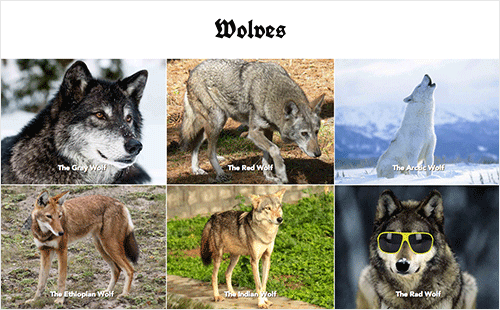
   alt="A rad wolf" />

The srcset attribute takes a comma-separated list of image URLs, each with an x descriptor stating the device-pixel-ratio that that file is intended for.

The src is there for browsers that don’t understand srcset. The alt, of course, is included for browsers that don’t render images at all. One element and three attributes gets us an image that looks crisp on high-resolution devices and efficiently degrades all the way down to text. Not too shabby!

The Fluid- And Variable-Sized-Image Use Cases

What that markup won’t do is efficiently squish and stretch our image in a fluid layout. Before addressing this fluid-image use case, we need a little background on how browsers work.

Image preloading is, according to Steve Souders, “the single biggest performance improvement browsers have ever made18.” Images are often the heaviest elements on a page; loading them ASAP is in everyone’s best interest. Thus, the first thing a browser will do with a page is scan the HTML for image URLs and begin loading them. The browser does this long before it has constructed a DOM, loaded external CSS or painted a layout. Solving the fluid-image use case is tricky, then; we need the browser to pick a source before it knows the image’s rendered size.

What a browser does know at all times is the environment it’s rendering in: the size of the viewport, the resolution of the user’s screen, that sort of thing. We use this information when we use media queries, which tailor our layouts to fit particular browsing environments.

Dealing with responsive images turned out to be quite a nightmare
Dealing with responsive images turned out to be quite a nightmare. A better way to provide the browser with details about its environment is by simply telling the browser the rendered size of the image. Kind of obvious, really. (Image credit19)

Thus, to get around the preloading problem, the first proposals20 for fluid-image features21 suggested attaching media queries to sources. We would base our source-picking mechanism on the size of the viewport, which the browser knows at picking-time, not on the final rendered size of the image, which it doesn’t.

As it turns out22, that’s a bad idea. While it’s technically workable, calculating the media queries needed is tedious and error-prone. A better idea is to simply tell the browser the rendered size of the image!

Once we tell the browser how many pixels it needs (via a new attribute, sizes) and how many pixels each of the sources has (via w descriptors in srcset), picking a source becomes trivial. The browser picks the smallest source that will still look reasonably crisp within its container.

Let’s make this concrete by developing our previous example. Suppose we now have three versions of our image:

large.jpg (1024 × 768 pixels)

medium.jpg (640 × 480 pixels)

small.jpg (320 × 240 pixels)

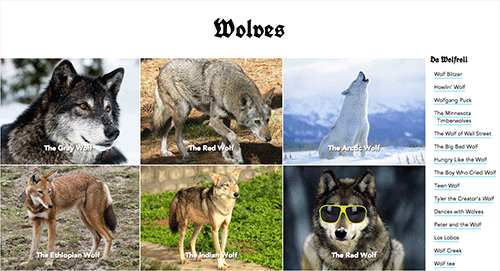
And we want to place these in a flexible grid — a grid that starts out as a single column but switches to three columns in larger viewports, like this23:

A responsive grid example
A responsive grid example. (See the demo24)

Here’s how we’d mark it up:

<img srcset="large.jpg  1024w,
      medium.jpg 640w,
      small.jpg  320w"
   sizes="(min-width: 36em) 33.3vw,
      100vw"
   src="small.jpg"
   alt="A rad wolf" />

We’re using srcset again, but instead of x descriptors, we’re attaching w descriptors to our sources. These describe the actual width, in pixels, of the referenced file. So, if you “Save for Web…” at 1024 × 768 pixels, then mark up that source in srcset as 1024w.

You’ll note that we’re specifying only image widths. Why not heights, too? The images in our layout are width-constrained; their widths are set explicitly by the CSS, but their heights are not. The vast majority of responsive images in the wild are width-constrained, too, so the specification keeps things simple by dealing only in widths. There are some good25 reasons26 for including heights, too — but not yet.

So, that’s w in srcset, which describes how many pixels each of our sources has. Next up, the sizes attribute. The sizes attribute tells the browser how many pixels it needs by describing the final rendered width of our image. Think of sizes as a way to give the browser a bit of information about the page’s layout a little ahead of time, so that it can pick a source before it has parsed or rendered any of the page’s CSS.

We do this by passing the browser a CSS length27 that describes the image’s rendered width. CSS lengths can be either absolute (for example, 99px or 16em) or relative to the viewport28 (33.3vw, as in our example). That “relative to the viewport” part is what enables images to flex.

If our image occupies a third of the viewport, then our sizes attribute should look like this:

sizes="33.3vw"

Our example isn’t quite so simple. Our layout has a breakpoint at 36 ems. When the viewport is narrower than 36 ems, the layout changes. Below that breakpoint, the image will fill 100% of the viewport’s width. How do we encode that information in our sizes attribute?

We do it by pairing media queries with lengths:

sizes="(min-width: 36em) 33.3vw,
   100vw"

This is its format:

sizes="[media query] [length],
   [media query] [length],
   etc…
   [default length]"

The browser goes over each media query until it finds one that matches and then uses the matching query’s paired length. If no media queries match, then the browser uses the “default” length, i.e. any length it comes across that doesn’t have a paired query.

With both a sizes length and a set of sources with w descriptors in srcset to choose from, the browser has everything it needs to efficiently load an image in a fluid, responsive layout.

Wonderfully, sizes and w in srcset also give the browser enough information to adapt the image to varying device-pixel-ratios. Converting the CSS length, we give it in sizes to CSS pixels; and, multiplying that by the user’s device-pixel-ratio, the browser knows the number of device pixels it needs to fill — no matter what the user’s device-pixel-ratio is.

So, while the example in our device-pixel-ratio use case works only for fixed-width images and covers only 1x and 2x screens, this srcset and sizes example not only covers the fluid-image use case, but also adapts to arbitrary screen densities.

We’ve solved both problems at once. In the parlance set out at the beginning of this chapter, w in srcset and sizes covers the variable-sized-image use case.

Even more wonderfully, this markup also gives the browser some wiggle room. Attaching specific browsing conditions to sources means that the browser does its picking based on a strict set of conditions. “If the screen is high-resolution,” we say to the browser, “then you must use this source.” By simply describing the resources’ dimensions with w in srcset and the area they’ll be occupying with sizes, we enable the browser to apply its wealth of additional knowledge about a given user’s environment to the source-picking problem. The specification allows browsers to, say, optionally load smaller sources when bandwidth is slow or expensive.

One more thing. In our example, the size of the image is always a simple percentage of the viewport’s width. What if our layout combined both absolute and relative lengths by, say, adding a fixed 12-em sidebar to the three-column layout, like this29?

A layout combines absolute and relative lengths
A layout combines absolute and relative lengths. (See the demo30)

We’d use the surprisingly well-supported31 calc() function32 in our sizes attribute.

sizes="(min-width: 36em) calc(.333 * (100vw - 12em)),
   100vw"

And… done!

The Art-Direction Use Case

Now we’re cooking with gas! We’ve learned how to mark up varible-sized images that scale up and down efficiently, rendering crisply on any and all layouts, viewports and screens.

But what if we wanted to go further? What if we wanted to adapt more?

When Apple introduced the iPad Air last year, its website featured a huge image of the device33. This might sound rather unremarkable, unless you — as web design geeks are wont to do — compulsively resized your browser window. When the viewport was short enough, the iPad did a remarkable thing: it rotated to better fit the viewport34!

We call this sort of thing “art direction.”

Apple art-directed its image by abusing HTML and CSS: marking up its image — which was clearly content — as an empty div and switching its background-image with CSS. The new <picture> specification allows authors to do this sort of breakpoint-based art direction entirely in HTML.

The specification facilitates this by layering another method of source grouping on top of srcset: <picture> and source.

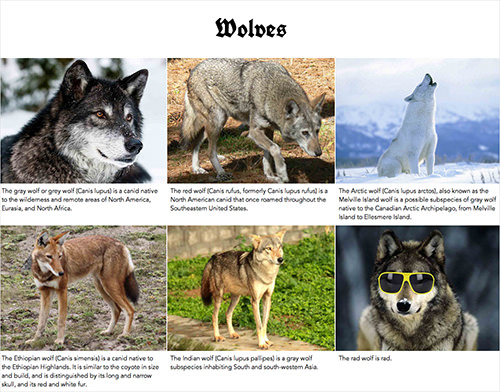
Let’s get back to our example. Suppose that instead of letting our image fill the full width of the viewport on small screens, we crop the image square, zooming in on the most important part of the subject, and present that small square crop at a fixed size floated off to the left, leaving a lot of space for descriptive text, like this35:

An example of images combined with descriptive text
An example with images combined with descriptive text. (See the demo36)

To achieve this, we’ll need a couple of additional image sources:

cropped-small.jpg (96 × 96 pixels)

cropped-large.jpg (192 × 192 pixels)

small.jpg (320 × 240 pixels)

medium.jpg (640 × 480 pixels)

large.jpg (1024 × 768 pixels)

How do we mark them up? Like so:

<picture>
   <source media="(min-width: 36em)"
      srcset="large.jpg  1024w,
         medium.jpg 640w,
         small.jpg  320w"
      sizes="33.3vw" />
   <source srcset="cropped-large.jpg 2x,
         cropped-small.jpg 1x" />
   <img src="small.jpg" alt="A rad wolf" />
</picture>

This example is as complex as it gets, using every feature that we’ve covered so far. Let’s break it down.

The <picture> element contains two sources and an img. The sources represent the two separate art-directed versions of the image (the square crop and the full crop). The (required) img serves as our fallback. As we’ll soon discover, it does much of the actual work behind the scenes.

First, let’s take a close look at that first source:

<source media="(min-width: 36em)"
   srcset="large.jpg  1024w,
      medium.jpg 640w,
      small.jpg  320w"
   sizes="33.3vw" />

This source represents the full uncropped version of our image. We want to show the full image only in the three-column layout — that is, when the viewport is wider than 36 ems. The first attribute here, media="(min-width: 36em)", makes that happen. If a query in a media attribute evaluates to true, then the browser must use that source; otherwise, it’s skipped.

The source’s other two attributes — srcset and sizes — are mostly copied from our previous variable-sized-image example. One difference: Because this source will be chosen only for the three-column layout, our sizes attribute only needs a single length, 33.3vw.

When the viewport is narrower than 36 ems, the first source’s media query will evaluate to false, and we’d proceed to the second:

<source srcset="square-large.jpg 2x,
                square-small.jpg 1x" />

This represents our small square crop. This version is displayed at a fixed width, but we still want it to render crisply on high-resolution screens. Thus, we’ve supplied both 1x and 2x versions and marked them up with simple x descriptors.

Lastly, we come to the surprisingly important (indeed, required!) img.

Any child of an audio or video element that isn’t a source is treated as fallback content and hidden in supporting browsers. You might, therefore, assume the same thing about the img here. Wrong! Users actually see the img element when we use <picture>. Without img, there’s no image; <picture> and all of its sources are just there to feed it a source.

Why? One of the main complaints about the first <picture> specification was that it reinvented the wheel, propsing an entirely new HTML media element, along the lines of audio and video, that mostly duplicated the functionality of img. Duplicated functionality means duplicated implementation and maintenance work — work that browser vendors weren’t keen to undertake.

Thus, the new specification’s reuse of img. The <picture> itself is invisible, a bit like a magical span. Its sources are just there for the browser to draw alternate versions of the image from. Once a source URL is chosen, that URL is fed to the img. Practically speaking, this means that any styles that you want to apply to your rendered image (like, say, max-width: 100%) need to be applied to img, not to <picture>.

OK, on to our last feature.

The Type-Switching Use Case

Let’s say that, instead of doing all of this squishing, stretching and adapting to myriad viewport conditions, we simply want to give a new file format a spin and provide a fallback for non-supporting browsers. For this, we follow the pattern established by audio and video: source type.

<picture>
   <source type="image/svg" src="logo.svg" />
   <source type="image/png" src="logo.png" />
   <img src="logo.gif" alt="RadWolf, Inc." />
</picture>

If the browser doesn’t understand the image/svg media type37, then it skips the first source; if it can’t make heads or tails of image/png, then it falls back to img and the GIF.

During the extremely painful GIF-to-PNG transition38 period, web designers would have killed for such a feature. The <picture> element gives it to us, setting the stage for new image formats to be easily adopted in the years to come.

That’s It!

That’s everything: every feature in the new <picture> specification and the rationale behind each. All in all, srcset, x, w, sizes, <picture>, source, media and type give us a rich set of tools with which to make images truly adaptable — images that can (finally!) flow efficiently in flexible layouts and a wide range of devices.

The specification is not yet final. The first implementations are in progress and are being staged behind experimental flags; its implementors and authors are working together to hash out the specification’s finer details on a daily basis. All of this is happening under the umbrella of the Responsive Images Community Group39. If you’re interested in following along, join40 the group, drop in on the IRC channel41, weigh in on a GitHub issue42 or file a new one, sign up for the newsletter43, or follow the RICG on Twitter44.

1.http://timkadlec.com/2014/05/dont-wait-on-responsive-images/

2.https://twitter.com/wilto/status/465850875102371840

3.http://alistapart.com/article/dao

4.http://www.google.com/imghp

5.http://mashable.com/2013/09/16/facebook-photo-uploads/

6.http://www.loc.gov/pictures/

7.https://www.flickr.com/commons

8.http://www.google.com/culturalinstitute/about/artproject/

9.http://www.huffingtonpost.com/2012/07/10/first-photo-ever-on-the-internet-les-horribles-cernettes_n_1662823.html

10.http://bukk.it/look.jpg

11.http://httparchive.org/trends.php?s=All&minlabel=Nov+15+2010&maxlabel=Apr+1+2014#bytesImg&reqImg

12.http://blog.cloudfour.com/css-media-query-for-mobile-is-fools-gold/

13.http://picture.responsiveimages.org

14.http://www.brucelawson.co.uk/2011/notes-on-adaptive-images-yet-again/

15.http://lists.w3.org/Archives/Public/public-html/2007Jul/0121.html

16.http://status.modern.ie/pictureelement

17.http://picture.responsiveimages.org/images/viewport_selection_mob_first.jpg

18.http://www.stevesouders.com/blog/2013/04/26/i/

19.http://ericportis.com/posts/2014/srcset-sizes/

20.http://lists.whatwg.org/htdig.cgi/whatwg-whatwg.org/2012-May/035855.html

21.http://alistapart.com/article/responsive-images-how-they-almost-worked-and-what-we-need

22.http://ericportis.com/posts/2014/srcset-sizes/

23.http://ericportis.com/etc/smashing-mag-picture-examples/variable-size.html

24.http://ericportis.com/etc/smashing-mag-picture-examples/variable-size.html

25.https://github.com/ResponsiveImagesCG/picture-element/issues/85

26.https://github.com/ResponsiveImagesCG/picture-element/issues/86

27.http://www.w3.org/TR/css3-values/#lengths

28.http://www.w3.org/TR/css3-values/#viewport-relative-lengths

29.http://ericportis.com/etc/smashing-mag-picture-examples/absolute-and-fixed.html

30.http://ericportis.com/etc/smashing-mag-picture-examples/absolute-and-fixed.html

31.http://caniuse.com/calc

32.http://dev.w3.org/csswg/css-values/#calc-notation

33.http://ericportis.com/etc/ipad-air-art-direction/ipadair_hero_a.jpg

34.http://ericportis.com/etc/ipad-air-art-direction/ipadair_hero_b.jpg

35.http://ericportis.com/etc/smashing-mag-picture-examples/art-direction.html

36.http://ericportis.com/etc/smashing-mag-picture-examples/art-direction.html

37.http://en.wikipedia.org/wiki/Internet_media_type

38.http://alistapart.com/article/pngopacity

39.http://responsiveimages.org

40.http://www.w3.org/community/respimg/

41.http://irc.lc/w3c/respimg/newb

42.https://github.com/ResponsiveImagesCG/picture-element/issues

43.http://responsiveimages.org

44.http://www.twitter.com/respimg

Automate Your Responsive Images With Mobify.js

By Shawn Jansepar

Responsive images are one of the biggest sources of frustration in the web development community. With good reason, too: The average size of pages has grown from 1 MB to a staggering 1.5 MB1 in the last year alone. Images account for more than 60% of that growth, and this percentage will only go up2.

Much of that page weight could be reduced if images were conditionally optimized based on device width, pixel density and modern image formats (such as WebP3). These reductions would result in faster loading times and in users who are more engaged and who would stick around longer. But the debate isn’t about whether to optimize images for different devices, but about how to go about doing so.

In an ideal world, we would continue using the img tag, and the browser would download exactly what it needs based on the width of the device and the layout of the page. However, no functionality like that currently exists. One way to get functionality similar to that would be to change the src attribute of img elements on the fly with JavaScript, but the lookahead pre-parser (or preloader) prevents this4 from being a viable option.

The first step to overcoming this problem is to create a markup-based solution that allows for alternate image sources to be delivered based on a device’s capabilities. This was solved with the introduction of the picture element5, created by the W3C Responsive Images Community Group (although no browser currently implements it natively).

However, the picture element introduces a whole new problem: Developers must now generate a separate asset for every image at every breakpoint. What developers really need is a solution that automatically generates small images for small devices from a single high-resolution image. Ideally, this automated solution would make only one request per image and would be 100% semantic and backwards-compatible. The Image API in Mobify.js6 provides that solution.

The <picture> Element As The Upcoming Best Practice

The picture element is currently the frontrunner to replace the img element7 because it enables developers to specify different images for different screen resolutions in order to solve the problem of both performance and art direction8 (although the new srcN proposal9 is worth looking into). The typical set-up involves defining breakpoints10, generating images for each breakpoint and then writing the picture markup for the image. Let’s see how we can make the following image responsive using a workflow that includes the picture element:

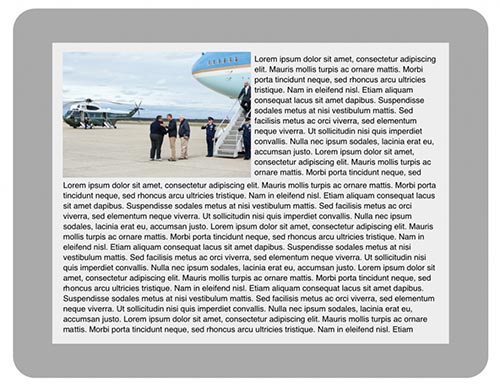
President Obama and Governor Christi
Larger view.11

We’ll use a baseline of 320, 512, 1024 and 204812 pixels.

First, we need to generate a copy of each image for those different resolutions, either by using a command-line interface (CLI) tool such as Image Optim13 or by saving them with Photoshop’s “Save for web” feature. Then, we would use the following markup:

<picture>
    <source src="responsive-obama-320.png">
    <source src="responsive-obama-512.png" media="(min-width: 512px)">
    <source src="responsive-obama-1024.png" media="(min-width: 1024px)">
    <source src="responsive-obama-2048.png" media="(min-width: 2048px)">
    <noscript><img src="responsive-obama-320.png"></noscript>
</picture>

One problem with this markup is that, in its current configuration, our image would not be optimized for mobile devices. Here is the same image scaled down to 320 pixels wide:

President Obama and Governor Christi

Identifying the people in this photo is difficult. To better cater to the smaller screen size, we need to use the power of art direction to crop this photo for small screens:

responsive-obama-mobile
Larger view.14

Because this file isn’t simply a scaled-down version of the original, the name of the file should be given a different structure (so, responsive-obama-mobile.png, instead of responsive-obama-320.png):

<picture>
    <source src="responsive-obama-mobile.png">
    <source src="responsive-obama-512.png" media="(min-width: 512px)">
    <source src="responsive-obama-1024.png" media="(min-width: 1024px)">
    <source src="responsive-obama-2048.png" media="(min-width: 2048px)">
    <noscript><img src="responsive-obama-512.png"></noscript>
</picture>

But what if we want to account for high-DPI (dots per inch) devices? The picture element’s specification has a srcset attribute that allows us to easily specify different images for different pixel ratios. Below is what our markup would look like if we used the picture element.

<picture>
    <source srcset="responsive-obama-mobile.png 1x, responsive-obama-mobile-2x.png 2x">
    <source srcset="responsive-obama-512.png 1x, responsive-obama-1024.png 2x" media="(min-width: 512px)">
    <source srcset="responsive-obama-1024.png 1x, responsive-obama-1024.png 2x" media="(min-width: 1024px)">
    <source srcset="responsive-obama-2048.png 1x, responsive-obama-4096.png 2x" media="(min-width: 2048px)">
    <noscript><img src="responsive-obama-512.png"></noscript>
</picture>

Here we have introduced a couple of new files (responsive-obama-mobile-2x.png and responsive-obama-4096.png) that must also be generated. At this point, we’ll have six different copies of the same image.

Let’s take this a step further. What if we want to conditionally load our images in a more modern format, such as WebP, according to whether the browser supports it? Suddenly, the total number of files we must generate increases from 6 to 12. Let’s be honest: No one wants to generate multiple versions of every image for various resolutions and have to constantly update those versions in the markup. We need automation!

The Ideal Responsive Image Workflow

The ideal workflow is one that allows developers to upload images in the highest resolution possible while still using the img element in such a way that it automatically resizes and compresses the images for different browsers. The img element is great because it is a simple tag for solving a simple problem: displaying images for users on the Web. Continuing to use this element in a way that is performant and backwards-compatible would be ideal. Then, when the need for art direction arises and scaling down images is not enough, we could use the picture element; the branching logic built into its syntax is perfect for that use case.

This ideal workflow is possible using the responsive Image API in Mobify.js15. Mobify.js is an open-source library that improves responsive websites by providing responsive images, JavaScript and CSS optimization, adaptive templating and more. The Image API automatically resizes and compresses img and picture elements and, if needed, does it without changing a single line of markup in the back end. Simply upload your high-resolution assets and let the API take care of the rest.

Automatically Make Images Responsive Without Changing The Back End

The problem of responsive images is a hard one to solve because of the lookahead pre-parser, which prevents us from changing the src attribute of an img element on the fly with JavaScript in a performant way. The pre-parser is a feature of browsers that starts downloading resources as fast as possible by spawning a separate thread outside of the main rendering thread and whose only job is to locate resources and download them in parallel. The way the pre-parser works made a lot of sense prior to responsive design, but in our multi-device world, images in the markup are not necessarily the images we want users to download; thus, we need to start thinking of APIs that allow developers to control resource loading without sacrificing the benefits of the pre-parser. For more details on this subject, consider reading Steve Souders’ “I <3 Image Bytes16.”

One way that many developers avoid the pre-parser is by manually changing the src attribute of each img into data-src, which tricks the pre-parser into not noticing those images, and then changing data-src back to src with JavaScript. With the Capturing API17 in Mobify.js, we can avoid this approach entirely, allowing us to be performant while remaining completely semantic18 (no <noscript> or data-src hacks needed). The Capturing technique stops the pre-parser from initially downloading the resources in the page, but it doesn’t prevent parallel downloads. Using Mobify.js’ Image API in conjunction with Capturing, we are able to have automatic responsive images with a single JavaScript tag.

Here is what the API call looks like:

Mobify.Capture.init(function(capture){
    var capturedDoc = capture.capturedDoc;
    var images = capturedDoc.querySelectorAll('img, picture');
    Mobify.ResizeImages.resize(images, capturedDoc) 
    capture.renderCapturedDoc();
});

This takes any image on the page and rewrites the src to the following schema:

http://ir0.mobify.com/<format><quality>/<maximum width>/<maximum height>/<url>

For example, if this API was running on the latest version of Chrome for Android, with a screen 320 CSS pixels wide and a device pixel ratio of 2, then the following image…

<img src='cdn.mobify.com/mobifyjs/examples/assets/images/forest.jpg'>

… would be rewritten to this:

<img src='//ir0.mobify.com/webp/640/http://cdn.mobify.com/mobifyjs/examples/assets/images/forest.jpg'>

The image of the forest would be resized to 640 pixels wide, and, because Chrome supports WebP, we would take advantage of that in order to reduce the size of the image even further. After the first request, the image would be cached on Mobify’s CDN for the next time it is needed in that particular size and format. Because this image of the forest does not require any art direction, we can continue using the img element.

You can see an example of automatic image resizing19 for yourself. Feel free to open your web inspector to confirm that the original images do not download!

Using this solution, we simplify our workflow. We only upload a high-resolution asset for each image, and then sit back and let the API take care of resizing them automatically. No proxy in the middle, no changing of any attributes — just a single JavaScript snippet that is copied to the website. Go ahead and try it out by copying and pasting the following line of code at the top of your head element. (Please note that it must go before any other tag that loads an external resource.)

<script>!function(a,b,c,d,e){function g(a,c,d,e){var f=b.getElementsByTagName("script")[0];a.src=e,a.id=c,a.setAttribute("class",d),f.parentNode.insertBefore(a,f)}a.Mobify={points:[+new Date]};var f=/((; )|#|&|^)mobify=(\d)/.exec(location.hash+"; "+b.cookie);if(f&&f[3]){if(!+f[3])return}else if(!c())return;b.write('<plaintext style="display:none">'),setTimeout(function(){var c=a.Mobify=a.Mobify||{};c.capturing=!0;var f=b.createElement("script"),h="mobify",i=function(){var c=new Date;c.setTime(c.getTime()+3e5),b.cookie="mobify=0; expires="+c.toGMTString()+"; path=/",a.location=a.location.href};f.onload=function(){if(e)if("string"==typeof e){var c=b.createElement("script");c.onerror=i,g(c,"main-executable",h,mainUrl)}else a.Mobify.mainExecutable=e.toString(),e()},f.onerror=i,g(f,"mobify-js",h,d)})}(window,document,function(){var a=/webkit|msie\s10|(firefox)[\/\s](\d+)|(opera)[\s\S]*version[\/\s](\d+)|3ds/i.exec(navigator.userAgent);return a?a[1]&&+a[2]<4?!1:a[3]&&+a[4]<11?!1:!0:!1},

// path to mobify.js
"//cdn.mobify.com/mobifyjs/build/mobify-2.0.1.min.js",

// calls to APIs go here
function() {
  var capturing = window.Mobify && window.Mobify.capturing || false;

  if (capturing) {
    Mobify.Capture.init(function(capture){
      var capturedDoc = capture.capturedDoc;

      var images = capturedDoc.querySelectorAll("img, picture");
      Mobify.ResizeImages.resize(images);  

      // Render source DOM to document
      capture.renderCapturedDoc();
    });
  }
});
</script>

(Please note that this script does not have a single point of failure. If Mobify.js fails to load, then the script will opt out and your website will load as normal. If the image-resizing servers are down or if you are in a development environment and the images are not publicly accessible, then the original images will load.)

You can also make use of the full documentation20. Browser support for the snippet above is as follows: All Webkit/Blink based browsers, Firefox 4+, Opera 11+, and Internet Explorer 10+.

Resizing img elements automatically is great for the majority of use cases. But, as demonstrated in the Obama example, art direction is necessary for certain types of images. How can we continue using the picture element for art direction without having to maintain six versions of the same image? The Image API will also resize picture elements, meaning that you can use the picture element for its greatest strength (art direction) and leave the resizing up to the API.

Resizing <picture> Elements

While automating the sizes of images for different browsers is possible, automating art direction is impossible. The picture element is the best possible solution for specifying different images at different breakpoints, due to the robust branching logic built into its defined syntax (although as mentioned before, srcN is a more recent proposal that offers very similar features). But, as mentioned, writing the markup for the picture element and creating six assets for each image gets very complicated:

<picture>
    <source srcset="responsive-obama-mobile.png 1x, responsive-obama-mobile-2x.png 2x">
    <source srcset="responsive-obama-512.png 1x, responsive-obama-1024.png 2x" media="(min-width: 512px)">
    <source srcset="responsive-obama-1024.png 1x, responsive-obama-1024.png 2x" media="(min-width: 1024px)">
    <source srcset="responsive-obama-2048.png 1x, responsive-obama-4096.png 2x" media="(min-width: 2048px)">
    <noscript><img src="responsive-obama-512.png"></noscript>
</picture>

When using the Image API in conjunction with the picture element, we can simplify the markup significantly:

<picture>
    <source src="responsive-obama-mobile.png">
    <source src="responsive-obama.png" media="(min-width: 512px)">
    <img src="responsive-obama.png">
</picture>

The source elements here will be automatically rewritten in the same way that the img elements were in the previous example. Also, note that the markup above does not require noscript to be used for the fallback image to prevent a second request, because Capturing allows you to keep the markup semantic.

Mobify.js also allows for a modified picture element, which is useful for explicitly defining how wide images should be at different breakpoints, instead of having to rely on the width of devices. For example, if you have an image that is half the width of a tablet’s window, then specifying the width of the image according to the maximum width of the browser would generate an image that is larger than necessary:

tablet-example
In this case, automatically specifying a width according to the browser’s width would create an unnecessarily large image.

To solve this problem, the Image API allows for alternate picture markup that enables us to override the width of each source element, instead of specifying a different src attribute for each breakpoint. For example, we could write an element like this:

<picture data-src="responsive-obama.png">
    <source src="responsive-obama-mobile.png">
    <source media="(min-width: 512px)">
    <source media="(min-width: 1024px)" data-width="512">
    <source media="(min-width: 2048px)" data-width="1024">
    <img src="responsive-obama.png">
</picture>

Notice the use of the data-src attribute on the picture element. This gives us a high-resolution original image as a starting point, which we can use to resize into assets for other breakpoints.

Let’s break down how this would actually work in the browser:

If the browser is between 0 and 511 pixels wide (i.e. a smartphone), then use responsive-obama-mobile.png (for the purpose of art direction).

If the browser is between 512 and 1023 pixels wide, then use responsive-obama.png, because src is not specified in the source element corresponding to that media query. Automatically determine the width because data-width isn’t specified.

If the browser is between 1024 and 2047 pixels wide, then use responsive-obama.png, because src is not specified in the sourceelement corresponding to that media query. Resize to 512 pixels wide, as specified in the data-width attribute.

If the browser is 2048 pixels or wider, then use responsive-obama.png, because src is not specified in the source element corresponding to that media query. Resize to 1024 pixels wide, as specified in the data-width attribute.

If JavaScript isn’t supported, then fall back to the regular old img tag.

The Image API will run on each picture element, transforming the markup into this:

<picture data-src="http://cdn.mobify.com/mobifyjs/examples/assets/images/responsive-obama-mobile.jpg">
    <source src="//ir0.mobify.com/webp/400/http://cdn.mobify.com/mobifyjs/examples/assets/images/responsive-obama-mobile.jpg">
    <source src="//ir0.mobify.com/webp/400/http://cdn.mobify.com/mobifyjs/examples/assets/images/responsive-obama.jpg" media="(min-width: 512px)">
    <source src="//ir0.mobify.com/webp/512/http://cdn.mobify.com/mobifyjs/examples/assets/images/responsive-obama.jpg" media="(min-width: 1024px)" data-width="512">
    <source src="//ir0.mobify.com/webp/512/http://cdn.mobify.com/mobifyjs/examples/assets/images/responsive-obama.jpg" media="(min-width: 2048px)" data-width="1024">
    <img src="responsive-obama.jpg">
</picture>

The Picture polyfill (included in Mobify.js) would then run and select the appropriate image according to the media queries. It will also work well when browser vendors implement the picture element natively.

See a page that uses the modified picture element markup21 for yourself.

Using the Image API without Capturing

One caveat with Capturing is that it requires the script to be inserted in the head element, which is a blocking JavaScript call that can delay the initial downloading of resources. The total length of delay on first load is approximately 0.5 seconds on a device with a 3G connection22 (i.e. including the DNS lookup and downloading and Capturing), less on 4G or Wi-Fi, and about 60 milliseconds on subsequent requests (since the library will have been cached). But the minor penalty is a small price to pay in exchange for being easy to use, backwards-compatible and semantic.

To use the Image API without Capturing to avoid the blocking JavaScript request, you need to change the src attribute of all of your img elements to x-src (you might also want to add the appropriate noscript tags if you’re concerned about browsers on which JavaScript has been disabled) and paste the following asynchronous script right before the closing head tag:

<script src="//cdn.mobify.com/mobifyjs/build/mobify-2.0.1.min.js">
<script>
    var intervalId = setInterval(function(){
        if (window.Mobify) {
            var images = document.querySelectorAll('img[x-src], picture');
            if (images.length > 0) {
                Mobify.ResizeImages.resize(images);
            }
            // When the document has finished loading, stop checking for new images
            if (Mobify.Utils.domIsReady()) {
                clearInterval(intervalId)
            }
        }
    }, 100);
</script>

This script will load Mobify.js asynchronously, and when finished loading, will start to loading the images as the document loads (it does not need to wait for the entire document to finish loading before kicking off image requests).

Using The Image API For Web Apps

If you are using a client-side JavaScript model-view-controller (MVC) framework, such as Backbone or AngularJS, you could still use Mobify.js’ Image API. First, include the Mobify.js library in your app:

<script src="//cdn.mobify.com/mobifyjs/build/mobify-2.0.1.min.js"></script>

Then, rewrite image URLs with the method outlined in Mobify.js’ documentation23:

Mobify.ResizeImages.getImageUrl(url)

This method accepts an absolute URL and returns the URL to the resized image. The easiest way to pass images into this method is by creating a template helper (for example, {{image_resize ’/obama.png’ }} in Handlebars.js) that executes the getImageUrl method in order to generate the image’s URL automatically.

Using Your Own Image-Resizing Back End

Images are resized through Mobify’s Performance Suite24 resizing servers, which provides support for automatic resizing, WebP, CDN caching and more. There is a default limit25 on how many images you can convert for free per month, but if you’re driving a large volume of traffic, then give Mobify a shout and we’ll find a way to help. The API also allows you to use a different image-resizing service26, such as Sencha.io Src, or your own backend service.

How Can Browser Vendors Better Support Responsive Images?

The Webkit team has recently implemented the src-set attribute, and so will Blink and Gecko in the coming months. This is a huge step in the right direction, as it means that browser vendors are taking the responsive image problem seriously. However, it doesn’t solve the art direction problem, nor does it prevent the issue of needing to generate multiple assets at different resolutions.

The developer community recently got together to discuss27 the responsive image problem. One of the more interesting proposals discussed was Client Hints28 from Ilya Grigorik, which is a proposal that involves sending device properties such as DPR, width and height in the headers of each request. I like this solution, because it allows us to continue using the img tag as per usual, and only requires us to use the picture (or srcN) when we need branching logic to do art direction. Although valid concerns have been raised about adding additional HTTP headers and using content negotiation29 to solve this problem. More importantly, for established websites with thousands of images, it may not be so easy to route those images through a server that can resize using the headers provided by Client Hints. This could be solved by re-writing images at the web server level, or with a proxy, but both of those can be problematic to setup. In my opinion, this is something we should be able to handle on the client through greater control over resource loading.

If developers had greater control over resource loading, then responsive images would be a much simpler problem to tackle30. The reason why so many responsive image solutions out there are proxy-based is because the images must be rewritten before the document arrives to the browser. This is to accommodate the pre-parser’s attempt to download images as quickly as possible. But proxies can be very problematic in their security and scalability and, really, if we had an easy way to interact with the pre-parser, then many proxy-based solutions would be redundant.

How can we get greater control over resource loading while still getting all of the benefits from the pre-parser? The key thing here is that we do not want to simply turn off the pre-parser — its ability to download assets in parallel is a huge win and one of the biggest performance improvements introduced into browsers. (Please note that the Capturing API does not prevent parallel downloads.) One idea is to provide a beforeload event that fires before each resource on a page has loaded. This event is actually available when one uses Safari browser extensions31, and in some browsers it is available in a very limited capacity. If we could use this event to control resource loading in a way that works with the pre-parsing thread, then Capturing would no longer be needed. Here is a basic example of how you might use the beforeload event, if it worked as described:

function rewriteImgs(event) {
    if (event.target === "IMG") {
        var img = event.target;
        img.src = "//ir0.mobify.com/" + screen.width + "/" + img.src;
    }
}
document.addEventListener("beforeload", rewriteImgs, true);

The key challenge is to somehow get the pre-parser to play nice with JavaScript that is executed in the main rendering loop. There is currently a new system being developed in browsers called the Service Worker32, which is intended to allow developers to intercept network requests in order to help build web applications that work offline. However, the current implementation does not allow for intercepting requests on the initial load. This is because loading an external script which controls resource loading would have to block the loading of other resources — but I believe it could be modified33 to do so in a way that does not sacrifice performance through the use of inline scripts.

Conclusion

While there are many solutions to the problem of responsive images, the one that automates as much work as possible while still allowing for art direction will be the solution that drives the future of web development. Consider using Mobify.js to automate responsive images today if you are after a solution that does the following:

requires you to generate only one high-resolution image for each asset, letting the API take care of serving smaller images based on device conditions (width, WebP support, etc.);

makes only one request per image;

allows for 100% semantic and backwards-compatible markup that doesn’t require changes to your back end (if using Capturing);

has a simplified picture element that is automatically resized, so you can focus on using it only for art direction.

1.http://www.webperformancetoday.com/2013/06/05/web-page-growth-2010-2013/

2.http://httparchive.org/trends.php

3.https://developers.google.com/speed/webp/

4.http://blog.cloudfour.com/the-real-conflict-behind-picture-and-srcset/

5.http://www.w3.org/community/respimg/

6.http://www.mobify.com/mobifyjs/v2/docs/image-resizer/

7.http://timkadlec.com/2012/05/wtfwg/

8.http://www.yoav.ws/2013/05/How-Big-Is-Art-Direction

9.http://lists.w3.org/Archives/Public/public-respimg/2013Sep/0087.html

10.http://blog.cloudfour.com/sensible-jumps-in-responsive-image-file-sizes/

11.http://media.smashingmagazine.com/wp-content/uploads/2013/10/President_Barack_Obama_Tours_Storm_Damage_in_New_Jersey_2-opt.jpg

12.http://blog.cloudfour.com/how-do-you-pick-responsive-images-breakpoints/comment-page-1/#comment-14803

13.https://github.com/toy/image_optim

14.http://media.smashingmagazine.com/wp-content/uploads/2013/10/responsive-obama-mobile-opt.jpg

15.http://www.mobify.com/mobifyjs/v2/docs/image-resizer/

16.http://www.stevesouders.com/blog/2013/04/26/i/

17.https://hacks.mozilla.org/2013/03/capturing-improving-performance-of-the-adaptive-web/

18.http://www.vanseodesign.com/web-design/semantic-html/

19.http://cdn.mobify.com/mobifyjs/examples/resizeImages-img-element/index.html

20.http://www.mobify.com/mobifyjs/v2/docs/

21.http://cdn.mobify.com/mobifyjs/examples/resizeImages-picture-element/index.html

22.http://www.webpagetest.org/result/130619_MK_20EK/1/details/

23.http://www.mobify.com/mobifyjs/v2/docs/image-resizer/#resizeimagesgetimageurlurl-options

24.https://cloud.mobify.com/

25.https://cloud.mobify.com/mps/

26.http://www.mobify.com/mobifyjs/v2/docs/image-resizer/#resizeimagesgetimageurlurl-options

27.http://www.w3.org/community/respimg/2013/09/18/paris-responsive-images-meetup/

28.https://github.com/igrigorik/http-client-hints

29.https://groups.google.com/a/chromium.org/forum/#!msg/blink-dev/c38s7y6dH-Q/F4stpsFmih8J

30.http://daverupert.com/2013/06/ughck-images/

31.http://developer.apple.com/library/safari/#documentation/Tools/Conceptual/SafariExtensionGuide/MessagesandProxies/MessagesandProxies.html

32.https://github.com/slightlyoff/ServiceWorker

33.https://github.com/slightlyoff/ServiceWorker/issues/73

One Solution To Responsive Images

By Gavyn McKenzie

Responsive images have been, and are, one of the hardest problems in responsive web design right now. Until browser vendors have a native solution, we have to think on the fly and come up with our own solutions. “Retina” images are especially a challenge because if you have sized your layout with ems or percentages (as you should!), then you cannot be sure of the exact pixel dimensions of each image being displayed.

In this chapter, we’ll look at one solution to the problem that we implemented on our portfolio website at Etch1, where you can see an early working version in the wild.

Requirements

We used a content-first2 approach on Etch. We knew we wanted to use a lot of images to quickly convey the atmosphere of the company. These would be accompanied by small snippets, or “soundbites,” of text.

The next decision was on image sizes and aspect ratios. To get maximum control over the design, we knew we needed maximum control over the images. We decided to use Instagram as the base for our imagery for the following reasons:

The aspect ratio is fixed.

Most employees here already use it.

Those lovely filters.

Instagram allows for a maximum image size of 600 pixels, so we now had our first set of content constraints to work with: images with a 1:1 aspect ratio, and a maximum image size of 600 × 600. Having constraints on the content side made the design process easier because they limited our options, thus forcing decisions.

When the content was completed, we began looking at the design. Again, to keep maximum control, we decided on an adaptive design style with fixed column sizes. We used grid block elements that match our maximum image size. Each grid block would either be 600 × 600 or 300 × 300, which also conveniently fit our rough plan of a minimum width of 320 pixels for the viewport on the website.

During the rest of the design process, we noticed that we needed two other image sizes: thumbnails at 100 × 100, and hero images that stretch the full width of the content (300, 600, 900, 1200, 1600, 1800). All images would also need to be “Retina” ready — or, to put it another way, compatible with displays with high pixel densities. This gave us the final set of requirements for a responsive images solution for the website:

Potential image widths (in pixels) of 100, 300, 600, 900, 1200, 1600, 1800

Retina ready

Must be crisp with minimal resizing (some people notice a drop in quality with even downsized images)

Having to resize that many images manually, even using a Photoshop script, seemed like too much work. Anything like that should be automated, so that you can focus on fun and interesting coding instead. Automation also removes the chance for human error, like forgetting to do it. The ideal solution would be for us to add an image file once and forget about it.

Common Solutions

Before going over our solution, let’s look at some common solutions currently being used. To keep up with currently popular methods and the work that the web community is doing to find a solution to responsive images, head over to the W3C Responsive Images Community Group3.

Picture Element

First up, the picture4 element. While this doesn’t currently have native support and browser vendors are still deciding on picture versus srcset versus whatever else is up for discussion, we can use it with a polyfill.

<picture alt="description">
  <source src="small.jpg">
  <source src="medium.jpg" media="(min-width: 40em)">
  <source src="large.jpg" media="(min-width: 80em)">
</picture>

The picture element is great if you want to serve images with a different shape, focal point or other feature beyond just resizing. However, you’ll have to presize all of the different images to be ready to go straight in the HTML. This solution also couples HTML with media queries, and we know that coupling CSS to HTML is bad for maintenance. This solution also doesn’t cover high-definition displays

For this project, the picture element required too much configuration and manual creation and storage of the different image sizes and their file paths.

srcset

Another popular solution, srcset5, has recently been made available natively in some WebKit-based browsers. At the time of creating our plugin, this wasn’t available, and it looks like we’ll be waiting a while longer until cross-browser compatibility is good enough to use it without a JavaScript fallback. At the time of writing, srcset is usable only in the Chrome and Safari nightly builds.

<img src="fallback.jpg" srcset="small.jpg 640w 1x, small-hd.jpg 640w 2x, large.jpg 1x, large-hd.jpg 2x" alt="…">

The snippet above shows srcset in use. Again, we see what essentially amounts to media queries embedded in HTML, which really bugs me. We’d also need to create different image sizes before runtime, which means either setting up a script or manually doing it, a tiresome job.

Server-Side Sniffing

If you’d rather not use JavaScript to decide which image to serve, you could try sniffing out the user agent server-side and automatically send an appropriately sized image. As a blanket rule, we almost always say don’t rely on server-side sniffing. It’s very unreliable, and many browsers contain inaccurate UA strings. On top of that, the sheer number of new devices and screen sizes coming out every month will lead you to maintenance hell.

Other Solutions in the Wild

We chose to make our own plugin because including layout code in the HTML seemed undesirable and having to create different image sizes beforehand was not enticing.

If you’d like to explore other common solutions to decide which is best for your project, several great articles and examples are available on the Web.

Choosing a Responsive Image Solution6,” Sherri Alexander, Smashing Magazine
Alexander looks at the high-level requirements for responsive images, and then dissects the variety of solutions currently available in the wild.

Which Responsive Image Solution Should You Use7,” Chris Coyier, CSS-Tricks
Coyer takes us through imaging requirements while suggesting appropriate solutions.

Adaptive Images8
A solution very similar to Etch’s in its implementation. It uses a PHP script to size and serve the appropriate images. Unfortunately, this wasn’t available when we were coding the website.

Picturefill9
This is a JavaScript replacement for markup in the style of the picture element.

Responsive Images Using Cookies10,” Keith Clark
Clark uses a cookie to store the screen’s size, and then images are requested via a PHP script. Again, it’s similar to our solution but wasn’t available at the time.

Onto our solution.

Our Solution

With both picture and srcset HTML syntaxes seeming like too much effort in the wrong places, we looked for a simpler solution. We wanted to be able to add a single image path and let the CSS, JavaScript and PHP deal with serving the correct image — instead of the HTML, which should simply have the correct information in place.

At the time of developing the website, no obvious solution matched our requirements. Most centered on emulating picture or srcset, which we had already determined weren’t right for our needs.

The Etch website is very image-heavy, which would make manually resizing each image a lengthy process and prone to human error. Even running an automated Photoshop script was deemed to require too much maintenance.

Our solution was to find the display width of the image with JavaScript at page-loading time, and then pass the src and width to a PHP script, which would resize and cache the images on the fly before inserting them back into the DOM.

We’ll look at an abstracted example of the code, written in HTML, JavaScript, PHP and LESS. You can find a working demo11 on my website. If you’d like to grab the files for the demo, they can be found on GitHub12.

Markup

The markup for the demo can be found in the index.html file on GitHub13.

We wrap the highest-resolution version of an image in noscript tags, for browsers with JavaScript turned off. The reason is that, if we think of performance as a feature and JavaScript as an enhancement, then non-JavaScript users would still receive the content, just not an optimized experience of that content. These noscript elements are then wrapped in a div element, with the image’s src and alt properties as data attributes. This provides the information that the JavaScript needs to send to the server.

<div data-src="img/screen.JPG" data-alt="crispy" class="img-wrap js-crispy">
    <noscript><img src="img/screen.JPG" alt="Crispy"></noscript>
</div>

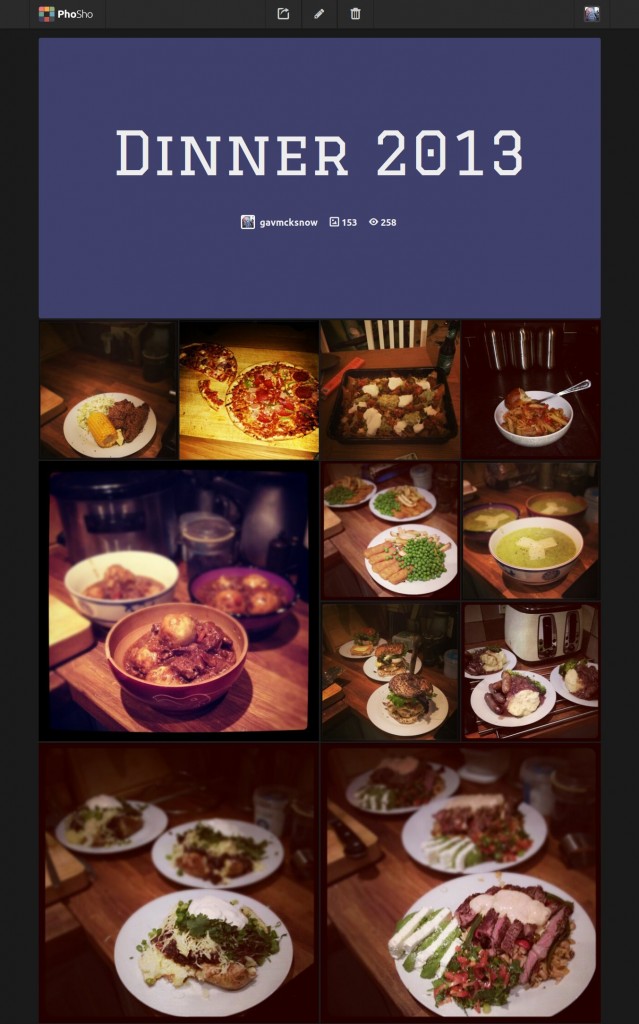
The background of the image wrapper is set as a loading GIF, to show that the images are still loading and not just broken.

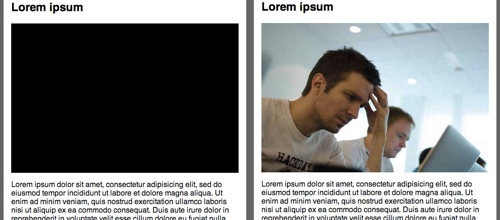
An alternative (which we used in one of our side projects, PhoSho14) is to use the lowest-resolution size of the image that you will be displaying (if known), instead of the loading GIF. This takes slightly more bandwidth because more than one image is being loaded, but it has an appearance similar to that of progressive JPEGs as the page is loading. As always, see what your requirements dictate.

Dinner 2013 - Showcase by gavmcksnow
View large version15.

JavaScript

The JavaScript communicates for us between the HTML and the server. It fetches an array of images from the DOM, with their corresponding widths, and retrieves the appropriate cached image file from the server.

Our original plugin sent one request to the server per image, but this caused a lot of extra requests. By bundling our images together as an array, we cut down the requests and kept the server happy.

You can find the JavaScript plugin16 in /js/resize.js in the GitHub repository.

First, we set an array of breakpoints in the plugin that are the same as the breakpoints in the CSS where the image sizes change. We used em values for the breakpoints because they are based on the display font size. This is a good practice because visually impaired users might change their display’s default font size. This also makes it easier to match our CSS breakpoints with the JavaScript ones. If you prefer, the plugin works just fine with pixel-based breakpoints.

breakpoints: [
    "32em"
    "48em"
    "62em"
    "76em"
]

As we pass each of these breakpoints, we need to check the images to make sure they are the correct size. At page-loading time, we first set the current breakpoint being displayed to the user using the JavaScript matchMedia function. If you need to support old browsers (Internet Explorer 7, 8 and 9), you might require the matchMedia polyfill17 by Paul Irish.

getCurrentBreakpoint: function() {
      var bp, breakpoint, _fn, _i, _len, _ref,
        _this = this;

      bp = this.breakpoints[0];
      
      _ref = this.breakpoints;
      
      _fn = function(breakpoint) {
        // Check if the breakpoint passes
        if (window.matchMedia && window.matchMedia("all and (min-width: " + breakpoint + ")").matches) {
          return bp = breakpoint;
        }
      };
      
      for (_i = 0, _len = _ref.length; _i < _len; _i++) {
        breakpoint = _ref[_i];
        _fn(breakpoint);
      }
      
      return bp;
    }

After setting the current breakpoint, we gather the images to be resized from the DOM by looping through them and adding them to the plugin’s images array.

gather: function() {
      var el, els, _i, _len;

      els = $(this.els);
      
      this.images = [];
      
      for (_i = 0, _len = els.length; _i < _len; _i++) {
        el = els[_i];
        this.add(el);
      }
      
      this.grabFromServer();
    }

The PHP script on the server needs the image’s src and current width in order to resize it correctly, so we created some serialized POST data to send to the server. We use jQuery’s param method to quickly convert the image into a usable query string.

buildQuery: function() {
      var image = { image: this.images }
      return $.param(image);
    }

The images are then sent via an AJAX request to the server to be resized. Note the single request, to minimize server load.

grabFromServer: function() {
      var data,
        _this = this;

      data = this.buildQuery();
      
      $.get("resize.php", data, function(data) {
          var image, _i, _len;
          for (_i = 0, _len = data.length; _i < _len; _i++) {
            image = data[_i];
            _this.loadImage(image);
          }
        }
      );
    }

Once we have retrieved the images from the server, we can add them to the DOM or replace the image already in place if it has changed. If it’s the same image, then nothing happens and the image won’t need to be redownloaded because it’s already in the browser’s cache.

loadImage: function(image) {
      var el, img,
        _this = this;

      el = $("[data-src='" + image.og_src + "']");
      
      img = $("");
      
      img.attr("src", image.src).attr("alt", el.attr("data-alt"));
      
      if (el.children("img").length) {
        el.children("img").attr("src", image.src);
      } else {
        img.load(function() {
          el.append(img);
          el.addClass('img-loaded');
        });
      }
    }

PHP

With the JavaScript simply requesting an array of images at different sizes, the PHP is where the bulk of the action happens.

We use two scripts. One is a resize class18 (found in /php/lib/resize-class.php in the demo), which creates cached versions of the image at the sizes we need. The other script19 sits in the web root, calculates the most appropriate size to display, and acts as an interface between the JavaScript and the resizer.

Starting with the sizing and interface script, we first set an array of pixel sizes of the images that we expect to display, as well as the path to the cached images folder. The image sizes are in pixels because the server doesn’t know anything about the user’s current text-zoom level, only what the physical image sizes being served are.

$sizes = array(
    '100',
    '300',
    '600',
    '1200',
    '1500',
);

$cache = 'img/cache/';

Next, we create a small function that returns the image size closest to the current display size.

function closest($search, $arr) {
    $closest = null;
    foreach($arr as $item) {
        // distance from image width -> current closest entry is greater than distance from  
        if ($closest == null || abs($search - $closest) > abs($item - $search)) {
            $closest = $item;
        }
    }
    $closest = ($closest == null) ? $closest = $search : $closest;
    return $closest;
}

Finally, we can loop through the image paths posted to the script and pass them to the resize class to get the path to the cached image file (and create that file, if necessary).

$crispy = new resize($image,$width,$cache);
$newSrc = $crispy->resizeImage();

We return the original image path in order to find the image again in the DOM and the path to the correctly sized cached image file. All of the image paths are sent back as an array so that we can loop through them and add them to the HTML.

$images[] =  array('og_src' => $src, 'src' => '/'.$newSrc);

In the resize class, we initially need to gather some information about the image for the resizing process. We use Exif to determine the type of image because the file could possibly have an incorrect extension or no extension at all.

function __construct($fileName, $width, $cache) {

    $this->src = $fileName;
    $this->newWidth = $width;
    $this->cache = $cache;
    $this->path = $this->setPath($width);

    $this->imageType = exif_imagetype($fileName);

    switch($this->imageType)
    {
        case IMAGETYPE_JPEG:
            $this->path .= '.jpg';
            break;

        case IMAGETYPE_GIF:
            $this->path .= '.gif';
            break;

        case IMAGETYPE_PNG:
            $this->path .= '.png';
            break;

        default:
            // *** Not recognized
            break;
    }
}

The $this->path property above, containing the cached image path, is set using a combination of the display width, a hash of the file’s last modified time and src, and the original file name.

Upon calling the resizeImage method, we check to see whether the path set in $this->path already exists and, if so, we just return the cached file path.

If the file does not exist, then we open the image with GD to be resized.

Once it’s ready for use, we calculate the width-to-height ratio of the original image and use that to give us the height of the cached image after having been resized to the required width.

if ($this->image) {
    $this->width  = imagesx($this->image);
    $this->height = imagesy($this->image);
}

$ratio = $this->height/$this->width;
$newHeight = $this->newWidth*$ratio;

Then, with GD, we resize the original image to the new dimensions and return the path of the cached image file to the interface script.

$this->imageResized = imagecreatetruecolor($this->newWidth, $newHeight);
imagecopyresampled($this->imageResized, $this->image, 0, 0, 0, 0, $this->newWidth, $newHeight, $this->width, $this->height);

$this->saveImage($this->newWidth);

return $this->path;

What Have We Achieved?

This plugin enables us to have one single batch of images for the website. We don’t have to think about how to resize images because the process is automated. This makes maintenance and updates much easier, and it removes a layer of thinking that is better devoted to more important tasks. Plug it in once and forget about it.

TL;DR? Let’s summarize the functionality once more for good measure.

In our markup, we provide an image wrapper that contains a <noscript> fallback. This wrapper has a data attribute of our original high-resolution image for a reference. We use JavaScript to send an AJAX request to a PHP file on the server, asking for the correctly sized version of this image. The PHP file either resizes the image and delivers the path of the correctly sized image or just returns the path if the image has already been created. Once the AJAX request has been completed, we append the new image to the DOM, or we just update the src if one has already been added. If the user resizes their browser, then we check again to see whether a better image size should be used.

Pros And Cons

All responsive image solutions have their pros and cons, and you should investigate several before choosing one for your project. Ours happens to work for our very specific set of requirements, and it wouldn’t be our default solution. As far as we can tell, there is no default solution at the moment, so we’d recommend trying out as many as possible.

How does this solution weigh up?

Pros

Fast initial page download due to lower image weight

Easy to use once set up

Low maintenance

Fast once cached files have been created

Serves image at correct pixel size (within tolerance)

Serves new image when display size changes (within tolerance)

Cons

Unable to choose image focus area

Requires PHP and JavaScript for full functionality

Can’t cover all possible image sizes if fluid images are used

Might not be compatible with some content management systems

Resizing all images with one request means that, with an empty cache, you have to wait for all to be resized, rather than just one image

The PHP script is tied to breakpoints, so it can’t be dropped in without tweaking

Responsive image solutions have come a long way in recent months, and if we had to do this again, we’d probably look at something like the adaptive images20 solution because it removes even more non-semantic HTML from the page by modifying .htaccess.

Wrapping Up

Until we have a native solution for responsive images, there will be no “right” way. Always investigate several options before settling on one for your project. The example here works well for websites with a few common display sizes for images across breakpoints, but it is by no means the definitive solution. Until then, why not have a go at creating your own solution, or play around with this one on GitHub21?

Addressing The Responsive Images Performance Problem: A Case Study

By Anders Andersen & Tobias Järlund

Five-inch mobile devices are on the market that have the same screen resolution as 50-inch TVs. We have users with unlimited high-speed broadband as well as users who pay money for each megabyte transferred. Responsive design for images is about optimizing the process of serving images to users. In this chapter, we will share our responsive image technique, the “padding-bottom” technique, which we researched and implemented on the mobile version of the Swedish news website Aftonbladet1.

The techniques presented here are the result of a few weeks of research that we did in October 2012. We were fortunate enough to be a part of the team that built a new responsive mobile website for Aftonbladet. Aftonbladet is Sweden’s largest website, and its mobile version gets about 3 million unique users and up to 100 million page views per week.

With that amount of users, we felt it was our responsibility to make a fast and well-optimized website. Saving just 100 KB of image data per page view would translate into a lot of terabytes of data traffic saved in Sweden per year. We started out by researching other responsive image techniques, but because none of them was a perfect match, we ended up combining some of the best hacks into our own solution. Please note that this project covered only a responsive mobile website; but do not worry — the technique presented here applies to all types of responsive websites.

The Specification

We started out by creating a simple specification in order to select a suitable responsive image solution. The solution had to:

be easy to cache,

multiserve images.

Let’s go through these requirements and see what they mean.

Easy to Cache

With a website that gets traffic peaks of over 10,000 requests per second, we wanted to keep the server logic as simple as possible. This means that we didn’t want to use server-side device detection or a cookie-based solution that serves multiple versions of the HTML. We needed a single HTML file to be served to all users, although manipulating the HTML with JavaScript after it has loaded is acceptable. The same rules apply to images; we needed to be able to put the images on a content delivery network (CDN), and we did not want any dynamics in the image-serving logic.

Multiserving Images

We wanted to serve different image versions to different devices. One big complaint about our previous mobile website was that high-DPI iPhones and Android devices did not get the high-resolution images they deserved. So, we wanted to improve image quality, but only for the devices that were capable of displaying it.

Loading Images With JavaScript

JavaScript, if placed in the footer where it should be, will load after the HTML and CSS has been parsed. This means that, if JavaScript is responsible for loading images, we can’t take advantage of the browser’s preloader, and so an image will start downloading a fair bit later than normal. This is not good, of course, and it reveals another problem: The page might reflow every time the JavaScript inserts an image into the DOM.

Reflowing happens when the browser recalculates the dimensions of the elements on the page and redraws them. We have set up a demo page2 and a video3 that demonstrate this effect. Note that the demo page has an inserted delay of 500 milliseconds between each image in order to simulate a slow connection speed.

As you can see from the video, another very annoying feature is that the user will likely get lost in the reflowing when returning to a page with the “Back” button. This is actually a serious problem for websites such as Aftonbladet. Having a functional “Back” button will keep users longer on the website.

The reflowing problem would not really be present on a website that is not responsive because we would be able to set a width and height in pixels on the image tag:

<img src="img.jpg" width="60" height="60"/>

One important aspect of responsive web design is to remove those hardcoded attributes and to make images fluid, with CSS:

img {
	max-width: 100%;
}

No More max-width: 100%

We needed to find a solution whereby we could reserve space for an image with only HTML and CSS and, thus, avoid reflowing. That is, when the JavaScript inserts an image into the page, it would just be inserted in the reserved area and we would avoid reflowing. So, we threw out one of the cornerstones of responsive web design, img { max-width: 100% }, and searched for another solution that could reserve space for a responsive image. What we needed was something that specifies just the aspect ratio of the image and lets the height shrink with the width. And we found a solution.

The Padding-Bottom Hack

This technique is based on something called intrinsic ratios, but because none of our team’s members could remember, understand or pronounce the term “intrinsic” we just called it the “padding-bottom hack.”

Many people learned about this feature back in 2009 in A List Apart’s article “Creating Intrinsic Ratios for Video4,” by Thierry Koblentz5, and the technique is often used to embed third-party content and media on responsive websites. With the technique, we define the height as a measure relative to the width. Padding and margin have such intrinsic properties, and we can use them to create aspect ratios for elements that do not have any content in them.

Because padding has this capability, we can set padding-bottom to be relative to the width of an element. If we also set height to be 0, we’ll get what we want.

.img-container {
	padding-bottom: 56.25%; /* 16:9 ratio */
	height: 0;
	background-color: black;
}

The next step is to place an image inside the container and make sure it fills up the container. To do this, we need to position the image absolutely inside the container, like so:

.img-container {
	position: relative;
	padding-bottom: 56.25%; /* 16:9 ratio */
	height: 0;
	overflow: hidden;
}

.img-container img {
	position: absolute;
	top: 0;
	left: 0;
	width: 100%;
	height: 100%;
}

The container reserves the space needed for the image.

Now we can tweak our demo, applying the padding-bottom hack, and the user will no longer get lost in the reflowing that we saw earlier. Also, the “Back” button functions as expected. See the new video6 and demo7.

This technique improves the user experience of the website quite a bit over the traditional max-width approach, but the experienced reader will by now have noticed two things:

1. We need to know the aspect ratio of the image before we load an image.

2. Images could be scaled up larger than their original size.

To handle the aspect ratios, you need either to have a content management system with which you can control the templates or to have a limited, fixed set of aspect ratios for images. If you have something in between, whereby you cannot affect how image tags are rendered, then this method will probably be hard to use.

At Aftonbladet, we decided to calculate the padding-bottom percentage on the server and print it out as an inline style in the HTML, as you will see in the following code snippets. For the second problem, we found that, for our use case, letting the image scale up if needed (and losing some quality) was actually better than setting a fixed maximum width for the image.

Choosing An Image-Loading Technique

Now that we’ve allowed ourselves to load images with JavaScript, because we’ve minimized the reflowing, we can set up the requirements for this:

The resulting HTML should be a single img tag.

The DOM elements should be minimal.

It should execute as quickly as possible.

It should not break when JavaScript is disabled.

Based on this simple specification, we created an inline vanilla JavaScript, based on the “noscript” technique8. The idea is to add the information about different image sizes to the HTML as data attributes in a noscript tag. The content of the noscript tag would be an img tag and would be shown to browsers that have JavaScript turned off. Let’s look at the markup:

<noscript data-src-small="img-small.jpg" 
    data-src-medium="img-medium.jpg" 
    data-src-high="img-high" 
    data-src-x-high="img-x-high.jpg">
        <img src="img-small.jpg">
</noscript>

The job of the JavaScript, then, is to parse the content of the page, identify images that should be lazy-loaded, check the size of the device’s screen and pick the correct image. The following code would look for images to load and insert them into the DOM. It is important that the JavaScript be inline and load as soon as possible after the HTML. The script would also retrieve the alt tag from the noscript tag and insert it into the newly created img tag.

var lazyloadImage = function (imageContainer) {

		var imageVersion = getImageVersion();

		if (!imageContainer || !imageContainer.children) {
			return;
		}
		var img = imageContainer.children[0];

		if (img) {
			var imgSRC = img.getAttribute("data-src-" + imageVersion);
			var altTxt = img.getAttribute("data-alt");
			if (imgSRC) {
				var imageElement = new Image();
				imageElement.src = imgSRC;
				imageElement.setAttribute("alt", altTxt ? altTxt : "");
				imageContainer.appendChild(imageElement);
				imageContainer.removeChild(imageContainer.children[0]);
			}
		}
	},
	lazyLoadedImages = document.getElementsByClassName("lazy-load");

	for (var i = 0; i < lazyLoadedImages.length; i++) {
		lazyloadImage(lazyLoadedImages[i]);
	}

Picking The Perfect Image

So far, the techniques described here generally apply to any website that implements responsive images. The last step, selecting the image to send to the browser, is different in the way that it has to be adapted to the needs of the website.

Many factors need to to be considered when choosing the optimal image to send to a particular device, such as screen size, network speed, cacheability, overall page weight and the user’s preference. The website we built for Aftonbladet mainly targets mobile browsers, and we were lucky enough to have a lot of statistics on the average user’s behavior. By analyzing the numbers, we could identify some trends.

First, the vast majority hold their device in portrait mode. For reading and browsing articles, portrait mode is the natural choice. And while screen size varies a lot, over 99% of the traffic we analyzed represent devices with a viewport width of either 320 or 360 pixels.

Secondly, most of the visiting devices have high-density screens, with a native width of 480, 640, 720 or 1080 pixels. The highest resolutions come from newer phones, such as the Galaxy S4 and Xperia Z; while a 1080 pixel-wide image looks great on those phones, tests showed that a 720 pixel-wide image would look good enough, with less of a bandwidth cost.

After analyzing the data, we settled on three versions for each image:

small (optimized for a 320 pixel-wide screen),

medium (optimized for a 640 pixel-wide screen),

large (optimized for a 720 pixel-wide screen).

(Devices without JavaScript would get the small image.) We believe these settings are reasonable for a mobile website, but a fully responsive website that targets all kinds of devices would probably benefit from different settings.

We give the versions logical names, instead of specifying media queries in the markup. We choose to do it this way for flexibility. This makes it easier to evolve the JavaScript in the future to, for example, adapt to network speed or enable a user setting that overrides which image to use. In its simplest form, the engine for selecting image versions could be implemented as in the following example (although, to support Internet Explorer, we’d need another function as a workaround for the absence of window.devicePixelRatio).

var getImageVersion = function() {
        	var devicePixelRatio = getDevicePixelRatio(); /* Function defined elsewhere.*/
        	var width = window.innerWidth * devicePixelRatio;
        	if (width > 640) {
                    	return "high";
        	} else if (width > 320) {
                    	return "medium";
        	} else {
                    	return "small"; // default version
        	}
};

We also tried to take the screen’s height into account when selecting the right image. In theory, this would have been a nice complement to make sure that the image is well suited to the device. But when we tested the theory in the real world, we soon found too many edge cases that made it impossible to detect the height in a way that was good enough.

Apps that embed web views inside scroll views reported a seemingly random height between 0 and 3000 pixels, and features such as Samsung’s TouchWiz system, which has a split-screen mode, made us abandon the screen’s height as a reliable value for choosing image sizes.

We created a simple demo page9 that has all of the JavaScript and CSS needed. But keep in mind that our code is targeted at mobile devices, so it doesn’t work out of the box in, say, old Internet Explorer browsers.

Making Smaller Images

Large beautiful images use up a lot of bandwidth. Downloading a lot of 720 pixel-wide images on a cellular network can be both slow and costly for the user. While a new image format such as WebP would help some users, it is not supported by enough browsers to be viable as the only solution. Fortunately, thanks to research by Daan Jobsis10, we can take advantage of the fact that a high compression rate doesn’t affect the perceived quality of an image very much if the image’s dimensions are larger than displayed or if the image is displayed at its native size on a high-density screen.

With aggressive JPEG compression, it is, therefore, possible to maintain a reasonable download size while still having images look beautiful on high-density displays. We already had an image server that could generate scaled, cropped and compressed images on the fly, so it was just a matter of choosing the right settings.

This is also one reason why we didn’t include an image version for 480-pixel screens. Scaling down a 640 pixel-wide image with a high compression level made for a better-looking image at a smaller size than we could achieve with an image that had the native resolution of the 480-pixel screen. In this case, we decided that making the device scale the image to fit was worth it.

Red Areas Don’t Compress Well

A high compression rate is no silver bullet, though. Some images look terrible when compressed, especially ones with prominent bright-red areas, in which JPEG compression artifacts would be clearly visible and could spoil the overall impression of the image. Unfortunately, the editors at Aftonbladet have a fondness for images with prominent bright-red areas, which made our task just a little more challenging.

artifacts
These two images are saved with a 30% quality setting. While the image on the left might be passable even on a normal screen, the red circle in the right image looks bad even on a high-density screen.

Finding a Compromise

We could solve this problem in a few ways. We could increase the dimensions and compression of the images even more, which would make the artifacts less visible. This would mean that the browser has to scale images while rendering the page, which could have a performance impact. It would also require larger source images, which in practice are not always available. Another solution would be to let the editors choose how compression should be handled for each image, but this would add another step to the editors’ workflow, and we would need to educate them on the intricacies of how image compression, size, performance and mobile devices work together.

In the end, we settled on a compromise and avoided using high compression rates for important images and image galleries, instances where the image is the center of attention. In these cases, we also make sure to load only the visible images, to not waste the user’s bandwidth.

quality
The teaser images on Aftonbladet’s section pages (left) work really well with high compression levels, while a full-screen image gallery (right) benefits from higher-quality images.

Generating the different images can be problematic. We have the luxury of an existing back end that can scale, compress and crop images on demand. Rolling your own might entail a lot of work, but implementing it as, for example, a WordPress plugin (using the WP_Image_Editor11 class) would actually be pretty straightforward.

The Bottom Line

Three years after Ethan Marcotte introduced responsive web design, we’re still struggling to find a good solution to the problem of how to handle images. All responsive image solutions are more or less a hack, and so is this one. But we have managed to escape the excessive reflowing problem, we have not introduced a lot of unneeded DOM elements, we have a cacheable website, and we prevent images that aren’t used from being downloaded.

Aftonbladet’s home page on a mobile device has around 40 images and, with this technique, ends up being around 650 KB on a “large screen,” 570 KB on a medium screen and 450 KB on a small screen (although the size varies according to the content). Without the high compression rate, the large and medium versions would be over a megabyte in size. And compared to the old website, we’ve managed to move from blurry low-resolution images to high-quality images tailored to each device, with just a 25% increase in download size.

So, we are still waiting for the perfect solution to responsive images. In the meantime, what we have outlined above has been a success for Aftonbladet’s new responsive website and hybrid apps. The new website (whose perceived loading time is twice as fast as that of the old one) has led to a huge boost in traffic and user interaction; and all through the summer, traffic to Aftonbladet’s mobile version has been higher than traffic to the desktop and tablet versions.

Clown Car Technique: Solving Adaptive Images In Responsive Web Design

By Estelle Weyl

Adaptive images are the current hot topic in conversations about adaptive and responsive web design. Why? Because no one likes any of the solutions thus far. New elements and attributes are being discussed as a solution for what is, for most of us, a big headache: to provide every user with one image optimized for their display size and resolution, without wasting time, memory or bandwidth with a client-side solution.

We have foreground and background images. We have large and small displays. We have regular and high-resolution displays. We have high-bandwidth and low-bandwidth connections. We have portrait and landscape orientations.

Some people waste bandwidth (and memory) by sending high-resolution images to all devices. Others send regular-resolution images to all devices, with the images looking less crisp on high-resolution displays.

What we really want to do is find the holy grail: the one solution that sends the image with the most appropriate size and resolution based on the browser and device making the request that can also be made accessible.

The “clown car” technique is the closest thing we’ve got to a holy grail: leveraging well-supported media queries, the SVG format and the <object> element to serve responsive images with a single request. The solution isn’t perfect yet, but it’s getting close.

Background Images And Media Queries

We’ve solved adaptive background images. Media queries make it simple to tailor the size and resolution of images to a device’s pixel ratio, viewport size and even screen orientation.

By using media queries with our background image styles, we can ensure that only the images that are needed are downloaded from the server. We can limit downloads to the assets that are most appropriate, saving bandwidth, memory and HTTP requests.

Unfortunately, there has been no solution for foreground images — until now. The technology has been available for a long time. The clown car technique is just a new technique that leverages existing technology.

Proposed Solutions With New Technology

New Elements and Attributes

With inline or “content” images, getting the browser to download and display only the appropriate foreground image is a bit more difficult. Most people believe that there is no mechanism for the <img> tag to cause an image of the right size and resolution to be downloaded. To that end, polyfills1 have been created and services2 have been established.

The <picture> element3 — which leverages the semantics of the HTML5 <video> element, with its support of media queries to swap in different source files — was proposed:

<picture alt="responsive image"> 
     <source src="large.jpg" media="(min-width:1600px),
     (min-resolution: 136dpi) and (min-width:800px)">
     <source src="medium.jpg" media="(min-width:800px),
     (min-resolution: 136dpi) and (min-width:400px)">
     <source src="small.jpg">
  <!-- fallback -->
  <img src="small.jpg" alt="responsive image">
</picture>

Another method, using a srcset attribute4 on the <img> element, has also been proposed. The above <picture> element would be written as this:

<img
    alt="responsive image"
    src="small.jpg" 
    srcset="large.jpg 1600w, 
          large.jpg 800w 1.95x, 
          medium.jpg 800w, 
          medium.jpg 400w 1.95x">

Both solutions have benefits and drawbacks. Picking one is hard — but we don’t have to anymore. The two solutions have been joined into what’s called “Florian’s Compromise5.” However, the traction isn’t quite there6 yet.

Google has proposed client hints7 as part of HTTP headers, to enable the right image to be served server-side.

SVG as an Out-of-the-Box Solution

Many people don’t realize that we already have the technology to create and serve responsive images.

SVG has supported media queries for a long time, and browsers have supported SVG8 for… well, long enough, too. Most browsers support media queries in SVG (you can test your own browser9). When it comes to responsive images, the only browsers in the mobile space that don’t support SVG are old versions of the Android browser (Android support for SVG began with Android 3.0).

We can leverage browser support for SVG and SVG support for both media queries and raster images to create responsive images, using media queries in SVG to serve up the right image.

My original experiment should theoretically work, and it does work in Internet Explorer (IE) 10 and Opera. When you mark up the HTML, you add a single call to an SVG file.

<img src="awesomefile.svg" alt="responsive image">

Now, isn’t that code simple?

SVGs support raster images included with the <image> element and with the CSS background-image property. In our responsive SVG, we would include all of the images that we might need to serve and then show only the appropriate image based on media queries.

Download a Single Raster Image

My first attempt at SVG used <image> with media queries, hiding them with display: none.

While the SVG works perfectly in terms of responsiveness, it has several problems. Unfortunately, setting display: none on an <image> in SVG, similar to <img> in HTML, does not prevent the resource from being downloaded. If you open the <image> SVG in your browser10, all four PNGs will be retrieved from the server, making four HTTP requests, wasting bandwidth and memory.

We know from CSS background images that downloading only the images that are needed is indeed possible. Similarly, to prevent the SVG from downloading all of the included images, we would use CSS background images instead of foreground images in our SVG file:

<svg xmlns="http://www.w3.org/2000/svg" 
   viewBox="0 0 300 329" preserveAspectRatio="xMidYMid meet">

<title>Clown Car Technique</title>

<style>
svg {
	background-size: 100% 100%;
	background-repeat: no-repeat;
}

@media screen and (max-width: 400px) {
	svg {
		background-image: url(images/small.png");
	}
}

@media screen and (min-width: 401px) and (max-width: 700px) {
	svg {
		background-image: url(images/medium.png);
	}
}

@media screen and (min-width: 701px) and (max-width: 1000px) {
	svg {
		background-image: url(images/big.png);
	}
}

@media screen and (min-width: 1001px) {
	svg {
		background-image: url(images/huge.png);
	}
}
</style>
</svg>

The above can be included directly as an inline <svg>, or embedded with the <img> src attribute or <object> data attribute.

If you’re familiar with media queries and CSS, most of the code above should make sense. The clown car technique uses the same media queries that you would use elsewhere on your adaptive website.

To preserve the aspect ratio of the containing element and ensure that it scales uniformly, we include the viewbox and preserveAspectRatio attributes.

The value of the viewbox attribute is a list of four space- or comma-separated numbers: min-x, min-y, width and height. By defining the width and height of our viewbox, we define the aspect ratio of the SVG image. The values we set for the preserveAspectRatio11 attribute — 300 × 329 — preserve the aspect ratio defined in viewbox.

Issues with including the above include

1. Chrome and Safari not maintaining the aspect ratio when <svg> is included12 inline: instead, defaulting the <svg> to 100% width and height. A bug has been submitted13.

2. Webkit and Firefox not allowing the inclusion of raster images or scripts in SVGs embedded via the <img> element, and

3. No SVG support in IE <=8 and Android <=2.3.3.

When you open the SVG file with just background images14 defined, the raster image will take up the entire viewport. While the <image> version might look better as a standalone file because it is maintaining its aspect ratio and the background-image version is filling up the viewport, when you include the SVG as a separate document pulled into the HTML, the aspect ratio is preserved by default. The background-size of contain, cover or 100% all work: choose the one that works best for your requirements.

The CSS background-image property solves the HTTP request problem. Open the SVG file with just PNG background images15 (or the JPEG version16 ) and look at the “Network” tab in your developer tools, and you’ll see that the SVG has made only two HTTP requests, rather than five. If your monitor is large, then the browser would have downloaded a small SVG file (676 bytes) and huge.png or huge.jpg.

Our first problem — that all of the different sizes of images are downloaded, even those that aren’t needed — has been resolved. This background-image version downloads only the image required, thereby addressing the concerns about multiple HTTP requests and wasted bandwidth.

The magic happens when we include SVG in a flexible layout. You’ll notice that the first time you resize the image, the browser might flicker white as it requests the next required PNG — because it doesn’t automatically download all assets. Rather, it downloads only the asset it needs. Simply declare either the width or the height of the container (<img>, <svg> or <object>) with CSS within your layout media queries, and the SVG will only pull in the single raster image it needs.

We still have the SVG file itself, which requires an HTTP request when not embedded inline with <svg>. We’ll solve that issue third.

Content Security Issues

In Opera or in Windows 9 or 10, open the HTML file containing an SVG raster image17 that is linked to with the <img> tag. Note in the “Resources” panel of the developer tools that only one JPEG or PNG is being downloaded. Resize your browser. Note that the <img> is responsive. Additional JPEGs or PNGs (we could also have used GIF or WebP) are downloaded only when needed.

If you opened the HTML file containing an SVG raster image18 in Firefox or WebKit, you would likely have seen no image. The SVG works in all modern browsers, but the <img> that calls in an SVG pulling in raster images works only in Opera and IE 9+. We’ll first cover how it works in IE and Opera, then we’ll cover the issues with WebKit and Firefox.

The code is simple:

<img src="awesomefile.svg" alt="responsive image">

When you include the SVG in your HTML <img> with a flexible width, such as 70% of the viewport, then as you grow and shrink the container by changing the window’s size or the CSS, the image will respond accordingly.

The width media query in the SVG is based on the parent element in which the SVG is contained — the <img>, in this case — not the viewport’s width.

As the window grows and shrinks, the image displayed by the SVG changes. In the SVG file, the images are defined as being 100% of the height and width of the parent, which, in the case above, when we opened the SVG directly, was the viewport. Now, the container is the <img> element. Because we included the viewbox and preserveAspectRatio attributes, as long as at least one length is defined, the SVG will grow or shrink to fit that length, maintaining the declared aspect ratio in the SVG, whatever the image’s size.

These foreground images work perfectly in Opera and IE 9+ (the versions found on mobile devices). In Chrome and Safari, if you open the SVG file first, thereby caching it, then the HTML file that contains the foreground SVG image might work as well.

While we saw earlier that the browser can indeed render the SVG, if the SVG is included in our document via the <img> tag, then this particular type of SVG will fail to render.

Why? To prevent cross-domain scripting attacks, some browsers have content security policies in place to keep SVG from importing media or scripts, in case they’re malicious in nature.

Blocking SVGs from importing scripts and images does make sense: To prevent cross-domain scripting attacks, you don’t want a file to pull potentially malicious content. So, SVG is supported, but in the case of WebKit and FireFox, it is just being prevented from pulling in external raster images. I’ve submitted a Chrome bug report19 to get the ban on importing raster images in SVG lifted.

In Firefox, the responsive SVG also works on its own. Firefox fully supports SVG. However, for security reasons, Firefox blocks the importing of external raster images, even if those images are on the same domain. The rationale is that allowing visitors to upload images and then displaying those images and scripts as part of an SVG constitutes a security risk. I would argue that if a website uses unsecured user-generated content, they’re already doing it wrong.

For right now, this simple line…

<img src="awesomefile.svg" alt="responsive image">

… is blocked in some browsers and, therefore, isn’t a viable solution.

All browsers support SVG media queries. They all support SVG as foreground or content images. They all support SVG as background images. The support just isn’t identical because of browser security policies.

All browsers do support the <object> tag. Without changing browser security policies, <img> alone won’t work yet. We can leverage the <object> tag.

With the <object> Tag

The <object> element allows an external resource to be treated as an image. It can take care of the browser security drawbacks we see with <img>, disallowing the importing of images or scripts into an <img> file. The <object> element allows both.

The code isn’t that much more complex:

<object data="awesomefile.svg" type="image/svg+xml"></object>

By default, the <object> will be as wide as the parent element. However, as with images, we can declare a width or height with the width or height attribute or with the CSS width or height property. For the clown car technique to maintain the declared aspect ratio, simply declare just one length value.

Because of the viewbox and preserveAspectRatio declarations in our SVG file, the <object> will by default maintain the declared aspect ratio. You can overwrite this with HTML or CSS attributes.

As noted earlier, the media queries in the SVG match the SVG’s container, not the viewport. The matched media queries in the SVG file will reflect the parent of the <object> tag, rather than the viewport.

If you look at an SVG being pulled in as the <object> data20, you’ll see that it works in all browsers that support SVG.

With the <svg> Tag

Instead of including an external SVG file, you can also include the svg as inline content with the <svg> tag21. The benefit is no additional http request for an external .svg file.

Unfortunately, Chrome and Safari render the SVG as a full screen block display element and appear to not support the preserveAspectRatio attribute when included this way (they do support preserveAspectRatio when the SVG is included via the <object> tag).

The other drawback is that, unlike <object>, we can’t include fallback content for browsers that don’t support SVG. Instead we would need to include background-image, with height and width on the <svg> for browsers that don’t support SVG.

Fallback for IE

The <object> element is supported in all browsers, even mobile browsers. But this technique works only if the browser supports SVG as well. Therefore, it doesn’t work in IE 8 and below or in Android 2.3 and below. There is a fallback for these older browsers. Also, we are making two HTTP requests to pull in the correct image — one for the SVG file and one for the raster image that we want to show — there is a solution for this, too.

What makes <object> more interesting than <img> or <svg>is that it is a non-empty element that can include fallback content when a browser fails to support the <object>’s data type. If you want, you can include an <img> tag nested in <object> for browsers that don’t support the SVG.

For IE 8 and below, we’ll include our medium-sized raster image because they’re generally displayed on monitors at a normal DPI:

<object data="awesomefile.svg" type="image/svg+xml"> 
  <img src="medium.png" alt="responsive image">
</object>

Unfortunately, content nested within <object> is downloaded even when the object is rendered and the nested content is not needed or rendered. This adds a download of the medium-sized image whether or not it is needed.

To handle this issue, we can use conditional comments for IE.

<object data="awesomefile.svg" type="image/svg+xml">
  <!--[if lte IE 8]>
  <img src="medium.png" alt="Fallback for IE">
  <![endif]-->
</object>

A Single HTTP Request

We’ve narrowed the SVG to download a single raster image. The <object> method downloads both the raster image and the SVG file. We have two HTTP requests instead of one. To prevent additional HTTP requests, we can create an SVG data URI, instead of calling in an external SVG file.

<object data="data:image/svg+xml,<svg viewBox='0 0 300 329' preserveAspectRatio='xMidYMid meet' xmlns='http://www.w3.org/2000/svg'><title>Clown Car Technique</title><style>svg{background-size:100% 100%;background-repeat:no-repeat;}@media screen and (max-width: 400px){svg{background-image:url(images/small.png);}}@media screen and (min-width: 401px) and (max-width:700px){svg{ background-image:url(images/medium.png);}}@media screen and (min-width: 701px) and (max-width:1000px){svg{background-image:url(images/big.png);}}@media screen and (min-width:1001px){svg{background-image:url(images/huge.png);}}</style></svg>" type="image/svg+xml">
  <!--[if lte IE 8]>
      <img src="images/medium.png" alt="Fallback for IE">
  <![endif]-->
</object>

The code above looks messy, but it’s simply data:image/svg+xml, followed by the contents of the SVG file, minified. It is the same code we would include had we used the content <svg>, but this method supports the preserveAspectRatio attribute of the SVG.

It works in all browsers that support SVG, except IE. While this is frustrating, it’s actually because Microsoft is trying to follow the specification to the letter. The specification states that the data URI must be escaped. So, to make all browsers, including IE 9 and 10, support the data URI, we escape it:

<object data="data:image/svg+xml,%3Csvg%20viewBox='0%200%20300%20329'%20preserveAspectRatio='xMidYMid%20meet'%20xmlns='http://www.w3.org/2000/svg'%3E%3Ctitle%3EClown%20Car%20Technique%3C/title%3E%3Cstyle%3Esvg%7Bbackground-size:100%25%20100%25;background-repeat:no-repeat;%7D@media%20screen%20and%20(max-width:400px)%7Bsvg%7Bbackground-image:url(images/small.png);%7D%7D@media%20screen%20and%20(min-width:401px)%7Bsvg%7Bbackground-image:url(images/medium.png);%7D%7D@media%20screen%20and%20(min-width:701px)%7Bsvg%7Bbackground-image:url(images/big.png);%7D%7D@media%20screen%20and%20(min-width:1001px)%7Bsvg%7Bbackground-image:url(images/huge.png);%7D%7D%3C/style%3E%3C/svg%3E"
type="image/svg+xml">
  <!--[if lte IE 8]>
    <img src="images/medium.png" alt="Fallback for IE">
  <![endif]-->
</object>

The markup is ugly, but it works!

Open up our first page22 and our second page23, and then open up the developer tools to inspect the HTTP requests. You’ll notice two HTTP requests: the HTML file, and the PNG that the SVG pulls in. The inspector will show an entry for the SVG file as well. But notice that no HTTP request is being made: the status of the SVG is “success,” and the size over the network is 0 bytes, with the size of the data URI SVG coming in at under 600 bytes.

Landscape Vs. Portrait

Generally, content images are either landscape or portrait: faces are portrait, groups of people, products and sunsets are landscape. Some people object strongly to the clown car technique because they believe that images don’t change according to orientation. That isn’t necessarily true.

The magic of this technique is that the rendered image changes based on the size of the container. You could set your landscape foreground image to 33% or 240 pixels or whatever else, and your portrait object’s width to 25% or 180 pixels or whatever else. The object’s size is determined by the CSS for your HTML. The raster image served is based on the media queries that match the object’s size.

The aspect ratio remains the same, but you can control which raster image is served by changing the proportions of the SVG container, matching the media queries in the HTML’s CSS with the media queries in the SVG’s CSS.

If you do prefer to serve landscape foreground images when in landscape mode and portrait when in portrait mode, don’t use the preserveAspectRatio attribute. Instead, declare absolute heights and widths in your CSS for each breakpoint design size.

Other Benefits

Another benefit of the clown car technique is that all of the logic remains in the SVG file. Similar to how we separate content from presentation from behavior, this method enables us to separate image logic from content. The <img> or <object> element is part of the content, but the logic that makes it all work can be made separate from the content layer: The logic is in the SVG image, instead of polluting the CSS and HTML. This benefit may make some choose the non-data-URI version of the <object> method, in-spite of the extra http request, because it is so easy and clean.

The technique enables us to neatly organize our images, separating behavior from presentation from content from images. I envision the structure of responsive image files to be something like this:

images/
	clowns/
		small.png
		medium.png
		large.png
		svg.svg
	cars/
		small.png
		medium.png
		large.png
		svg.svg
	techniques/
		small.png
		medium.png
		large.png
		svg.svg

All of our assets for a single image live in a single separate directory. The image file names are consistent, while the folder names vary. We can have responsive foreground images without littering our HTML with extra unused code, thus making image management and updating a breeze.

Drawbacks Of The Clown Car Technique

We’ve covered the pros of the technique. The technique is still nascent, so I haven’t figured out all of the problems. I am working on solutions to some of the issues that have been found, and I assume new issues will arise.

I am mostly concerned with the ways in which images that arise from the clown car technique fail to behave like regular PNGs, JPEGs and GIFs. The main issues I have noticed are loading order, fallback for Android 2.3.3 and below, accessibility, and the ability to right-click on the image.

Page Layout

According to John Wilkins, the clown car technique requires the CSS layout to fully render before images start to load. I have not had a chance to compare the loading of regular foreground images versus the <object> element with SVG pulling in raster images, so I cannot comment on the impact of this issue yet.

Android 2.3 and Below

Android 2.3 and below does not support SVG. I have found three possible solutions, which I have yet to flesh out.

<SVG> with background-image

We can use <svg> as inline content instead of <object>. While IE 8 and below and Android 2.3 and below do not support SVG, with CSS these browsers can give <svg> layout with height and width, and then declare the raster image as the background-image value.

As our goal is to create responsive foreground images without the use of CSS background images, this backward-compatibility hack doesn’t suit our purposes. If this is our solution, why not just use CSS background images instead of the Clown Car Technique for all browsers and devices?

Conditional Comments

The first is to include conditional comments to include a medium-sized fallback for IE 8 and below, and a small-sized fallback for all browsers that ignore conditional comments (including IE 10):

<!--[if lte IE 8]>
      <img src="images/medium.png" alt="Fallback for IE">
    <![endif]-->
    <!--[if !IE]> -->
      <img src="images/small.png" alt="fallback"/>
    <!-- <![endif]-->

This fallback will show the small PNG to all Android phones. Unfortunately, all browsers other than IE 9 and below will download small.png, even though the image will not be shown. In trying to solve for old Android, we are downloading the small PNG to most devices unnecessarily.

JavaScript Feature Detection

The other solution is feature detection with JavaScript — i.e. test for SVG support. Include a .no-svg class in the <html> element if the browser doesn’t support SVG. Using a WebKit-prefixed media query to exclude non-WebKit browsers, targeting as follows:

.no-svg object[type*="svg"] {
    width: 300px; 
    height: 329px; 
    background-image: url(small.png);
}

The properties above add dimensions and a background image to the <object> object. Again, I haven’t tested this yet, and it’s not accessible, which brings us to the next topic.

Accessibility

The benefit of <img> is that a simple alt attribute can make it accessible. The <object> element does not have an alt attribute. Ideas to make clown car images accessible include the following:

Add a <title> and <desc> to the SVG file.

Add ARIA role="img" and other ARIA attributes, such as aria-label and aria-labeled-by.

Include tab-index="0" to enable the <object> to gain focus without changing tab order.

Add alt attributes to the fallback images.

Add alternative text between the opening and closing <object> tags.

Mac OS X’s Universal Access’s VoiceOver reads the content of the SVG’s <title> and value of the aria-label attribute on the <object> when the <object> includes tabindex="0". Testing of the accessibility testing page24 still needs to be done with actual screen readers.

Right-Click to Save

When you right-click on an image in a desktop browser, you’ll get a menu enabling you to save the image. On some phones, a lingering touch on an image will prompt a save. This does not work with <object> or with background images, which is what our SVG is made of.

This “drawback” might be a feature for people who are wary of their images being stolen. In the brief time that I have contemplated this issue, I have yet to come up with a native way to resolve this issue. It is likely resolvable with JavaScript.

If the inability to right-click to save is your main argument against this technique, then recall that while users can right-click on WebP images in browsers that support WebP (only Chrome and Opera), they can’t do much with those images because native applications don’t support this new format. But this needn’t prevent us from moving forward with these bandwidth-saving techniques and features.

Why “Clown Car”?

With help from Christopher Schmitt25 and Amie Gregory26, I’ve named this technique “clown car” because it includes many large images (the clowns) in a single tiny SVG image file (the car).

We need to use the non-semantic <object> element as we encourage browser vendors to support raster images in SVG as an <img> source either via CORS or CSP.

The clown car technique is a solution we can use now. Detractors argue that <picture> and/or srcset are the answer without convincing me that the clown car technique isn’t the right answer. Some argue that the lack of support in Android is its downfall, forgetting that Android 2.3.3 and IE 8 don’t support <picture> or srcset either.

I believe the <object> element can be made accessible. While the lack of semantics is a drawback, I will be satisfied using this technique once accessibility is assured. Testing accessibility is my next priority. While I would like to see this element work with the simpler and more semantic <img> tag, once the accessibility issue is resolved, this technique will be production-ready.

Further Reading

Making Advertising Work In A Responsive World27

Bandwidth Media Queries? We Don’t Need ’Em!28

Implementing Off-Canvas Navigation For A Responsive Website29

1.https://github.com/scottjehl/picturefill

2.http://sencha.com/products/

3.http://www.w3.org/TR/html-picture-element/#the-picture-element

4.http://www.w3.org/html/wg/drafts/srcset/w3c-srcset/

5.http://www.w3.org/community/respimg/2012/06/18/florians-compromise/

6.http://www.brucelawson.co.uk/2013/responsive-images-intrerim-report/

7.https://docs.google.com/presentation/d/1y_A6VOZy9bD2i0VLHv9ZWr0W3hZJvlTNCDA0itjI0yM/edit?pli=1#slide=id.p19

8.http://caniuse.com/#search=svg

9.http://jeremie.patonnier.net/experiences/svg/media-queries/test.html

10.http://estelle.github.io/clowncar/local.svg

11.https://developer.mozilla.org/en-US/docs/SVG/Attribute/preserveAspectRatio

12.http://estelle.github.io/clowncar/inlinesvg.html

13.https://code.google.com/p/chromium/issues/detail?id=231622

14.http://estelle.github.io/clowncar/jpeg/jpeg/svg.svg

15.http://estelle.github.io/clowncar/object/bgonly.svg

16.http://estelle.github.io/clowncar/jpeg/jpeg/svg.svg

17.http://estelle.github.io/clowncar/imagetag/

18.http://estelle.github.io/clowncar/imagetag/

19.https://code.google.com/p/chromium/issues/detail?id=234082

20.http://estelle.github.io/clowncar/object/bgonly.html

21.http://estelle.github.io/clowncar/inlinesvg.html

22.http://estelle.github.io/clowncar/singlerequest.html

23.http://estelle.github.io/clowncar/index2.html

24.http://estelle.github.io/clowncar/accessibiltytest.html

25.http://dwmgbook.com/

26.http://precisemoves.com/

27.http://mobile.smashingmagazine.com/2012/11/29/making-advertising-work-in-a-responsive-world/

28.http://mobile.smashingmagazine.com/2013/01/09/bandwidth-media-queries-we-dont-need-em/

29.http://coding.smashingmagazine.com/2013/01/15/off-canvas-navigation-for-responsive-website/

Simple Responsive Images With CSS Background Images

By Stephen Thomas

This chapter features just one of the many, suboptimal solutions for responsive images. We suggest that you review different approaches before choosing a particular responsive image solution.— Ed.

With all the talk of new HTML5 standards such as the srcset1 attribute and <picture>2 element, as well as server-side techniques such as Responsive Web Design + Server Side Components3 (RESS), you’d be forgiven for concluding that simple, static websites can’t support responsive images today. That conclusion might be premature, however. In fact, there’s an easy, straightforward way to deliver responsive images that’s supported by all of today’s web browsers: CSS background images.

However, the approach has some limitations, and it doesn’t work in all cases. But if your requirements aren’t complicated, and if you’re willing to make an extra effort to ensure your images are accessible, CSS background images may be all you need.

In this chapter we’ll look at the CSS background approach in several steps:

1. First, we’ll review the goals and requirements for responsive images.

2. Then we’ll see how CSS media queries can help identify important characteristics of our users’ devices.

3. We’ll explore the key CSS background-image property that lets us respond to those characteristics.

4. We’ll look at a strategy for optimizing the individual images that make up a responsive set.

5. We’ll examine the limitations of this approach; in many cases there are simple techniques to overcome them.

6. And finally, we’ll describe the problems with this approach for which there are no workarounds.

Note: This approach requires explicit control of your website’s style sheets as well as its HTML markup. If your website relies on a content management system (CMS), you might not have enough control over those aspects of the website.

The Need For Responsive Images

Responsive images are an important component of responsive web design4 (RWD), a design strategy developed by Ethan Marcotte5 to cope with the amazing popularity of mobile devices for viewing the Web. Ethan recognized that the previous best practice — developing separate websites for different types of devices — simply couldn’t cope with the astonishing variety of devices web users might employ to access the websites we build.

RWD takes a completely different approach: create a single website but let that website recognize and respond to its context. If the user has a desktop browser with a wide screen, for example, allow the website content to spread across multiple columns. On a smartphone, however, rearrange the content to confine it to a single column.

In many cases, that’s where responsive design stops — simple adjustments to layout and presentation. If that’s all we consider, however, we’re not honoring the goal of responsive design, and we’re selling our users short.

Truly responding to users’ context requires a design that considers all aspects of the experience, and that often includes images. For a real life example, consider a website such as contfont.net6. That single page website has one main image and a typical set of HTML, style sheets, fonts, and JavaScript files.

ResourceTypeCompressed Size
Main pageHTML6 KB
Style sheetCSS10 KB
FontsWeb Font221 KB
ScriptsJavaScript21 KB
Supporting imagesImage48 KB
Main site imageImage??

The website looks gorgeous on computers with super-high-resolution displays because it includes a high-resolution version of the main image. Delivering that image file doesn’t come cheap, though; its 1940 × 1229 pixels make the image 446 KB in size after compression.

The website could use that same image file for all users without compromising the visual experience. Web browsers on smaller devices such as smartphones would resize it to fit the display. While that approach would preserve the visual appeal of the website, the overall user experience would suffer significantly.

On an iPhone, a 290 × 183 pixel image that is 18 KB in size looks identical to the 452 KB, 1940 × 1229 pixel image on the MacBook Pro.

What does that mean for a user browsing to the website on, say, an earlier generation smartphone? For that user, a 290 × 183 pixel image that is 18 KB in size looks identical to the larger version. Without a responsive image approach, the website would force the user to download an extra 429 KB of data that is completely wasted. This excess is not just academic; it has a substantial effect on the website’s load time. The smartphone user may be accessing the website over a typical 3G connection at 2 Mb/s. Failing to deliver a responsive image increases the load time from 1.3 seconds to 3 full seconds, significantly more than doubling it!

The full size image takes 3.0 seconds to load over a 3G network, compared to 1.3 seconds for a responsive image.

The primary goal for a responsive image approach is simple: deliver only the pixels that the user’s device can actually use.

Identifying The User’s Context

If our websites are going to respond to our users’ context, we need a way to identify that context. Today, CSS offers the most effective way to distinguish different devices. CSS gives us the answers to two critical questions: what is the size of the user’s display? And does the display support Retina-style images?

The CSS tool that gives us this information is a media query. Media queries define a set of CSS style properties that apply only to devices with specific qualities. Originally, media queries were limited to media types. The CSS specification defines a large number of them including, for example braille (for braille tactile feedback devices), speech (for speech synthesizers), tty (for devices with only monospaced fonts, such as teletypes) and tv (for television-type devices with low resolution and no scrolling). Currently, the only two media types that most browsers support are print (for printed, paged material) and screen (for computer screens).

CSS3 expanded the use of media queries, however, by allowing style sheets to specify specific features of devices as well as the media type. And in the case of screen devices, the features can include many characteristics of the display, including its width, orientation, resolution and pixel ratio. Those features provide just the information we need to select an appropriate responsive image.

Here’s how media queries can help us solve the dilemma of the previous section. As an example, a 15-inch MacBook Pro has a screen width of 1440 pixels (ignoring for the moment the Retina display option). To identify styles that apply to screens of this size (and larger), we can write our style sheet as:

@media only screen and (min-width: 1440px) {
	/* styles for MacBook Pro-sized screens and larger */
}

Any styles defined in that block will only apply when the user accesses the web page using a device with a screen size of 1440 pixels. There’s a catch, though. The media screen size doesn’t apply to the device’s hardware; rather, it applies to the web browser’s viewport. The viewport is the size of the browser window after subtracting any browser chrome, such as toolbars.

Unless the user is browsing in full screen mode, the browser window will actually be somewhat less than 1440 pixels in width. For this more common case, therefore, we might want to rewrite the style sheet a bit. Perhaps 1200 pixels is more realistic.

@media only screen and (min-width: 1200px) {
	/* styles for wide screens */
}

The media query has two parts. The first part, only screen, indicates that the styles shouldn’t apply to printed copies of the page or other non-standard devices. (The only keyword doesn’t actually affect the media query; it’s there strictly for really old browsers that don’t support media features. Because those browsers don’t understand the only syntax, they’ll simply ignore the entire block of styles.) The second part of the query, min-width: 1200px, gives the minimum screen width at which the styles will be applied. The and that joins those parts means that both must be true for the styles to apply.

We can use a similar technique to define styles for portrait-mode smartphones.

@media only screen and (max-width: 320px) {
	/* styles for narrow screens */
}

In this case we can go ahead and use the actual device screen size in the query. Web browsers on smart phones are always full-screen width.

The min-width and max-width feature specifications make it easy to determine the width of the user’s device. Unfortunately, identifying a Retina display isn’t quite as straightforward. Different browsers use different syntaxes for this feature, so we must resort to vendor prefixes. To make things slightly worse, many versions of Firefox had a bug in their syntax, so we need to use both a fixed and a “broken” syntax for Mozilla browsers. As of now, the recommended query for Retina-quality displays looks like the following.

@media
only screen and (-webkit-min-device-pixel-ratio: 2),
only screen and (min--moz-device-pixel-ratio: 2),
only screen and (-moz-min-device-pixel-ratio: 2),
only screen and (-o-min-device-pixel-ratio: 2/1),
only screen and (min-device-pixel-ratio: 2),
only screen and (min-resolution: 192dpi),
only screen and (min-resolution: 2dppx) { 
	/* styles for Retina-type displays */
}

Eventually browsers will all support the standard dots per pixel notation (dppx) and we can drop the vendor prefixes from our style sheets.

The CSS Background-Image Property

If CSS can reliably identify a user’s context, you might think it would be easy to support responsive images. One approach that might seem logical would be to set display: none for those images we don’t wish to download. Here’s an attempt based strictly on screen size. (We’re omitting Retina considerations for brevity.)

<!DOCTYPE html>
<html lang="en">
	<head>
		<meta charset="utf-8">
		<title></title>
		<style>
		img.smallscreen { display: none; }
		@media only screen and (max-width: 320px) {
			img { 
				display: none; 
			}
			img.smallscreen { 
				display: inline; 
			}
		}
		</style>
	</head>
	<body>
		<img src="largeimage.jpg">
		<img class="smallscreen" src="smallimage.jpg>
	</body>
</html>

The code above will display the correct image based on the screen size; however, the display: none property won’t actually prevent browsers from downloading the hidden images. Smartphone browsers will download the large image even though it’s never displayed. Unfortunately, this obvious approach doesn’t accomplish the main goal for responsive images.

The problem occurs because browsers handle the HTML separately from the CSS. The HTML markup requests two image files, so the browser dutifully fetches both. Afterwards, it parses the CSS styles only to discover that one of the images is not displayed, but by then it’s too late.

Our CSS media queries will only work if we can use them strictly for CSS properties and not HTML content. That may seem impossible, but it turns out that there is a sneaky way to only use CSS for imagery — the background-image property. Here’s how we do that:

1. In the HTML markup, don’t include references to any image files. Instead simply use empty <div> or <span> elements.

2. Place an image in the empty <div> or <span> by setting its background-image property.

3. Use media queries to substitute the appropriate responsive images, depending on screen size and resolution.

Using these rules, we can modify the above example so that responsive images actually work correctly.

<!DOCTYPE html>
<html lang="en">
	<head>
		<meta charset="utf-8">
		<title></title>
		<style>
		#image { 
			background-image: url(largeimage.jpg); 
		}
		@media only screen and (max-width: 320px) {
			#image { 
				background-image: url(smallimage.jpg); 
			}
		}
		</style>
	</head>
	<body>
		<div id="image"></div>
	</body>
</html>

That, in a nutshell, is how to support responsive images with CSS background images. Any real application will require a bit more code (for example, we need some way to indicate the image size). The additional code, however, is standard CSS without any tricks.

Creating The Responsive Images

With an understanding of how to use responsive images, the next step is actually creating the image variations. The original source image should have the highest resolution possible, at least as high as the most detailed image your website will deliver. (In the case of contfont.net, the source image is 3888 × 2592 pixels.) Your graphics program of choice should be able to resize that source image to fit your website’s breakpoints.

As long as you’re working in your graphics program, be sure to optimize even the high-resolution images as much as possible, for example, by using the lowest quality setting feasible for the image. Even users on high-resolution displays will appreciate the faster page load time. If the image is in JPEG format, you can also enable the progressive option when you export it. This option lets the browser display a low-fidelity version of the image quickly while it continues to download the full image.

When it comes to the breakpoints themselves, you shouldn’t fall into the temptation of using the same breakpoints for your images as you’re using for the website’s layout. It’s rarely the case that the best layout breakpoints are also the best image breakpoints. Instead, optimize your image breakpoints for the image. Here’s a strategy I like for finding the optimum image sizes.

First determine the smallest resolution image that is practical for your website to deliver. In the case of contfont.net, the smallest practical viewport size is 320 pixels, corresponding to a non-Retina iPhone in portrait orientation. (Devices with smaller viewports exist, and are likely to exist in the future — smart watches, anyone? — but those devices aren’t likely to visit the website.) On the contfont.net website, a viewport size of 320 pixels leaves 290 pixels for the image width, so the lowest resolution image we need is 290 × 183 pixels. Have your graphics program resize the source image to that size.

Next create a simple test page for that image. Here’s the markup I use:

<!DOCTYPE html>
<html lang="en">
	<head>
		<meta charset="utf-8">
		<title></title>
	</head>
	<body>
		<img src="test.jpg" width="100%">
		<p>Window size: <span id="size"></span> pixels</p>
		<script>
		window.onresize = function() {
			document.getElementById("size").innerHTML = window.innerWidth;
		};
		</script>
	</body>
</html>

This page displays the test image and the current window size. Open it in your browser, and resize the browser window so that its width is about the size of your smallest breakpoint. Because the test image matches this width, it should look fine.

Now slowly resize your browser window by increasing its width. As the width grows, the browser will automatically interpolate and resize the image. As the amount of interpolation increases, the image quality suffers and, at some point, the image will look unacceptably poor. Note the screen width when that point occurs, as that screen width is your first breakpoint.

When you’ve found the first breakpoint, use your graphics program to create a new test image at that size from the original source. Repeat the process with the new test image to find the next breakpoint, and continue until you’ve reached the maximum viewport width your website will support.

At this point you’ll have your image breakpoints and a set of images to match. For Retina displays, create additional images at double resolution. Here’s the full list of images for the contfont.net website:

Image FileResolutionSize (no compression)
candc290.jpg290 × 18319,378 Bytes
candc290@2x.jpg290 × 183 (Retina)56,277 Bytes
candc538.jpg538 × 34152,914 Bytes
candc538@2x.jpg538 × 341 (Retina)159,867 Bytes
candc970.jpg970 × 614132,766 Bytes
candc970@2x.jpg970 × 614 (Retina)451,939 Bytes

You can use this approach separately for each image on your website, as there’s no reason that all images have to use the same breakpoints. If your website has a lot of images, however, it might be more efficient to find some common breakpoints using a few of the website’s images and then repeat those breakpoints for all of the images on the website.

Overcoming Limitations

In the simplest cases, the steps above are all it takes to support responsive images. Of course, websites are rarely that simple, and, indeed, there are several steps we can take to improve the approach.

Making Images Accessible

The standard <img> tag supports an alt attribute that provides an alternative, textual description of the image. That description is important for accessible websites, as users with screen readers rely on the alt content to describe the image. CSS background images don’t have an <img> tag and thus no alt attribute, but we can still make them accessible to vision-impaired users. To do that, we add two additional attributes to our markup.

<div id="image" role="img" aria-label="Textual Description"></div>

The first extra attribute, role, lets screen readers know that the <div> is serving the role of an <img> tag, even though it’s not explicit in the markup. The second attribute, aria-label serves the same purpose as an alt attribute in an <img>. With those two additions, screen readers can announce to their users that the element is an image, and they will read the alternate text description that you’ve provided for that image.

Scaling Images in the Browser

There’s another helpful property of the <img> tag that our simple approach doesn’t support: automatic sizing and scaling by the browser. With a standard <img>, we can simply set the width as a percentage of the containing element and the browser automatically calculates the width and scales the height proportionally. For example, consider the fragment below displaying the image file image.jpg which has natural dimensions of 600 × 300 pixels.

<div style="width: 400px">
	<img src="image.jpg">
</div>

The browser automatically fits the image into the containing <div>, reducing its width from 600 to 400 pixels. It also preserves the image’s aspect ratio, scaling the image height from 300 to 200 pixels at the same time. The result is an undistorted image that fits perfectly on the page.

Thanks to an approach first described by Grady Kuhnline7, we can achieve the same effect with a CSS background image for modern browsers. (Warning: The approach this subsection describes does not work in Internet Explorer version 8 and below, as those browsers don’t support the necessary CSS properties.)

The easiest part to tackle is scaling the width. As with the <img> tag we can set our element within a <div> of fixed width; we just have to explicitly indicate that the background should fill that <div>. The HTML markup doesn’t look very different.

<div style="width: 400px">
	<span id="image"></span>
</div>

We have to combine several CSS properties to set the width; let’s take them one at a time:

1. Set the display property of the #image element to inline-block. Without this property, CSS will display the <span> element as inline and we won’t be able to give it a width or (in a minute) a height.

2. Set the width of that element to 100% so that our image fills the containing <div>.

3. Set the font-size and line-height properties to 0 so that any contents within the span don’t factor into its size.

4. Set the vertical-align property to middle to vertically center the image element in the containing <div>.

5. Set the background-size property to 100% so our image fills the image element.

6. Set the background-position property to 50% 50% to align the background image within the image element.

7. Set the background-repeat property to no-repeat to prevent the browser from tiling the image horizontally or vertically.

The resulting CSS sets the styles for the image element (the <span> element with an id of "image").

#image {
	display: inline-block;
	width: 100%;
	font-size: 0;
	line-height: 0;
	vertical-align: middle;
	background-size: 100%;
	background-position: 50% 50%;
	background-repeat: no-repeat;
	background-image: url(image.jpg); 
}

Those steps take care of giving the image a width, but we haven’t yet tackled the height. Nothing in the above markup or styles tells the browser the height of the image element. As a result, it will default to its natural height which is, alas, zero, as there is no actual content in the <span>. Fortunately, we can fix that with a few minor additions.

First we need to add an extra <span> element to our markup. This extra element is placed within the image element.

<div style="width: 400px">
	<span id="image">
		<span id="image-inner">
		</span>
	</span>
</div>

Now we define a few style properties for this inner <span>.

1. Set its display property to block so it will have a height and width.

2. Set its height to 0 since it doesn’t have any actual content.

3. Add a padding-top property specifying a percentage equal to the height-to-width ratio of the image.

That last step is the key. Even though the <span> inherits no height from its content, padding-top forces the element to take up vertical space. Furthermore, the padding-top property accepts percentage values where the percentage is relative to the element’s width. Our image is 970 × 614 pixels, so the percentage value we use is (614 ÷ 970) × 100%, or 63.3%. Now the browser will ensure that our image maintains its aspect ratio as it’s scaled up or down.

#image-inner {
	display: block;
	height: 0;
	padding-top: 63.3%;
}

All Together Now

To see how all these components fit together, here is the code for the contfont.net website we’ve used as an example. First is the HTML markup that includes the main website image.

<div class="hero">
	<span id="cafe" role="img" aria-label="Coffee and croissant.">
		<span class="inner">
		</span>
	</span>
</div>

The style sheet defines properties that make the image scale proportionally.

.hero #cafe {
	width: 100%;
	display: inline-block;
	vertical-align: middle;
	font: 0/0 serif;
	text-shadow: none;
	color: transparent;
	background-size: 100%;
	background-position: 50% 50%;
	background-repeat: no-repeat;
}
.hero #cafe .inner {
	padding-top: 63.35%; /* height/width of image */
	display: block;
	height: 0;
}

And finally, a set of media queries pick the appropriate image file based on the user’s context. (The example below omits vendor prefixes for brevity.)

/* default screen, non-retina */
.hero #cafe { background-image: url("../img/candc970.jpg"); }

@media only screen and (max-width: 320px) {
    /* Small screen, non-retina */
    .hero #cafe { background-image: url("../img/candc290.jpg"); }
}
@media
only screen and (min-resolution: 2dppx) and (max-width: 320px) {
    /* Small screen, retina */
    .hero #cafe { background-image: url("../img/candc290@2x.jpg"); }
}
@media only screen and (min-width: 321px) and (max-width: 538px) {
    /* Medium screen, non-retina */
    .hero #cafe { background-image: url("../img/candc538.jpg"); }
}
@media
only screen and (min-resolution: 2dppx) and (min-width: 321px) and (max-width: 538px) {
    /* Medium screen, retina */
    .hero #cafe { background-image: url("../img/candc538@2x.jpg"); }
}
@media
only screen and (min-resolution: 2dppx) and (min-width: 539px) {
    /* Large screen, retina */
    .hero #cafe { background-image: url("../img/candc970@2x.jpg"); }
}

Potential Problems

CSS background images are a convenient way to deliver responsive images today, but the approach isn’t perfect. At a basic level, it violates one of the fundamental philosophies of modern web standards — separating content from presentation. Advanced versions of the approach also suffer from browser compatibility concerns, and the approach doesn’t address some of the deeper problems with responsive images in general.

Separation of Style and Content

CSS was developed specifically to separate style from content. On the modern web, HTML pages provide all of a website’s content, while style sheets only affect the presentation of that content. Style sheets should not define the content itself. Of course, the separation between style and content has already been breached somewhat with the CSS content-before and content-after properties, but those properties are typically used to enhance the presentation (for example, by adding an icon to an element).

Specifying primary website images with CSS is a different level entirely. By specifying primary content with CSS rather than HTML, we make our websites harder to troubleshoot, we make them more difficult to maintain and we create barriers for systems that might try to parse our websites automatically.

Unfortunately, there really is no getting around this problem. If strict separation of style and content is important to you, then you’ll have to consider alternative approaches for responsive images.

Browser Support for Scaled Images

As noted above, the enhancements we added to the basic approach for scaled images won’t work in Internet Explorer version 8 and below. Standardized approaches such as srcset may be backwards compatible with such browsers, but, of course, srcset itself isn’t available on any mainstream browser today.

If you need to support IE8 right now, you might consider creating a separate style sheet for IE8 that specifies fixed image sizes rather than scaling the images. Of course you’ll want to include that style sheet within an IE conditional comment so that other browsers won’t see it.

The Real Problem of User Context

Perhaps the most fundamental problem with this approach is a problem with responsive images in general. We’re using screen width and pixel density to determine user context, but it’s not clear that such an approach is always appropriate. Consider, for example, a notebook user accessing the web via a smartphone’s Wi-Fi hotspot.

Accessing the Web via a smartphone’s Wi-Fi hotspot.

That user’s web browser will show all the characteristics of a high-density, wide-screen device, and a responsive website will deliver large, high-resolution images. Anything less will look poor on our user’s display, but these images may take a long time to load over a wireless network. They could significantly increase the website’s load time, and they may ultimately cost our user real money on their wireless bill. Given the choice, they might prefer lower resolution imagery.

It turns out that this problem is a really hard one to solve. Smart people8 in the web community are definitely discussing it, but so far there has been little consensus on an practical solution. For now, CSS-based context discovery is the best technique available.

Acknowledgements

A special thanks to Grady Kuhnline9 for first describing how to style images that can scale proportionally. Also, the contfont.net website that this chapter uses as an example is available for reference on GitHub10.

Responsive Images With WordPress’ Featured Images

By Rachel McCollin

It’s been a couple of years now since the concept of responsive design took the web design world by storm, and more and more websites are going responsive. But there are still some barriers and potential problems, not the least of these being the challenge of reducing the size of files that you’re sending to mobile devices.

In this chapter, we’ll look at how to use WordPress’ built-in featured images capability to deliver different-sized image files to different devices. “Featured images,” sometimes referred to as thumbnails, is a feature of WordPress that has been vastly improved since version 3. It enables you to specify a featured image for each post and display it with the post’s content. The fact that the image is stored in the post’s meta data, rather than embedded in the post’s content, means we can use it more flexibly, as we shall see.

Why Worry About Image Size?

OK, so a lot of people do use their mobile devices to surf the web while sitting on the sofa, hooked up to their Wi-Fi, one eye on the phone and one on the TV. And many browse for information sparked by a conversation with the people around them. This type of website visitor is becoming more and more common.

But there are and will always be people who use the web from a mobile device while out and about, possibly using 3G in an area with a dodgy signal or on an expensive data plan. We web designers and developers tend to invest in data plans with all the bells and whistles; but, believe it or not, plenty of people out there don’t use the Internet as much as we do and so choose a limited plan.

These people won’t thank you for using up their data by sending huge image files to their devices. They may well abandon your website before looking at it if the image downloads are slowing everything down. Moreover, mobile visitors might only check your website quickly in the middle of doing something else, and a slow website could harm your search engine rankings. Taking all this into account, surely reducing file sizes for mobile devices is a no-brainer.

Responsive Images: What’s It All About?

By now, you probably know what responsive design is: it uses a combination of a fluid layout and media queries to define breakpoints at which a website’s layout or content changes to fit a particular screen size. Most responsive websites use media queries to target phones; some target tablets such as iPads as well.

In the early days of responsive design, making your images responsive meant using CSS to ensure they stayed nicely inside their containing element, with this code:

img {
   max-width: 100%;
}

This technique makes the images look tidy, but all it really does is shrink the same large image to fit the layout. It does nothing to alter the actual size of the file, which could lead to huge image files sneaking onto your mobile design and seriously slowing down the website. Displaying large images that have been shrunk with CSS is discouraged by the W3C, and it uses processing power and data, so it’s a particularly bad idea on mobile devices.

When we do responsive design now, we generally include some way of making the image’s actual size smaller, using one of a variety of established techniques.

More Than One Way To Skin This Cat

If you’ve taken an interest in responsive design, you’ll have noticed that quite a few methods of delivering truly responsive images have emerged. Here are some of those methods:

Replace images in the markup with background images, using images of different sizes depending on the device. This method has serious accessibility and SEO drawbacks because the images don’t have alt tags for screen readers to read or search engines to index.

Use a smaller image in the markup and a larger image as the background of the containing element in the desktop version of the website, and then use CSS to hide the smaller image on larger screens. This method, described in detail by Harry Roberts on CSS Wizardry1, is better than the first one, but it does require that you manually create two images and then, in the style sheet, define the background image for every single image on the website. I don’t know about you, but I certainly don’t have the time or patience for that!

Use a JavaScript-based solution that employs URL parameters or data attributes. This avoids the repetitive work above, but it involves more processing and can slow the website down2 — the opposite of what you intended.

Use a solution such as Matt Wilcox’s Adaptive Images3, which does the work for you. This is the smoothest option I’ve seen, but it requires that you separate the images that you want to be resized from those that you don’t — a potential problem when handing over a CMS-based website to a client or editor who isn’t technologically savvy.

The fact that Adaptive Images uses PHP got me thinking about how this could fit WordPress, which, after all, is written in PHP. Is there a way to use WordPress’ built-in functionality to deliver responsive images in a way that the client would not be able to break?

The answer is yes… with the addition of just one free plugin.

WordPress Responsive Images: Making It Work

I’ll demonstrate this technique using a website that I recently developed for a client, What’s a Mayor For?4. This website is responsive and gets a significant portion of visits from mobile devices. At the moment, it uses max-width to resize images, but it doesn’t send different image files to mobile devices.

The whatsamayorfor site on desktop browsers
The site in a desktop browser. (Larger view5)

The whatsamayorfor site on mobile devices
The site in a mobile browser. (Larger view6)

As you can see, the images scale to fit the layout. But what you can’t see is that the image’s actual size stays the same. We need to change that.

The solution we’ll follow here uses the following elements:

1. A free plugin called Mobble, which detects devices and provides conditional PHP functions that you can use to deliver different content to different devices in your theme’s files;

2. The single.php and page.php files, which we’ll edit to display the post or page’s featured image, but altering the image’s size according to the type of device;

3. The featured image functionality in WordPress’ dashboard, which we’ll use to define the image used for each post and page.

Let’s get started!

Download the Mobble Plugin

First, download the Mobble7 plugin. This will check the browser’s user-agent string to determine which device the user is on. These checks are wrapped in WordPress-style conditional functions, such as is_mobile(), which is the one we’ll be using. Purists will balk at this approach, but in my experience it’s very reliable, and the plugin does get a high rating in WordPress’ repository.

Download and activate the plugin.

Edit the single.php and page.php Files to Call the Post’s Thumbnail

Using a text editor or WordPress’ editor, open the single.php file. Find the following code or something like it:

<article id="post-<?php the_ID(); ?>" <?php post_class(); ?>>
<h1 class="entry-title"><?php the_title(); ?></h1>
<section class="entry-content">

In our example, the image needs to be displayed immediately after the heading and before the content, so our code needs to be inserted between the h1 and section tags. If your website’s theme doesn’t use HTML5, you may put a div there instead of section.

Here is the code that displays the featured image for a given post:

<?php the_post_thumbnail(); ?>

The function has some parameters that we can use, the most relevant being image size. You can use any of the sizes defined by WordPress:

thumbnail
Thumbnail: by default, a maximum of 150 × 150 pixels

medium
Medium resolution: by default a maximum of 300 × 300 pixels

large
Large resolution: by default, a maximum of 640 × 640 pixels

full
Full resolution: the original uploaded size

This is where our conditional function plays with the image’s size. Here is the full code we’ll need:

<?php
   if (is_mobile()) {
   the_post_thumbnail('medium');
   } else {
   the_post_thumbnail('large');
} ?>

This code does the following:

1. Checks whether the website is being viewed on a mobile device: if (is mobile());

2. If so, outputs the medium resolution of the post’s thumbnail (or featured image): {the_post_thumbnail('medium')};

3. If not (i.e. else), outputs the large resolution: {the_post_thumbnail(large)}.

Having set up the single.php file, let’s do the same for page.php. Then, we need to change any embedded images to featured images via the WordPress dashboard.

Use WordPress’ Featured Image Functionality to Display the Images Correctly

Adding featured images in WordPress has been very simple since the functionality was incorporated in the user interface in version 3.0. Just follow these three steps:

1. In the WordPress dashboard, open the editing screen for each post and page.

2. Delete the existing image (it will remain in the gallery for that post or page, which will be helpful in a moment).

3. Click “Set featured image” in the bottom right of the screen.

4. In the “Set featured image” pop-up, click the “Gallery” tab. The image you just deleted will be displayed. All you need to do now is click “Use as featured image,” and then click the little cross in the top right of the window. Don’t insert the image into the post or else the image will be displayed twice.

The WordPress featured image uploader
Large preview8.

4. Finally, click the “Update” button to save the changes that you’ve made to the post, and test it.

Summary

As you can see, using WordPress’ featured images functionality to make responsive websites faster on mobile devices is a fairly simple process. All it takes is three steps:

1. Install the Mobble plugin.

2. Add conditional tags to the single.php and page.php files to call different versions of the image depending on the device.

3. Replace images in the body of the content with the featured images.

Of course, this method isn’t perfect for all situations. It only works if the image should appear above (or below) the rest of the content, and it does require that anyone who adds a post or page use the featured image functionality instead of just inserting an image in the body of the content. All you need to do now is educate the editors of your website to use featured images instead of images within the content. But how you do that is for another day!

Responsive Image Container: A Way Forward For Responsive Images?

By Yoav Weiss

This article was originally published in September 2013 on Yoav Weiss’ personal blog1. — Ed.

It’s been a year since I last wrote about it2, but the dream of a “magical” image format that will solve world hunger and/or the responsive images problem (whichever comes first) lives on. A few weeks back, I started wondering if such an image format could be used to solve both the art direction3 and resolution-switching4 use cases.

I had a few ideas on how this could be done, so I created a prototype to prove its feasibility. The prototype is now available5, ready to be tinkered with. In this post, I’ll explain what this prototype does, what it cannot do, how it works, and its advantages and disadvantages relative to markup solutions. I’ll also try to de-unicorn the concept of a responsive-image format and make it more tangible and less magical.

“Got Something Against Markup Solutions?”

No, I don’t! Honestly! Some of my best friends are markup solutions.

I’ve been participating in the Responsive Images Community Group for a while now, prototyping, promoting and presenting markup solutions. Current markup solutions (picture and srcset) are great and can cover all of the important use cases for responsive images. And if it was up to me, I’d vote to start shipping both picture and srcset (i.e. its resolution-switching version) in all browsers tomorrow.

But the overall markup-based solution has some flaws. Here’s some of the criticism I’ve been hearing for the last year or so when talking about markup solutions for responsive images.

Too Verbose

Markup solution are, by definition, verbose because they must enumerate all of the various resources. When art direction is involved, they must also list the breakpoints, which add to that verbosity.

Mixing Presentation and Content

A markup solution that is art direction-oriented needs to keep layout breakpoints in the markup. This mixes presentation and content and means that any layout changes would force changes to the markup.

Constructive discussions6 have taken place on how this can be resolved — particularly by bringing back the media query definitions into CSS — but it’s not certain when any of this will be defined and implemented.

Define Viewport-Based Breakpoints

This one is proposed often by developers. For performance reasons, markup-based solutions are based on viewport size, rather than on image dimensions. Because the layout dimensions of images are not yet known to the browser by the time it starts fetching images, it cannot rely on them to decide which resources to fetch.

This means that developers will need to store some sort of table of viewports and dimensions on the server side, or maintain one in their head, in order to create images that are ideally sized for certain viewport dimensions and layouts.

While the addition of a build step could resolve this issue in many cases, it can get complicated in cases where a single component is used over multiple pages, with varying dimensions on each.

Results in Excessive Downloading in Some Cases

OK, this one I hear mostly in my head (and from other web performance freaks on occasion).

From a performance perspective, any solution that’s based on separate resources for different screen sizes and dimensions will require the entire images to be redownloaded if the screen size or dimensions change to a higher resolution. Because most of that image data will very likely already be in the browser’s memory or cache, having to redownload everything from scratch would be sad.

All of the above makes me wonder (again) how wonderful life would be if we had a solution based on a file format that addresses these issues.

Why Would A File Format Be Better?

A solution based on a file format would do better for the following reasons:

The burden is put on the image encoder. The markup would remain identical to what it is today: a single tag with a single resource.

Automatically converting websites to such a responsive-image solution might be easier because the automation layer would focus only on the images themselves, rather than on the page’s markup and layout.

Changes to image layout (as a result of changes to the viewport’s dimensions) could be handled by downloading only the difference between current image and the higher-resolution one, without having to redownload the data that the browser already has in memory.

Web developers would not need to maintain multiple versions of each image resource, although they would have to keep a non-responsive version of the image for the purpose of content negotiation.

This is my attempt at a simpler solution based on file format that would relieve web developers of much grunt work and would avoid useless image data from having to be downloaded (even when conditions change), while keeping preloaders working.

Why Not Progressive JPEG?

Progressive JPEG could serve this role7 for the resolution-switching case, but it’s extremely rigid. It comes with strict limits on the lowest image quality and, from what I’ve seen, is often too data-heavy. Also, the minimal difference between resolutions is limited and doesn’t give enough control to encoders that want to do better. Furthermore, progressive JPEG cannot handle art direction at all.

What Would It Look Like?

We’re talking about a responsive image container, containing internal layers that could be WebP or JPEG-XR or any future format. It uses resizing and cropping operations to cover both the resolution-switching and the art direction use cases.

The decoder (i.e. the browser) would then be able to download just the number of layers it needs (and their bytes) in order to show a certain image. Each layer would enhance the layer before it, giving the decoder the data it needs to show it properly at a higher resolution.

How Does It Work?

1. The encoder takes the original image, along with a description of the required output resolutions and, optionally, directives on art direction.

2. It then outputs one layer per resolution that the final image should be perfectly rendered in.

3. Each layer represents the difference in image data between the previous layer (when “stretched” on the current layer’s canvas) and the current layer’s “original” image. This way, the decoder can construct the layers one by one, each time using the previous layer to recreate the current one, creating a higher resolution image as it goes.

Support for resolution-switching is obvious in this case, but art direction could also be supported by positioning the previous layer on the current one and being able to give it certain dimensions. Let’s look at some examples.

Obama in a jeep factory - original with context
View large version8.

Art Direction

The photo above is often used in discussions about the art direction use case. Let’s see what the smallest layer would look like:

Obama in a jeep factory - cropped to show only Obama

That’s just a cropped version of the original. Nothing special.

Now, one layer above that:

Obama in a jeep factory - some context + diff from previous layer

You can see that pixels that don’t appear in the previous layer are shown as normal, while pixels that do appear there contain only the difference between them and the equivalent ones in the previous layer.

And here’s the third, final layer:

Obama in a jeep factory - full context + diff from previous layer

Resolution-Switching

A high-resolution photo of a fruit:

iPhone - original resolution

Here is the first layer, showing a significantly downsized version:

iPhone - significantly downsized

The second layer shows the difference between a medium-sized version and the“stretched” previous layer:

iPhone - medium sized diff

The third layer shows the difference between the original and the “stretched” previous layer:

iPhone - full sized diff

If you’re interested in more detail, you can go to the repository9. More detail on the container’s structure10 is also there.

“But I Need More From Art Direction”

I’ve seen cases where rotation and image repositioning are required for art direction, usually in order to add a logo at different locations around the image itself, depending on the viewport’s dimensions.

This use case is probably better served by CSS. CSS transforms can handle rotation, while CSS positioning, along with media-specific background images, could probably handle the rest.

Note: If your art direction is special and can’t be handled by either one of these, I’d love to hear about it.

How Is It Fetched?

This is where things get tricky. A special fetching mechanism must be created to fetch this type of image. I can’t say that I have figured that part out, but here’s my rough idea on how it could work.

My proposed mechanism relies on HTTP ranges, similar to the fetching mechanisms of the <video> element, when seeks are involved.

More specifically:

Resources that should be fetched progressively should be flagged as such. One possibility is to add a progressive attribute to the element that describes the resource.

Once the browser detects an image resource with a progressive attribute on it, it picks the initial requested range for that resource. The initial range request could be:

a relatively small fixed range for all images (like 8 KB);

specified by the author (for example, as a value of the progressive attribute);

some heuristic;

based on a manifest (which we’ll get to later).

The browser can fetch this initial range at the same time that it requests the entire resource today, or even sooner, because the chances of starving critical path resources (including CSS and JavaScript) are slimmer once the payloads are of a known size.

Once the browser has downloaded the image’s initial range, it has the file’s offset table box, which links byte offset to resolution. This means that once the browser has calculated the page’s layout, it will know exactly which byte range it needs in order to display the image correctly.

Assuming that the browser sees fit, it could heuristically fetch follow-up layers (i.e. of higher resolutions) even before it knows for certain that they are needed.

Once the browser has the page’s layout, it can complete fetching all of the required image layers.

The mechanism above will increase the number of HTTP requests, which in an HTTP/1.1 world would introduce some delay in many cases.

This mechanism may be optimized by defining a manifest that describes the byte ranges of the image resources to the browser. The idea of adding a manifest was proposed by Cyril Concolato11 at the W3C’s Technical Plenary / Advisory Committee meetings week last year, and it makes a lot of sense, borrowing from our collective experience with video streaming. It enables browsers to avoid fetching an arbitrary initial range (at least once the manifest is downloaded itself).

Adding a manifest will prevent these extra requests for everything requested after the layout, and it might help to prevent them (using heuristics) even before the layout.

Creating a manifest could be easily delegated either to development tools or to the server-side layer, so that developers don’t have to manually deal with these image-specific details.

“Couldn’t We Simply Reset the Connection?”

In theory, we could address this by fetching the entire image, and then reset the connection once the browser has all the necessary data, but that would most likely introduce serious performance issues.

Here are the problems with reseting a TCP connection during a browsing session:

It terminates an already connected, warmed-up TCP connection, whose set-up had a significant performance cost and which could have been reused for future resources.

It sends at least a round-trip time’s worth of data down the pipe, the time it takes for the browser’s reset to reach the server. That data is never read by the browser, which means wasted bandwidth and slower loading times.

Downsides To This Approach

There are a few downsides to this approach:

It involves touching and modifying many pieces of the browser stack, which means that standardization and implementation could be painful and take a while.

The monochrome and print use case12 cannot be addressed by this type of a solution.

The decoding algorithm involves per-layer upscaling, which could be processing-heavy. Therefore, decoding performance could be an issue. Moving this to the GPU might help, but I don’t know that area well enough to judge. If you have an opinion on the subject, I’d appreciate your comments.

Introducing a new file format is a long process. As we have seen with the introduction of previous image formats, the lack of a client-side mechanism makes this a painful process for web developers. Because new file formats start out being supported in some browsers but not others, a server-side mechanism must be used (hopefully based on the Accept header, rather than on the User-Agent header). I’m hoping that this new file format’s simplicity and reliance on other file formats to do the heavy lifting help here, but I’m not sure they would.

As discussed, it would likely increase the number of requests, and could introduce some delay in HTTP/1.1.

This solution cannot address the need for “pixel-perfect” images, which is mainly needed to improve decoding speed. Even if it did, it’s not certain that decoding speed would benefit from it.

Relying on HTTP ranges for the fetching mechanism could result in some problem with intermediate cache servers, which don’t support it.

So, Should We Dump Markup-Based Solutions?

Not at all. This is a prototype, showing how most of the responsive-image use cases would have been solved by such a container.

Reaching consensus on this solution, defining it in detail and implementing it in an interoperable way could be a long process. The performance implications on HTTP/1.1 websites and decoding speed still need to be explored.

I believe this might be a way to simplify responsive images in the future, but I don’t think we should wait for the ideal solution.

To Sum Up

If you’ve just skipped to here, that’s OK. This is a long post.

To sum it up, I’ve demonstrated (along with a prototype) how a responsive-image format could work and how it could resolve most responsive-image use cases. I also went into some detail about which other bits would have to be added to the solution in order to make it a viable solution.

I consider this to be a long-term solution because some key issues need to be addressed before it can be made practical. In my opinion, the main issue is decoding performance, with the impact of downloading performance on HTTP/1.1 being a close second.

Continuing to explore this option is worthwhile, but let’s not wait for it. Responsive images need an in-browser, real-life solution today, not two years from now.

Rethinking Responsive SVG

By Ilya Pukhalski

If you haven’t seen Joe Harrison1’s responsive icons2 technique yet, you’ll most probably be impressed as much as I was when I first discovered it. In this chapter, I’d like to explore what we can do with SVG beyond “traditional” scalable vector graphics that are used to replace bitmap PNGs. In fact, we can see SVG as an independent module that encapsulates CSS for the customization of views as well as the responsive behavior that also encapsulates JavaScript for the interaction logic.

Now, let’s dig a bit deeper into this technique.

Responsive SVG: The Hobo’s Method

Harrison’s Responsive Icons website is implemented pretty simply. It follows a well-known technique, image sprites. If you’re not familiar with sprites, let me explain. Image spriting is a technique that was previously used only for raster images to combat poor network performance. The idea is to combine a lot of small images into a single file, so that the client has to download only a single image from the server.

You would also use CSS to shift the image around and display only the part that you need for a particular element, saving the user the overhead of having to download every image individually. (Read more about sprites on CSS-Tricks3.)

Harrison’s technique does the same thing, except with SVG instead of PNGs. This is what all of his icons combined into a single file would look like:

All Icons combined in a single SVG file.
All Icons combined in a single SVG file. Large View4.

This file, then, would be set as the background of a container in which one of these icon would need to be displayed:

.icon {
	width: 300px;
	height: 300px;
	background: url(../images/home_sprite.svg);
	background-position: center top;
}

The example above is simple enough but has some problems. The solution is not portable enough. In fact, two parts are needed to make the method work: external CSS and an SVG sprite.

Responsive SVG: The Poor Man’s Method

Because CSS can be defined within SVG itself, let’s revise the example above to encapsulate the icon and to make it portable.

First, let’s remove all of the spatial shifts of the icons in the sprite. Of course, that leaves us with a layered mess of icons:

See the Pen inxym5 by Ilya Pukhalski (@pukhalski6) on CodePen7.

Then, let’s rearrange all of the shapes and group them by icon, adding an .icon class to each group, as well as numbers to be able to identify each one we want (so, #home_icon_0, #home_icon_1 and up to #home_icon_8):

<svg>
	<g id="home_icon_0" class="icon">
		<!-- paths and shapes -->
	</g>

	<!-- ... -->

	<g id="home_icon_8" class="icon">
		<!-- paths and shapes -->
	</g>
</svg>

Now, we’re ready to add media queries, so that we can select the icon in the SVG file that we want to display. For this purpose, writing the CSS directly in the <svg> tag is possible using <defs> tags.

<svg>
	<defs>
		<style>
		/* Hide all of the icons first. */
		.icon {
			display: none;
		}

		/* Display the first one. */
		#home_icon_0 {
			display: block;
		}

		/* Display the desired icon and hide the others according to the viewport's size. */
		@media screen and (min-width: 25em) {

			#home_icon_0 {
				display: none;
			}

			#home_icon_1 {
				display: block;
			}
		}

		@media screen and (min-width: 30em) {
			#home_icon_1 {
				display: none;
			}

			#home_icon_2 {
				display: block;
			}
		}

		/* And so on */

		</style>
	</defs>

<!-- Icon groups go here -->

</svg>

As a result, the same icon now adapts to the viewport’s size — except now, the CSS rules, media queries and SVG shapes are all encapsulated in the SVG file itself. Resize your browser to see how the example below works:

See the Pen uxIKB8 by Ilya Pukhalski on CodePen.

Responsive SVG: The Man With A Gun’s Method

The example above looks better than the first one, but questions remain:

Could the responsive SVG be delivered in a better way?

Is following a responsive approach for laying out the icons and customizing elements possible, rather than just hiding and showing parts of the file?

Looking to the content choreography9 and layout restructuring tricks that we rely on for responsive web design on a daily basis, we can improve our prototype even still. We’ll use responsive design, shape restructuring and transformations to adapt the icons to different viewport sizes.

First, let’s redraw the biggest and most detailed house icon in our SVG sprite file, splitting all of the paths and joined shapes into elemental shapes. The result is much more readable, and applying any transformations to any part of the icon is now possible:

See the Pen Azqyn10 by Ilya Pukhalski on CodePen.

Our redrawn icon looks the same as the biggest one from the sprite but contains many more shapes and takes up a bit more space. The magic is that we’ll add media queries and transformations to the new variant, transforming the shapes of the icon itself to get the same result as the SVG sprite:

<svg>
	<defs>
		<style>
		@media screen and (max-width: 65em) {

			#door-shadow, #tube-shadow, .backyard {
				display: none;
			}

			#door-body {
				fill: white;
			}

			#door-handle {
				fill: #E55C3C;
			}

			#door-body, #door-handle {
				-ms-transform: translate(0,0);
				-webkit-transform: translate(0,0);
				transform: translate(0,0);
			}

			#window {
				-ms-transform: translate(0,0) scale(1);
				-webkit-transform: translate(0,0) scale(1);
				transform: translate(0,0) scale(1);
			}

			#house-body {
				-ms-transform: scaleX(1) translate(0, 0);
				-webkit-transform: scaleX(1) translate(0, 0);
				transform: scaleX(1) translate(0, 0);
			}

			#tube-body {
				-ms-transform: translate(0, 0);
				-webkit-transform: translate(0, 0);
				transform: translate(0, 0);
			}

			#tube-upper {
				-ms-transform: translate(0, 0);
				-webkit-transform: translate(0, 0);
				transform: translate(0, 0);
			}
		}

		/* And so on */

		</style>
	</defs>

<!-- Icon groups go here -->

</svg>

Once we’ve added a bit of transformation magic, the icon will behave just like Joe Harrison’s SVG sprite but will contain all of the logic within itself. Open the example below in a new window and resize it to see all of the icon variants.

See the Pen hFLDG11 by Ilya Pukhalski on CodePen.

Adapting the Icon to the Parent Container’s Size

One more thing. Making the icon respond to changes in its parent container (at least the width and height) is possible, too.

To do this, first, I tried to load the SVG file in an img element, wrapped in a div. But not even one media query in the SVG file seemed to work.

My second attempt was to load the icon in the flexible object element, wrapped in a div. Doing that made all of the media queries work. And making an object fill the space of its parent is now possible, too. (Don’t forget to set the width and height attributes of the svg element to 100% or to remove them completely.)

<div style="width: 100%; margin: 0 auto;">
	<object>
		<embed src="responsive3.svg" style="width: 100%; height: auto;" />
	</object>
</div>

As for other ways to embed SVG with media queries and transforms, you could use SVG as a background image for any block element. Inline SVG is allowed as well, but the media queries would respond to the viewport.

The example below demonstrates how the icon responds to different container sizes. The media queries in the SVG handle how the icon is drawn, according to the dimensions that the SVG is to be rendered in. Here are eight blocks with different sizes, embedded with one and the same SVG file.

See the Pen hszLl12 by Ilya Pukhalski on CodePen.

Adding JavaScript to SVG

More good news! The SVG file may encapsulate not only CSS, but JavaScript, too. In essence, we can regard an included SVG file as an independent module to which any old markup language may be applied.

JavaScript in SVG will work perfectly when embedded inline in the <object> element. Such a wonderful world, huh?

Browser Support

This last and most complex method of using SVG with media queries and transformations behaves perfectly in the following browser versions:

Internet Explorer 9+

Firefox 17+

Chrome 17+

Opera 15+

Safari 6.0+

Safari on iOS 6.0+

Android browser on Android 3.0+

The technique might work in the old versions of browsers, but some transformations, such as scaling, wouldn’t be applied.

Conclusion

Responsive SVG icons can be used in a lot of ways, including the following:

responsive advertisements (the ad content would occupy the space given to it by the document, and considering that CSS and JavaScript are allowed, most of the action would be contained to a single SVG file per ad);

logos;

application icons.

I should state that nothing is wrong with the sprites technique proposed by Joe Harrison. It works, and it’s necessary for some purposes!

Cheers, and have fun!

About The Authors

Anders Andersen

Anders loves to build stuff on the web. He specialises in building responsive and mobile web solutions and works as a consultant for Valtech1 in Stockholm. Twitter: @andmag2.

Eric Portis

Eric grew up on the outskirts of Urbana, Illinois, studied printmaking and drawing in St. Louis3, and has been in sunny Denver, Colorado working for a little print shop4 since 2006. Twitter: @etportis5. Google Profile: https://plus.google.com/+EricPortis/posts6.

Estelle Weyl

Estelle Weyl is an internationally published author, speaker, trainer, and consultant. Estelle started her professional life running public health programs, but decided instead to be a web standardista. A UI Engineer, she has consulted for Kodakgallery, Samsung, SurveyMonkey, Yahoo! and Apple, among others. Estelle shares esoteric tidbits learned while programming CSS, JavaScript and HTML, provides tutorials and detailed grids of CSS3 and HTML5 browser support at Standardista7. Her tutorials and workshops are available on Github8. She is the author of Mobile HTML59, What’s New in CSS310, HTML5: The Definitive Guide11 and HTML5 and CSS3 for the Real World12. When not coding, she works in construction, de-hippifying her 1960’s throwback abode. Twitter: @estellevw13.

Gavyn McKenzie

Gavyn McKenzie14 likes downhill skateboarding, pondering semantics, painting with CSS and fine gastronomy. He is currently employed as a front-end web developer at Etch Apps15 and dabbles in freelance work for interesting clients. Twitter: @gavynmckenzie16.

Ilya Pukhalski

Web designer/web developer with 8 years of experience in different areas of the web starting from UX and ending with server-side programming. JavaScript and web standards lover, speaker. Currently specializes on cross-platform and mobile front-end development (AWD, RWD, Web, hybrid and native mobile applications). Twitter: @pukhalski17.

Rachel McCollin

Rachel is a freelance web designer and writer specialising in mobile and responsive WordPress development. She’s the author of Mobile WordPress Development, a comprehensive guide to making yourWordPress site mobile-friendly, published by Packt, and also author of WordPress Pushing the Limits, published by Wiley. Twitter: @rachelmccollin18.

Shawn Jansepar

Shawn is a software engineer and dev lead on the Product Team at Mobify. He loves to hack both on the front-end and back-end, with a heavy focus on user experience. When he isn’t hacking, you likely find him playing hockey/video games, eating donairs, or travelling. Shawn has a BSc in Computer Science from Simon Fraser University in Vancouver. Follow him on Twitter19 or Github20.

Stephen Thomas

Stephen specializes in front-end development at Georgia Tech’s Department of Education Technology, where he is helping to build the Open Academic Environment. He is the author of several books on the Internet and networking technology, including an upcoming book on Web-Based Data Visualization available later this year from No Starch Press. You can visit his blog21, and find out more on GitHub22 and Speakerdeck23. Twitter: @stephen_thomas24.

Tim Wright

Tim Wright is the Senior User Experience Designer and Developer at Fresh Tilled Soil25, a UX design agency out of Boston, MA. Tim is a frequent speaker, blogger, article writer, and published author. In fact, he recently wrote a book on JavaScript: Learning JavaScript: A Hands-On Guide to the Fundamentals of Modern JavaScript. You can find more of his writings at CSSKarma26. Twitter: @csskarma27. Google Profile: https://plus.google.com/+TimWright12/28.

Tobias Järlund

Tobias is a front-end and back-end web developer with a passion for web performance, scalability and security. He is the lead developer at Aftonbladet29, where he’s trying to reshape the news industry from within. Twitter: @jarlund30.

Yoav Weiss

Yoav is a Web performance and browser internals specialist, working on responsive design Web performance, image compression and more. He is an RICG31 technical lead, a Blink & WebKit contributor and a bass player. You can follow his rants on Twitter32 or have a peek at his latest prototypes on Github33.

About Smashing Magazine

Smashing Magazine34 is an online magazine dedicated to web designers and developers worldwide. Its rigorous quality control and thorough editorial work has gathered a devoted community exceeding half a million subscribers, followers and fans. Each and every published article is carefully prepared, edited, reviewed and curated according to the high quality standards set in Smashing Magazine’s own publishing policy35.

Smashing Magazine publishes articles on a daily basis with topics ranging from business, visual design, typography, front-end as well as back-end development, all the way to usability and user experience design. The magazine is—and always has been—a professional and independent online publication neither controlled nor influenced by any third parties, delivering content in the best interest of its readers. These guidelines are continually revised and updated to assure that the quality of the published content is never compromised. Since its emergence back in 2006 Smashing Magazine has proven to be a trustworthy online source.

Book Cover

Imprint

© 2014 Smashing Magazine GmbH, Freiburg, Germany
ISBN: 978-3-94454074-0 (ePUB)
Cover Design: Veerle Pieters
eBook Strategy and Editing: Vitaly Friedman
Technical Editing: Cosima Mielke
Planning and Quality Control: Vitaly Friedman, Iris Lješnjanin
Tools: Elja Friedman. Syntax Highlighting: Prism by Lea Verou.
Idea & Concept: Smashing Magazine GmbH

About This Book

With the limitations that the <img> tag brings along, images have long been a major obstacle when wanting to create truly responsible, fast, responsive websites. Luckily, the upcoming <picture> element and srcset/sizes are about to finally change this. However, even in the meantime, while browser vendors are still busy implementing the new specification, you can already start to incorporate truly responsive images into your website. There are a number of smart solutions to close up the existing gaps: polyfills, fallbacks for legacy browsers, and clever approaches that were created on the fly due to missing alternatives. To help you review and understand different methods, we’ve compiled a selection of the different techniques in this eBook. It features practical advice on every implementation, as well as tips on tackling the art direction and resolution-switching use cases that a growing device landscape has brought along. As you will notice in the following pages, there is no reason to wait anymore; you can already cater for responsive images today!

Picturefill 2.0: Responsive Images And The Perfect Polyfill

By Tim Wright

Not since the early days of web standards have I seen our community rally around a seemingly small issue: responsive images.

Over the last four years1 (yeah, it’s been about four years), we’ve seen many permutations of images in responsive design. From the lazier days of setting max-width: 100% (the absolute minimum you should be doing) to more full-featured JavaScript implementations, such as Picturefill and Zurb’s data-interchange method, we’ve spent a lot of time spinning our wheels, banging our heads and screaming at the wall. I’m happy to say that our tireless journey is coming to a close. The W3C and browser makers got the hint.

The State Of Responsive Images

In our search for the holy grail of serving the right image to the user, our attitude towards browser makers until now has largely been, “Forget you — we’ll do it ourselves.” I’m certainly no exception. We were so attentive to responsive images and were exposed to all of the guesswork and trials that are not typically released to the public that we got impatient (rightfully so) and did it with JavaScript.

The difference between a CSS transition and a responsive image is, of course, how they degrade. If a CSS transition doesn’t work, who really cares? Your interface might be a little jumpy, but the experience as a whole won’t really suffer because your users will still be able to accomplish their goal and consume the content they need.

That really isn’t the case with images. How does a new image tag degrade? The img tag is so widely accepted that I couldn’t even find when the W3C recommended it as a standard, other than a small reference in the HTML 4.01 specification2. Replacing or even expanding on the img tag would be like telling Frank Sinatra to wear a baseball cap instead of a fedora — you’ll get some pushback.

Resource Problems

As responsive design grew in popularity and as the media through which users consume information became uncontrollable, we slowly realized that img by itself wasn’t going to cut the mustard. We started asking questions like, “What screen size is the user on?” and “What’s the pixel density of the screen?” These questions fuelled our image techniques until we realized that screen size and pixel density have absolutely no relationship to the amount of bandwidth available to serve up a huge high-definition image.

The RICG began working on the picture element, sharing its work with the W3C along the way.

The solutions got pretty complex. Talk of the picture element started, and a group called the Responsive Images Community Group (RICG) appeared. The RICG began working on the picture element, sharing its work with the W3C along the way. The result has led us to today and this discussion about all of the progress that’s been made.

The Introduction of srcset

Because most of the responsive-image community was on board with the picture element and looking forward to it because of the great polyfills, such as Picturefill, it went ahead and released a well thought-out and fleshed-out document outlining something called srcset, which is an extension of the standard img tag. Yeah, I know — it feels like it came out of nowhere. It was also super-complicated and overly limiting by restricting you to (implied) pixel values and using a microsyntax that didn’t allow for scalability with media queries in the future. Luckily, the syntax has matured into what we have today, which is a fairly robust recommendation.

Most recently, Andrew Clark said it best when he tweeted3, “Looked at the responsive images srcset & sizes attributes for the first time. Blimey it’s complicated.”

I couldn’t have said it better myself. Let’s look at what we’re dealing with:

<img alt="dog" src="dog.jpg" srcset="dog-HD.jpg 2x, dog-narrow.jpg 300w, dog-narrow-HD.jpg 600w 2x">

Three major attributes are in the snippet above: alt, src and srcset. The alt attribute is the same as it’s always been; src is the fallback if srcset isn’t supported; and srcset is obviously the meat and potatoes here.

We can see three arguments in srcset. The first is the image path. The second gives the browser information about the natural widths of the sources, so that it knows which resource to serve to the user (based on the user’s preferences and cross-referencing with the sizes attribute4 — I told you it was complicated). The last piece sets the optional pixel ratio (2x in this example specifies the high-definition image).

One thing I really love about srcset is that the specification states that the browser should contain image-allocation preferences for certain bandwidth situations. This means you don’t have to worry about serving a 2x image to a high-definition screen if that device is on a cruddy 3G connection. The user’s preferences should take over, and the browser would choose the appropriate image to serve.

Preparing for the picture Element

After much complaining about our new weird friend, srcset, the RICG continued working on the picture element, which is finally getting some serious traction with browser makers… well, that is, with Chrome. The proposed syntax for the picture element might look familiar because we saw it largely in the first version of Picturefill, and it’s not unlike how <audio> and <video> are marked up.

<picture>
  <source media="(min-width: 600px)" srcset="large-1.jpg, large-2.jpg 2x">
  <img alt="A fat dog" src="small-1.jpg">
</picture>

As you can see, a source tag is in the picture element, along with a normal img tag. Just as we saw with src in srcset, the img is a fallback. In the source tag, we have what looks like a media query, alongside a srcset attribute that contains the same image-source and pixel-density arguments as before. This seems like a nice clean way to popularize responsive images; we’re generally familiar with the syntax, so it should be easily adopted.

Browser Support

The srcset attribute has been supported in Chrome5 since version 34. At the time of writing, it is not supported anywhere else. Mozilla appears to be working on an implementation (fingers crossed). Internet Explorer is nowhere in sight.

The picture element has even worse support; it isn’t even in Chrome yet. But like Mozilla with srcset, Google is currently working on implementing it. If you can stomach reading through a specification, I highly recommend it. Even though there isn’t much of a plot and the character development is pretty weak, it’s still a pretty good read.

Picturefill 2.0 was created because native support is reasonably close. You know we’ll need a rock-solid polyfill to use when the time officially comes, so let’s take a look at it!

Introducing Picturefill 2.0

Picturefill 2.06 was recently released as beta, and it’s quite a large jump from version 1. The RICG really aimed to create a one-stop solution for responsive images. The challenge was to create a script that allows you, the developer, to use any combination of the solutions currently being standardized, without bloating it to the point that not using it at all would be more lightweight.

Imagine polyfilling an image that would normally take 2 seconds to load using a JavaScript file that takes 10 seconds to load — it wouldn’t make much sense. Picturefill 2.0 avoids this by following the specification very closely (with some intentional omissions, which we’ll go over in a bit) and letting you use either srcset or picture or a combination of the two.

Picturefill is an responsive image approach that mimics the proposed picture element using divs.
Picturefill is an responsive image approach that mimics the proposed picture element using divs. (Larger version7)

While we can’t reliably achieve everything in the specification using JavaScript (such as reasonably detecting bandwidth, which would be a user setting anyway), we can certainly take care of all of the pieces that are meant to be in HTML (i.e. elements and attributes). This version of Picturefill gets us one step closer to not needing Picturefill, which is the ultimate goal of anyone who has ever written a polyfill.

If you’re currently using version 1.0, I highly recommend upgrading to 2.0. It’s a big step towards a better solution to serving the correct image to the user. Some big changes have been made to the syntax and functionality. Let’s look at what’s new.

What’s New in 2.0

One thing that makes this polyfill different from others that I’ve seen is that it polyfills a concept, not just an unsupported block of HTML. Picturefill 1.0 used spans and custom attributes to mimic how we thought responsive images should work. For the record, it is a great solution, and I currently use it for many of my projects that haven’t been converted to 2.0.

In the last year or so, the specification for srcset and picture have matured so much, so we can now actually get to use something close to the real syntax. Picturefill is starting to look like a true polyfill, one we can strip away when real support shows up.

Installing and Using the Polyfill

If you’ve read this far, then you’ve probably dealt with some form of polyfill in the past. This one isn’t much different. Polyfills are supposed to be set-it-and-forget-it (to steal a line from Ronco8), but because this is an HTML polyfill, you’ll need either to create the picture element manually or use some form of HTML shiv to do it for you. Luckily, HTML shivs are pretty common and ship with toolkits such as Modernizr9; just verify that picture is supported in whatever shiv you choose.

<!-- Create the actual picture element if you haven't already. -->
<script>
  document.createElement( "picture" );
</script>

<!-- Asynchronously load the polyfill. -->
<script src="picturefill.js" async></script>

Other than creating the picture element, you simply have to link to the script. Using the async attribute is also recommended, so that Picturefill doesn’t block your page from loading.

Using Picturefill 2.0 With srcset

Let’s look at the syntax that provides the best support and that uses srcset. It should look familiar because it has the same attributes that we saw when discussing the specification.

<img sizes="100vw, (min-width: 40em) 80vw"
srcset="pic-small.png 400w, pic-medium.png 800w, pic-large.png 1200w" alt="Obama">

The most glaring difference between this snippet and the specification is the absence of a fallback src attribute, which was intentionally removed to prevent images from being downloaded twice in unsupported browsers. And, really, what would be the point of this if images were downloaded twice? Other than that, it’s pretty faithful to the specification, but it will probably evolve over time as the specification fleshes out and the polyfill matures.

The sizes attribute tells the browser of the image’s size relative to the viewport. This often gets overlooked because srcset is the buzzword now, but this attribute is equally important. If you’d like to learn more, Eric Portis makes a lot of sense10 of this “blimey complicated mess.”

Using Picturefill 2.0 With the picture Element

The RICG did such a good job with this second version of Picturefill that the syntax of the picture element should come as no surprise. It matches the specification very closely:

<picture>
  <source srcset="extralarge.jpg, extralarge.jpg 2x" media="(min-width: 1000px)">
  <source srcset="large.jpg, large.jpg 2x" media="(min-width: 800px)">
  <source srcset="medium.jpg">
  <img srcset="medium.jpg" alt="Cambodia Map">
</picture>

The biggest change between versions 1.0 and 2.0 is the removal of some traditional HTML (divs and spans) and the addition of newer elements (picture and source). Also, srcset support is built in (heck, why not, right? It’s in the spec!). This is great step forward for this polyfill.

Use as many or as few of these options as you’d like. In line with the specification, if you don’t want to use the 2x option, you don’t have to (and so on). The difference between this and the official picture element is the img fallback. You’ll notice here that the img fallback also has a srcset attribute, instead of a normal src (which is widely supported). Again, this is to prevent double-downloading (it’s a real problem). The srcset in the img tag would also cause double-downloading if the browser supports srcset but not picture. This bug should get worked out in the beta version.

Like many good polyfills, Picturefill 2.0 can be executed programmatically by exposing a global function, picturefill(). This allows you to use it in any ultra-hip JavaScript framework that you’d like. You can read about a few options for targeting specific images in the API documentation11.

Degrading Gracefully

Earlier in the chapter, I alluded to the challenge of degrading the img tag gracefully in unsupported browsers. This was another problem in creating Picturefill 2.0. Because it is a polyfill, the concept of unsupported browsers doesn’t really exist (kind of) — we’re using JavaScript to force it to work.

The edge case is this: If a browser doesn’t natively support picture or srcset and has JavaScript turned off, then you’ll get a frowny face. I can already feel your eyes rolling, but knowing the limitations of a system is important before you rely on it on a large scale. If a user were to come across a Picturefill’ed image in an unsupported browser with JavaScript turned off, they would see the image’s alt text — a nice little way to reinforce the importance of descriptive and meaningful alt text, isn’t it?

Alternative text is the fallback because the previous <noscript> solution caused problems with browsers that support picture or srcset but have JavaScript disabled (two images would render). The group also explored adding a src attribute to img (as in the specification), but that results in double-downloading, which defeats the purpose of allocating the appropriate image assets to the user.

We’ve come a long way with responsive images. We can see the light at the end of the tunnel, but a lot of work still has to be done. And we’d love your help!

How To Get Involved

If you’d like to get involved and help out with the responsive-images movement, join the RICG12 via the W3C. If that’s too much, we’re always looking for people to try out Picturefill’s beta version and submit bugs through the issue tracker on GitHub13.

You can also spread the word about great tools like Sizer Soze14, which calculates the performance cost of not using responsive images.

Resources and Further Reading

Responsive Images Community Group15

The picture Element16” (specification), RICG

The srcset Attribute17” (specification), W3C

@respimg18, RICG on Twitter

Responsive Images Done Right: A Guide To <picture> And srcset

By Eric Portis

This chapter complements Tim Wright’s chapter and explains exactly how we can use the upcoming <picture> element and srcset, with simple fallbacks for legacy browsers. There is no reason to wait for responsive images1; we can actually have them very, very soon2. — Ed.

Everything I’ve said so far could be summarized as: make pages which are adaptable.… Designing adaptable pages is designing accessible pages. And perhaps the great promise of the web, far from fulfilled as yet, is accessibility, regardless of difficulties, to information.

— John Allsopp, A Dao of Web Design3

Images4 are some5 of the most6 important7 pieces8 of information9 on the web10, but over the web’s 25-year history, they haven’t been very adaptable at all. Everything about them has been stubbornly fixed: their size, format and crop, all set in stone by a single src.

HTML authors began to really feel these limitations when high-resolution screens and responsive layouts hit the web like a one-two punch. Authors — wanting their images to look crisp in huge layouts and on high-resolution screens — began sending larger and larger sources to everyone; the average size of an image file ballooned11; very smart people called responsive web design “unworkably slow12”.

Images have been the number one obstacle to implementing truly adaptable and performant responsive pages — pages that scale both up and down, efficiently tailoring themselves to both the constraints and the affordances of the browsing context at hand.

That is about to change.

The latest specification of the <picture> element13 is the result of years14 (years!15) of debate on how to make images adapt. It gives authors semantic ways to group multiple versions of the same image, each version having technical characteristics that make it more or less suitable for a particular user. The new specification has achieved broad consensus and is being implemented in Chrome, Opera and Firefox (maybe even Internet Explorer!16) as I type.

The time to start learning this stuff is now!

Before we get to any of the (shiny! new!) markup, let’s look at the relevant ways in which browsing environments vary, i.e. the ways in which we want our images to adapt.

1. Our images need to be able to render crisply at different device-pixel-ratios. We want high-resolution screens to get high-resolution images, but we don’t want to send those images to users who wouldn’t see all of those extra pixels. Let’s call this the device-pixel-ratio use case.

2. If our layout is fluid (i.e. responsive), then our images will need to squish and stretch to fit it. We’ll call this fluid-image use case.

3. Note that these two use cases are closely related: To solve both, we’ll want our images to be available in multiple resolutions so that they scale efficiently. We’ll call tackling both problems simultaneously the variable-sized-image use case.

4. Sometimes we’ll want to adapt our images in ways that go beyond simple scaling. We might want to crop the images or even subtly alter their content. We’ll call this the art-direction use case.

5. Finally, different browsers support different image formats. We might want to send a fancy new format such as WebP to browsers that can render it, and fall back to trusty old JPEGs in browsers that don’t. We’ll call this the type-switching use case.

The new <picture> specification includes features for all of these cases. Let’s look at them one by one.

Rearranging images across various resolutions
Rearranging images across various resolutions is relatively easy, however, loading different images (and only them) depending on the user’s resolution is quite difficult. Well, not any more. (Image credit17)

The device-pixel-ratio Use Case

Let’s start simply, with a fixed-width image that we want to adapt to varying device-pixel-ratios. To do this, we’ll use the first tool that the new specification gives us for grouping and describing image sources: the srcset attribute.

Say we have two versions of an image:

small.jpg (320 × 240 pixels)

large.jpg (640 × 480 pixels)

We want to send large.jpg only to users with high-resolution screens. Using srcset, we’d mark up our image like so:

<img srcset="small.jpg 1x, large.jpg 2x"
   src="small.jpg"
   alt="A rad wolf" />

The srcset attribute takes a comma-separated list of image URLs, each with an x descriptor stating the device-pixel-ratio that that file is intended for.

The src is there for browsers that don’t understand srcset. The alt, of course, is included for browsers that don’t render images at all. One element and three attributes gets us an image that looks crisp on high-resolution devices and efficiently degrades all the way down to text. Not too shabby!

The Fluid- And Variable-Sized-Image Use Cases

What that markup won’t do is efficiently squish and stretch our image in a fluid layout. Before addressing this fluid-image use case, we need a little background on how browsers work.

Image preloading is, according to Steve Souders, “the single biggest performance improvement browsers have ever made18.” Images are often the heaviest elements on a page; loading them ASAP is in everyone’s best interest. Thus, the first thing a browser will do with a page is scan the HTML for image URLs and begin loading them. The browser does this long before it has constructed a DOM, loaded external CSS or painted a layout. Solving the fluid-image use case is tricky, then; we need the browser to pick a source before it knows the image’s rendered size.

What a browser does know at all times is the environment it’s rendering in: the size of the viewport, the resolution of the user’s screen, that sort of thing. We use this information when we use media queries, which tailor our layouts to fit particular browsing environments.

Dealing with responsive images turned out to be quite a nightmare
Dealing with responsive images turned out to be quite a nightmare. A better way to provide the browser with details about its environment is by simply telling the browser the rendered size of the image. Kind of obvious, really. (Image credit19)

Thus, to get around the preloading problem, the first proposals20 for fluid-image features21 suggested attaching media queries to sources. We would base our source-picking mechanism on the size of the viewport, which the browser knows at picking-time, not on the final rendered size of the image, which it doesn’t.

As it turns out22, that’s a bad idea. While it’s technically workable, calculating the media queries needed is tedious and error-prone. A better idea is to simply tell the browser the rendered size of the image!

Once we tell the browser how many pixels it needs (via a new attribute, sizes) and how many pixels each of the sources has (via w descriptors in srcset), picking a source becomes trivial. The browser picks the smallest source that will still look reasonably crisp within its container.

Let’s make this concrete by developing our previous example. Suppose we now have three versions of our image:

large.jpg (1024 × 768 pixels)

medium.jpg (640 × 480 pixels)

small.jpg (320 × 240 pixels)

And we want to place these in a flexible grid — a grid that starts out as a single column but switches to three columns in larger viewports, like this23:

A responsive grid example
A responsive grid example. (See the demo24)

Here’s how we’d mark it up:

<img srcset="large.jpg  1024w,
      medium.jpg 640w,
      small.jpg  320w"
   sizes="(min-width: 36em) 33.3vw,
      100vw"
   src="small.jpg"
   alt="A rad wolf" />

We’re using srcset again, but instead of x descriptors, we’re attaching w descriptors to our sources. These describe the actual width, in pixels, of the referenced file. So, if you “Save for Web…” at 1024 × 768 pixels, then mark up that source in srcset as 1024w.

You’ll note that we’re specifying only image widths. Why not heights, too? The images in our layout are width-constrained; their widths are set explicitly by the CSS, but their heights are not. The vast majority of responsive images in the wild are width-constrained, too, so the specification keeps things simple by dealing only in widths. There are some good25 reasons26 for including heights, too — but not yet.

So, that’s w in srcset, which describes how many pixels each of our sources has. Next up, the sizes attribute. The sizes attribute tells the browser how many pixels it needs by describing the final rendered width of our image. Think of sizes as a way to give the browser a bit of information about the page’s layout a little ahead of time, so that it can pick a source before it has parsed or rendered any of the page’s CSS.

We do this by passing the browser a CSS length27 that describes the image’s rendered width. CSS lengths can be either absolute (for example, 99px or 16em) or relative to the viewport28 (33.3vw, as in our example). That “relative to the viewport” part is what enables images to flex.

If our image occupies a third of the viewport, then our sizes attribute should look like this:

sizes="33.3vw"

Our example isn’t quite so simple. Our layout has a breakpoint at 36 ems. When the viewport is narrower than 36 ems, the layout changes. Below that breakpoint, the image will fill 100% of the viewport’s width. How do we encode that information in our sizes attribute?

We do it by pairing media queries with lengths:

sizes="(min-width: 36em) 33.3vw,
   100vw"

This is its format:

sizes="[media query] [length],
   [media query] [length],
   etc…
   [default length]"

The browser goes over each media query until it finds one that matches and then uses the matching query’s paired length. If no media queries match, then the browser uses the “default” length, i.e. any length it comes across that doesn’t have a paired query.

With both a sizes length and a set of sources with w descriptors in srcset to choose from, the browser has everything it needs to efficiently load an image in a fluid, responsive layout.

Wonderfully, sizes and w in srcset also give the browser enough information to adapt the image to varying device-pixel-ratios. Converting the CSS length, we give it in sizes to CSS pixels; and, multiplying that by the user’s device-pixel-ratio, the browser knows the number of device pixels it needs to fill — no matter what the user’s device-pixel-ratio is.

So, while the example in our device-pixel-ratio use case works only for fixed-width images and covers only 1x and 2x screens, this srcset and sizes example not only covers the fluid-image use case, but also adapts to arbitrary screen densities.

We’ve solved both problems at once. In the parlance set out at the beginning of this chapter, w in srcset and sizes covers the variable-sized-image use case.

Even more wonderfully, this markup also gives the browser some wiggle room. Attaching specific browsing conditions to sources means that the browser does its picking based on a strict set of conditions. “If the screen is high-resolution,” we say to the browser, “then you must use this source.” By simply describing the resources’ dimensions with w in srcset and the area they’ll be occupying with sizes, we enable the browser to apply its wealth of additional knowledge about a given user’s environment to the source-picking problem. The specification allows browsers to, say, optionally load smaller sources when bandwidth is slow or expensive.

One more thing. In our example, the size of the image is always a simple percentage of the viewport’s width. What if our layout combined both absolute and relative lengths by, say, adding a fixed 12-em sidebar to the three-column layout, like this29?

A layout combines absolute and relative lengths
A layout combines absolute and relative lengths. (See the demo30)

We’d use the surprisingly well-supported31 calc() function32 in our sizes attribute.

sizes="(min-width: 36em) calc(.333 * (100vw - 12em)),
   100vw"

And… done!

The Art-Direction Use Case

Now we’re cooking with gas! We’ve learned how to mark up varible-sized images that scale up and down efficiently, rendering crisply on any and all layouts, viewports and screens.

But what if we wanted to go further? What if we wanted to adapt more?

When Apple introduced the iPad Air last year, its website featured a huge image of the device33. This might sound rather unremarkable, unless you — as web design geeks are wont to do — compulsively resized your browser window. When the viewport was short enough, the iPad did a remarkable thing: it rotated to better fit the viewport34!

We call this sort of thing “art direction.”

Apple art-directed its image by abusing HTML and CSS: marking up its image — which was clearly content — as an empty div and switching its background-image with CSS. The new <picture> specification allows authors to do this sort of breakpoint-based art direction entirely in HTML.

The specification facilitates this by layering another method of source grouping on top of srcset: <picture> and source.

Let’s get back to our example. Suppose that instead of letting our image fill the full width of the viewport on small screens, we crop the image square, zooming in on the most important part of the subject, and present that small square crop at a fixed size floated off to the left, leaving a lot of space for descriptive text, like this35:

An example of images combined with descriptive text
An example with images combined with descriptive text. (See the demo36)

To achieve this, we’ll need a couple of additional image sources:

cropped-small.jpg (96 × 96 pixels)

cropped-large.jpg (192 × 192 pixels)

small.jpg (320 × 240 pixels)

medium.jpg (640 × 480 pixels)

large.jpg (1024 × 768 pixels)

How do we mark them up? Like so:

<picture>
   <source media="(min-width: 36em)"
      srcset="large.jpg  1024w,
         medium.jpg 640w,
         small.jpg  320w"
      sizes="33.3vw" />
   <source srcset="cropped-large.jpg 2x,
         cropped-small.jpg 1x" />
   <img src="small.jpg" alt="A rad wolf" />
</picture>

This example is as complex as it gets, using every feature that we’ve covered so far. Let’s break it down.

The <picture> element contains two sources and an img. The sources represent the two separate art-directed versions of the image (the square crop and the full crop). The (required) img serves as our fallback. As we’ll soon discover, it does much of the actual work behind the scenes.

First, let’s take a close look at that first source:

<source media="(min-width: 36em)"
   srcset="large.jpg  1024w,
      medium.jpg 640w,
      small.jpg  320w"
   sizes="33.3vw" />

This source represents the full uncropped version of our image. We want to show the full image only in the three-column layout — that is, when the viewport is wider than 36 ems. The first attribute here, media="(min-width: 36em)", makes that happen. If a query in a media attribute evaluates to true, then the browser must use that source; otherwise, it’s skipped.

The source’s other two attributes — srcset and sizes — are mostly copied from our previous variable-sized-image example. One difference: Because this source will be chosen only for the three-column layout, our sizes attribute only needs a single length, 33.3vw.

When the viewport is narrower than 36 ems, the first source’s media query will evaluate to false, and we’d proceed to the second:

<source srcset="square-large.jpg 2x,
                square-small.jpg 1x" />

This represents our small square crop. This version is displayed at a fixed width, but we still want it to render crisply on high-resolution screens. Thus, we’ve supplied both 1x and 2x versions and marked them up with simple x descriptors.

Lastly, we come to the surprisingly important (indeed, required!) img.

Any child of an audio or video element that isn’t a source is treated as fallback content and hidden in supporting browsers. You might, therefore, assume the same thing about the img here. Wrong! Users actually see the img element when we use <picture>. Without img, there’s no image; <picture> and all of its sources are just there to feed it a source.

Why? One of the main complaints about the first <picture> specification was that it reinvented the wheel, propsing an entirely new HTML media element, along the lines of audio and video, that mostly duplicated the functionality of img. Duplicated functionality means duplicated implementation and maintenance work — work that browser vendors weren’t keen to undertake.

Thus, the new specification’s reuse of img. The <picture> itself is invisible, a bit like a magical span. Its sources are just there for the browser to draw alternate versions of the image from. Once a source URL is chosen, that URL is fed to the img. Practically speaking, this means that any styles that you want to apply to your rendered image (like, say, max-width: 100%) need to be applied to img, not to <picture>.

OK, on to our last feature.

The Type-Switching Use Case

Let’s say that, instead of doing all of this squishing, stretching and adapting to myriad viewport conditions, we simply want to give a new file format a spin and provide a fallback for non-supporting browsers. For this, we follow the pattern established by audio and video: source type.

<picture>
   <source type="image/svg" src="logo.svg" />
   <source type="image/png" src="logo.png" />
   <img src="logo.gif" alt="RadWolf, Inc." />
</picture>

If the browser doesn’t understand the image/svg media type37, then it skips the first source; if it can’t make heads or tails of image/png, then it falls back to img and the GIF.

During the extremely painful GIF-to-PNG transition38 period, web designers would have killed for such a feature. The <picture> element gives it to us, setting the stage for new image formats to be easily adopted in the years to come.

That’s It!

That’s everything: every feature in the new <picture> specification and the rationale behind each. All in all, srcset, x, w, sizes, <picture>, source, media and type give us a rich set of tools with which to make images truly adaptable — images that can (finally!) flow efficiently in flexible layouts and a wide range of devices.

The specification is not yet final. The first implementations are in progress and are being staged behind experimental flags; its implementors and authors are working together to hash out the specification’s finer details on a daily basis. All of this is happening under the umbrella of the Responsive Images Community Group39. If you’re interested in following along, join40 the group, drop in on the IRC channel41, weigh in on a GitHub issue42 or file a new one, sign up for the newsletter43, or follow the RICG on Twitter44.

1.http://timkadlec.com/2014/05/dont-wait-on-responsive-images/

2.https://twitter.com/wilto/status/465850875102371840

3.http://alistapart.com/article/dao

4.http://www.google.com/imghp

5.http://mashable.com/2013/09/16/facebook-photo-uploads/

6.http://www.loc.gov/pictures/

7.https://www.flickr.com/commons

8.http://www.google.com/culturalinstitute/about/artproject/

9.http://www.huffingtonpost.com/2012/07/10/first-photo-ever-on-the-internet-les-horribles-cernettes_n_1662823.html

10.http://bukk.it/look.jpg

11.http://httparchive.org/trends.php?s=All&minlabel=Nov+15+2010&maxlabel=Apr+1+2014#bytesImg&reqImg

12.http://blog.cloudfour.com/css-media-query-for-mobile-is-fools-gold/

13.http://picture.responsiveimages.org

14.http://www.brucelawson.co.uk/2011/notes-on-adaptive-images-yet-again/

15.http://lists.w3.org/Archives/Public/public-html/2007Jul/0121.html

16.http://status.modern.ie/pictureelement

17.http://picture.responsiveimages.org/images/viewport_selection_mob_first.jpg

18.http://www.stevesouders.com/blog/2013/04/26/i/

19.http://ericportis.com/posts/2014/srcset-sizes/

20.http://lists.whatwg.org/htdig.cgi/whatwg-whatwg.org/2012-May/035855.html

21.http://alistapart.com/article/responsive-images-how-they-almost-worked-and-what-we-need

22.http://ericportis.com/posts/2014/srcset-sizes/

23.http://ericportis.com/etc/smashing-mag-picture-examples/variable-size.html

24.http://ericportis.com/etc/smashing-mag-picture-examples/variable-size.html

25.https://github.com/ResponsiveImagesCG/picture-element/issues/85

26.https://github.com/ResponsiveImagesCG/picture-element/issues/86

27.http://www.w3.org/TR/css3-values/#lengths

28.http://www.w3.org/TR/css3-values/#viewport-relative-lengths

29.http://ericportis.com/etc/smashing-mag-picture-examples/absolute-and-fixed.html

30.http://ericportis.com/etc/smashing-mag-picture-examples/absolute-and-fixed.html

31.http://caniuse.com/calc

32.http://dev.w3.org/csswg/css-values/#calc-notation

33.http://ericportis.com/etc/ipad-air-art-direction/ipadair_hero_a.jpg

34.http://ericportis.com/etc/ipad-air-art-direction/ipadair_hero_b.jpg

35.http://ericportis.com/etc/smashing-mag-picture-examples/art-direction.html

36.http://ericportis.com/etc/smashing-mag-picture-examples/art-direction.html

37.http://en.wikipedia.org/wiki/Internet_media_type

38.http://alistapart.com/article/pngopacity

39.http://responsiveimages.org

40.http://www.w3.org/community/respimg/

41.http://irc.lc/w3c/respimg/newb

42.https://github.com/ResponsiveImagesCG/picture-element/issues

43.http://responsiveimages.org

44.http://www.twitter.com/respimg

Automate Your Responsive Images With Mobify.js

By Shawn Jansepar

Responsive images are one of the biggest sources of frustration in the web development community. With good reason, too: The average size of pages has grown from 1 MB to a staggering 1.5 MB1 in the last year alone. Images account for more than 60% of that growth, and this percentage will only go up2.

Much of that page weight could be reduced if images were conditionally optimized based on device width, pixel density and modern image formats (such as WebP3). These reductions would result in faster loading times and in users who are more engaged and who would stick around longer. But the debate isn’t about whether to optimize images for different devices, but about how to go about doing so.

In an ideal world, we would continue using the img tag, and the browser would download exactly what it needs based on the width of the device and the layout of the page. However, no functionality like that currently exists. One way to get functionality similar to that would be to change the src attribute of img elements on the fly with JavaScript, but the lookahead pre-parser (or preloader) prevents this4 from being a viable option.

The first step to overcoming this problem is to create a markup-based solution that allows for alternate image sources to be delivered based on a device’s capabilities. This was solved with the introduction of the picture element5, created by the W3C Responsive Images Community Group (although no browser currently implements it natively).

However, the picture element introduces a whole new problem: Developers must now generate a separate asset for every image at every breakpoint. What developers really need is a solution that automatically generates small images for small devices from a single high-resolution image. Ideally, this automated solution would make only one request per image and would be 100% semantic and backwards-compatible. The Image API in Mobify.js6 provides that solution.

The <picture> Element As The Upcoming Best Practice

The picture element is currently the frontrunner to replace the img element7 because it enables developers to specify different images for different screen resolutions in order to solve the problem of both performance and art direction8 (although the new srcN proposal9 is worth looking into). The typical set-up involves defining breakpoints10, generating images for each breakpoint and then writing the picture markup for the image. Let’s see how we can make the following image responsive using a workflow that includes the picture element:

President Obama and Governor Christi
Larger view.11

We’ll use a baseline of 320, 512, 1024 and 204812 pixels.

First, we need to generate a copy of each image for those different resolutions, either by using a command-line interface (CLI) tool such as Image Optim13 or by saving them with Photoshop’s “Save for web” feature. Then, we would use the following markup:

<picture>
    <source src="responsive-obama-320.png">
    <source src="responsive-obama-512.png" media="(min-width: 512px)">
    <source src="responsive-obama-1024.png" media="(min-width: 1024px)">
    <source src="responsive-obama-2048.png" media="(min-width: 2048px)">
    <noscript><img src="responsive-obama-320.png"></noscript>
</picture>

One problem with this markup is that, in its current configuration, our image would not be optimized for mobile devices. Here is the same image scaled down to 320 pixels wide:

President Obama and Governor Christi

Identifying the people in this photo is difficult. To better cater to the smaller screen size, we need to use the power of art direction to crop this photo for small screens:

responsive-obama-mobile
Larger view.14

Because this file isn’t simply a scaled-down version of the original, the name of the file should be given a different structure (so, responsive-obama-mobile.png, instead of responsive-obama-320.png):

<picture>
    <source src="responsive-obama-mobile.png">
    <source src="responsive-obama-512.png" media="(min-width: 512px)">
    <source src="responsive-obama-1024.png" media="(min-width: 1024px)">
    <source src="responsive-obama-2048.png" media="(min-width: 2048px)">
    <noscript><img src="responsive-obama-512.png"></noscript>
</picture>

But what if we want to account for high-DPI (dots per inch) devices? The picture element’s specification has a srcset attribute that allows us to easily specify different images for different pixel ratios. Below is what our markup would look like if we used the picture element.

<picture>
    <source srcset="responsive-obama-mobile.png 1x, responsive-obama-mobile-2x.png 2x">
    <source srcset="responsive-obama-512.png 1x, responsive-obama-1024.png 2x" media="(min-width: 512px)">
    <source srcset="responsive-obama-1024.png 1x, responsive-obama-1024.png 2x" media="(min-width: 1024px)">
    <source srcset="responsive-obama-2048.png 1x, responsive-obama-4096.png 2x" media="(min-width: 2048px)">
    <noscript><img src="responsive-obama-512.png"></noscript>
</picture>

Here we have introduced a couple of new files (responsive-obama-mobile-2x.png and responsive-obama-4096.png) that must also be generated. At this point, we’ll have six different copies of the same image.

Let’s take this a step further. What if we want to conditionally load our images in a more modern format, such as WebP, according to whether the browser supports it? Suddenly, the total number of files we must generate increases from 6 to 12. Let’s be honest: No one wants to generate multiple versions of every image for various resolutions and have to constantly update those versions in the markup. We need automation!

The Ideal Responsive Image Workflow

The ideal workflow is one that allows developers to upload images in the highest resolution possible while still using the img element in such a way that it automatically resizes and compresses the images for different browsers. The img element is great because it is a simple tag for solving a simple problem: displaying images for users on the Web. Continuing to use this element in a way that is performant and backwards-compatible would be ideal. Then, when the need for art direction arises and scaling down images is not enough, we could use the picture element; the branching logic built into its syntax is perfect for that use case.

This ideal workflow is possible using the responsive Image API in Mobify.js15. Mobify.js is an open-source library that improves responsive websites by providing responsive images, JavaScript and CSS optimization, adaptive templating and more. The Image API automatically resizes and compresses img and picture elements and, if needed, does it without changing a single line of markup in the back end. Simply upload your high-resolution assets and let the API take care of the rest.

Automatically Make Images Responsive Without Changing The Back End

The problem of responsive images is a hard one to solve because of the lookahead pre-parser, which prevents us from changing the src attribute of an img element on the fly with JavaScript in a performant way. The pre-parser is a feature of browsers that starts downloading resources as fast as possible by spawning a separate thread outside of the main rendering thread and whose only job is to locate resources and download them in parallel. The way the pre-parser works made a lot of sense prior to responsive design, but in our multi-device world, images in the markup are not necessarily the images we want users to download; thus, we need to start thinking of APIs that allow developers to control resource loading without sacrificing the benefits of the pre-parser. For more details on this subject, consider reading Steve Souders’ “I <3 Image Bytes16.”

One way that many developers avoid the pre-parser is by manually changing the src attribute of each img into data-src, which tricks the pre-parser into not noticing those images, and then changing data-src back to src with JavaScript. With the Capturing API17 in Mobify.js, we can avoid this approach entirely, allowing us to be performant while remaining completely semantic18 (no <noscript> or data-src hacks needed). The Capturing technique stops the pre-parser from initially downloading the resources in the page, but it doesn’t prevent parallel downloads. Using Mobify.js’ Image API in conjunction with Capturing, we are able to have automatic responsive images with a single JavaScript tag.

Here is what the API call looks like:

Mobify.Capture.init(function(capture){
    var capturedDoc = capture.capturedDoc;
    var images = capturedDoc.querySelectorAll('img, picture');
    Mobify.ResizeImages.resize(images, capturedDoc) 
    capture.renderCapturedDoc();
});

This takes any image on the page and rewrites the src to the following schema:

http://ir0.mobify.com/<format><quality>/<maximum width>/<maximum height>/<url>

For example, if this API was running on the latest version of Chrome for Android, with a screen 320 CSS pixels wide and a device pixel ratio of 2, then the following image…

<img src='cdn.mobify.com/mobifyjs/examples/assets/images/forest.jpg'>

… would be rewritten to this:

<img src='//ir0.mobify.com/webp/640/http://cdn.mobify.com/mobifyjs/examples/assets/images/forest.jpg'>

The image of the forest would be resized to 640 pixels wide, and, because Chrome supports WebP, we would take advantage of that in order to reduce the size of the image even further. After the first request, the image would be cached on Mobify’s CDN for the next time it is needed in that particular size and format. Because this image of the forest does not require any art direction, we can continue using the img element.

You can see an example of automatic image resizing19 for yourself. Feel free to open your web inspector to confirm that the original images do not download!

Using this solution, we simplify our workflow. We only upload a high-resolution asset for each image, and then sit back and let the API take care of resizing them automatically. No proxy in the middle, no changing of any attributes — just a single JavaScript snippet that is copied to the website. Go ahead and try it out by copying and pasting the following line of code at the top of your head element. (Please note that it must go before any other tag that loads an external resource.)

<script>!function(a,b,c,d,e){function g(a,c,d,e){var f=b.getElementsByTagName("script")[0];a.src=e,a.id=c,a.setAttribute("class",d),f.parentNode.insertBefore(a,f)}a.Mobify={points:[+new Date]};var f=/((; )|#|&|^)mobify=(\d)/.exec(location.hash+"; "+b.cookie);if(f&&f[3]){if(!+f[3])return}else if(!c())return;b.write('<plaintext style="display:none">'),setTimeout(function(){var c=a.Mobify=a.Mobify||{};c.capturing=!0;var f=b.createElement("script"),h="mobify",i=function(){var c=new Date;c.setTime(c.getTime()+3e5),b.cookie="mobify=0; expires="+c.toGMTString()+"; path=/",a.location=a.location.href};f.onload=function(){if(e)if("string"==typeof e){var c=b.createElement("script");c.onerror=i,g(c,"main-executable",h,mainUrl)}else a.Mobify.mainExecutable=e.toString(),e()},f.onerror=i,g(f,"mobify-js",h,d)})}(window,document,function(){var a=/webkit|msie\s10|(firefox)[\/\s](\d+)|(opera)[\s\S]*version[\/\s](\d+)|3ds/i.exec(navigator.userAgent);return a?a[1]&&+a[2]<4?!1:a[3]&&+a[4]<11?!1:!0:!1},

// path to mobify.js
"//cdn.mobify.com/mobifyjs/build/mobify-2.0.1.min.js",

// calls to APIs go here
function() {
  var capturing = window.Mobify && window.Mobify.capturing || false;

  if (capturing) {
    Mobify.Capture.init(function(capture){
      var capturedDoc = capture.capturedDoc;

      var images = capturedDoc.querySelectorAll("img, picture");
      Mobify.ResizeImages.resize(images);  

      // Render source DOM to document
      capture.renderCapturedDoc();
    });
  }
});
</script>

(Please note that this script does not have a single point of failure. If Mobify.js fails to load, then the script will opt out and your website will load as normal. If the image-resizing servers are down or if you are in a development environment and the images are not publicly accessible, then the original images will load.)

You can also make use of the full documentation20. Browser support for the snippet above is as follows: All Webkit/Blink based browsers, Firefox 4+, Opera 11+, and Internet Explorer 10+.

Resizing img elements automatically is great for the majority of use cases. But, as demonstrated in the Obama example, art direction is necessary for certain types of images. How can we continue using the picture element for art direction without having to maintain six versions of the same image? The Image API will also resize picture elements, meaning that you can use the picture element for its greatest strength (art direction) and leave the resizing up to the API.

Resizing <picture> Elements

While automating the sizes of images for different browsers is possible, automating art direction is impossible. The picture element is the best possible solution for specifying different images at different breakpoints, due to the robust branching logic built into its defined syntax (although as mentioned before, srcN is a more recent proposal that offers very similar features). But, as mentioned, writing the markup for the picture element and creating six assets for each image gets very complicated:

<picture>
    <source srcset="responsive-obama-mobile.png 1x, responsive-obama-mobile-2x.png 2x">
    <source srcset="responsive-obama-512.png 1x, responsive-obama-1024.png 2x" media="(min-width: 512px)">
    <source srcset="responsive-obama-1024.png 1x, responsive-obama-1024.png 2x" media="(min-width: 1024px)">
    <source srcset="responsive-obama-2048.png 1x, responsive-obama-4096.png 2x" media="(min-width: 2048px)">
    <noscript><img src="responsive-obama-512.png"></noscript>
</picture>

When using the Image API in conjunction with the picture element, we can simplify the markup significantly:

<picture>
    <source src="responsive-obama-mobile.png">
    <source src="responsive-obama.png" media="(min-width: 512px)">
    <img src="responsive-obama.png">
</picture>

The source elements here will be automatically rewritten in the same way that the img elements were in the previous example. Also, note that the markup above does not require noscript to be used for the fallback image to prevent a second request, because Capturing allows you to keep the markup semantic.

Mobify.js also allows for a modified picture element, which is useful for explicitly defining how wide images should be at different breakpoints, instead of having to rely on the width of devices. For example, if you have an image that is half the width of a tablet’s window, then specifying the width of the image according to the maximum width of the browser would generate an image that is larger than necessary:

tablet-example
In this case, automatically specifying a width according to the browser’s width would create an unnecessarily large image.

To solve this problem, the Image API allows for alternate picture markup that enables us to override the width of each source element, instead of specifying a different src attribute for each breakpoint. For example, we could write an element like this:

<picture data-src="responsive-obama.png">
    <source src="responsive-obama-mobile.png">
    <source media="(min-width: 512px)">
    <source media="(min-width: 1024px)" data-width="512">
    <source media="(min-width: 2048px)" data-width="1024">
    <img src="responsive-obama.png">
</picture>

Notice the use of the data-src attribute on the picture element. This gives us a high-resolution original image as a starting point, which we can use to resize into assets for other breakpoints.

Let’s break down how this would actually work in the browser:

If the browser is between 0 and 511 pixels wide (i.e. a smartphone), then use responsive-obama-mobile.png (for the purpose of art direction).

If the browser is between 512 and 1023 pixels wide, then use responsive-obama.png, because src is not specified in the source element corresponding to that media query. Automatically determine the width because data-width isn’t specified.

If the browser is between 1024 and 2047 pixels wide, then use responsive-obama.png, because src is not specified in the sourceelement corresponding to that media query. Resize to 512 pixels wide, as specified in the data-width attribute.

If the browser is 2048 pixels or wider, then use responsive-obama.png, because src is not specified in the source element corresponding to that media query. Resize to 1024 pixels wide, as specified in the data-width attribute.

If JavaScript isn’t supported, then fall back to the regular old img tag.

The Image API will run on each picture element, transforming the markup into this:

<picture data-src="http://cdn.mobify.com/mobifyjs/examples/assets/images/responsive-obama-mobile.jpg">
    <source src="//ir0.mobify.com/webp/400/http://cdn.mobify.com/mobifyjs/examples/assets/images/responsive-obama-mobile.jpg">
    <source src="//ir0.mobify.com/webp/400/http://cdn.mobify.com/mobifyjs/examples/assets/images/responsive-obama.jpg" media="(min-width: 512px)">
    <source src="//ir0.mobify.com/webp/512/http://cdn.mobify.com/mobifyjs/examples/assets/images/responsive-obama.jpg" media="(min-width: 1024px)" data-width="512">
    <source src="//ir0.mobify.com/webp/512/http://cdn.mobify.com/mobifyjs/examples/assets/images/responsive-obama.jpg" media="(min-width: 2048px)" data-width="1024">
    <img src="responsive-obama.jpg">
</picture>

The Picture polyfill (included in Mobify.js) would then run and select the appropriate image according to the media queries. It will also work well when browser vendors implement the picture element natively.

See a page that uses the modified picture element markup21 for yourself.

Using the Image API without Capturing

One caveat with Capturing is that it requires the script to be inserted in the head element, which is a blocking JavaScript call that can delay the initial downloading of resources. The total length of delay on first load is approximately 0.5 seconds on a device with a 3G connection22 (i.e. including the DNS lookup and downloading and Capturing), less on 4G or Wi-Fi, and about 60 milliseconds on subsequent requests (since the library will have been cached). But the minor penalty is a small price to pay in exchange for being easy to use, backwards-compatible and semantic.

To use the Image API without Capturing to avoid the blocking JavaScript request, you need to change the src attribute of all of your img elements to x-src (you might also want to add the appropriate noscript tags if you’re concerned about browsers on which JavaScript has been disabled) and paste the following asynchronous script right before the closing head tag:

<script src="//cdn.mobify.com/mobifyjs/build/mobify-2.0.1.min.js">
<script>
    var intervalId = setInterval(function(){
        if (window.Mobify) {
            var images = document.querySelectorAll('img[x-src], picture');
            if (images.length > 0) {
                Mobify.ResizeImages.resize(images);
            }
            // When the document has finished loading, stop checking for new images
            if (Mobify.Utils.domIsReady()) {
                clearInterval(intervalId)
            }
        }
    }, 100);
</script>

This script will load Mobify.js asynchronously, and when finished loading, will start to loading the images as the document loads (it does not need to wait for the entire document to finish loading before kicking off image requests).

Using The Image API For Web Apps

If you are using a client-side JavaScript model-view-controller (MVC) framework, such as Backbone or AngularJS, you could still use Mobify.js’ Image API. First, include the Mobify.js library in your app:

<script src="//cdn.mobify.com/mobifyjs/build/mobify-2.0.1.min.js"></script>

Then, rewrite image URLs with the method outlined in Mobify.js’ documentation23:

Mobify.ResizeImages.getImageUrl(url)

This method accepts an absolute URL and returns the URL to the resized image. The easiest way to pass images into this method is by creating a template helper (for example, {{image_resize ’/obama.png’ }} in Handlebars.js) that executes the getImageUrl method in order to generate the image’s URL automatically.

Using Your Own Image-Resizing Back End

Images are resized through Mobify’s Performance Suite24 resizing servers, which provides support for automatic resizing, WebP, CDN caching and more. There is a default limit25 on how many images you can convert for free per month, but if you’re driving a large volume of traffic, then give Mobify a shout and we’ll find a way to help. The API also allows you to use a different image-resizing service26, such as Sencha.io Src, or your own backend service.

How Can Browser Vendors Better Support Responsive Images?

The Webkit team has recently implemented the src-set attribute, and so will Blink and Gecko in the coming months. This is a huge step in the right direction, as it means that browser vendors are taking the responsive image problem seriously. However, it doesn’t solve the art direction problem, nor does it prevent the issue of needing to generate multiple assets at different resolutions.

The developer community recently got together to discuss27 the responsive image problem. One of the more interesting proposals discussed was Client Hints28 from Ilya Grigorik, which is a proposal that involves sending device properties such as DPR, width and height in the headers of each request. I like this solution, because it allows us to continue using the img tag as per usual, and only requires us to use the picture (or srcN) when we need branching logic to do art direction. Although valid concerns have been raised about adding additional HTTP headers and using content negotiation29 to solve this problem. More importantly, for established websites with thousands of images, it may not be so easy to route those images through a server that can resize using the headers provided by Client Hints. This could be solved by re-writing images at the web server level, or with a proxy, but both of those can be problematic to setup. In my opinion, this is something we should be able to handle on the client through greater control over resource loading.

If developers had greater control over resource loading, then responsive images would be a much simpler problem to tackle30. The reason why so many responsive image solutions out there are proxy-based is because the images must be rewritten before the document arrives to the browser. This is to accommodate the pre-parser’s attempt to download images as quickly as possible. But proxies can be very problematic in their security and scalability and, really, if we had an easy way to interact with the pre-parser, then many proxy-based solutions would be redundant.

How can we get greater control over resource loading while still getting all of the benefits from the pre-parser? The key thing here is that we do not want to simply turn off the pre-parser — its ability to download assets in parallel is a huge win and one of the biggest performance improvements introduced into browsers. (Please note that the Capturing API does not prevent parallel downloads.) One idea is to provide a beforeload event that fires before each resource on a page has loaded. This event is actually available when one uses Safari browser extensions31, and in some browsers it is available in a very limited capacity. If we could use this event to control resource loading in a way that works with the pre-parsing thread, then Capturing would no longer be needed. Here is a basic example of how you might use the beforeload event, if it worked as described:

function rewriteImgs(event) {
    if (event.target === "IMG") {
        var img = event.target;
        img.src = "//ir0.mobify.com/" + screen.width + "/" + img.src;
    }
}
document.addEventListener("beforeload", rewriteImgs, true);

The key challenge is to somehow get the pre-parser to play nice with JavaScript that is executed in the main rendering loop. There is currently a new system being developed in browsers called the Service Worker32, which is intended to allow developers to intercept network requests in order to help build web applications that work offline. However, the current implementation does not allow for intercepting requests on the initial load. This is because loading an external script which controls resource loading would have to block the loading of other resources — but I believe it could be modified33 to do so in a way that does not sacrifice performance through the use of inline scripts.

Conclusion

While there are many solutions to the problem of responsive images, the one that automates as much work as possible while still allowing for art direction will be the solution that drives the future of web development. Consider using Mobify.js to automate responsive images today if you are after a solution that does the following:

requires you to generate only one high-resolution image for each asset, letting the API take care of serving smaller images based on device conditions (width, WebP support, etc.);

makes only one request per image;

allows for 100% semantic and backwards-compatible markup that doesn’t require changes to your back end (if using Capturing);

has a simplified picture element that is automatically resized, so you can focus on using it only for art direction.

1.http://www.webperformancetoday.com/2013/06/05/web-page-growth-2010-2013/

2.http://httparchive.org/trends.php

3.https://developers.google.com/speed/webp/

4.http://blog.cloudfour.com/the-real-conflict-behind-picture-and-srcset/

5.http://www.w3.org/community/respimg/

6.http://www.mobify.com/mobifyjs/v2/docs/image-resizer/

7.http://timkadlec.com/2012/05/wtfwg/

8.http://www.yoav.ws/2013/05/How-Big-Is-Art-Direction

9.http://lists.w3.org/Archives/Public/public-respimg/2013Sep/0087.html

10.http://blog.cloudfour.com/sensible-jumps-in-responsive-image-file-sizes/

11.http://media.smashingmagazine.com/wp-content/uploads/2013/10/President_Barack_Obama_Tours_Storm_Damage_in_New_Jersey_2-opt.jpg

12.http://blog.cloudfour.com/how-do-you-pick-responsive-images-breakpoints/comment-page-1/#comment-14803

13.https://github.com/toy/image_optim

14.http://media.smashingmagazine.com/wp-content/uploads/2013/10/responsive-obama-mobile-opt.jpg

15.http://www.mobify.com/mobifyjs/v2/docs/image-resizer/

16.http://www.stevesouders.com/blog/2013/04/26/i/

17.https://hacks.mozilla.org/2013/03/capturing-improving-performance-of-the-adaptive-web/

18.http://www.vanseodesign.com/web-design/semantic-html/

19.http://cdn.mobify.com/mobifyjs/examples/resizeImages-img-element/index.html

20.http://www.mobify.com/mobifyjs/v2/docs/

21.http://cdn.mobify.com/mobifyjs/examples/resizeImages-picture-element/index.html

22.http://www.webpagetest.org/result/130619_MK_20EK/1/details/

23.http://www.mobify.com/mobifyjs/v2/docs/image-resizer/#resizeimagesgetimageurlurl-options

24.https://cloud.mobify.com/

25.https://cloud.mobify.com/mps/

26.http://www.mobify.com/mobifyjs/v2/docs/image-resizer/#resizeimagesgetimageurlurl-options

27.http://www.w3.org/community/respimg/2013/09/18/paris-responsive-images-meetup/

28.https://github.com/igrigorik/http-client-hints

29.https://groups.google.com/a/chromium.org/forum/#!msg/blink-dev/c38s7y6dH-Q/F4stpsFmih8J

30.http://daverupert.com/2013/06/ughck-images/

31.http://developer.apple.com/library/safari/#documentation/Tools/Conceptual/SafariExtensionGuide/MessagesandProxies/MessagesandProxies.html

32.https://github.com/slightlyoff/ServiceWorker

33.https://github.com/slightlyoff/ServiceWorker/issues/73

One Solution To Responsive Images

By Gavyn McKenzie

Responsive images have been, and are, one of the hardest problems in responsive web design right now. Until browser vendors have a native solution, we have to think on the fly and come up with our own solutions. “Retina” images are especially a challenge because if you have sized your layout with ems or percentages (as you should!), then you cannot be sure of the exact pixel dimensions of each image being displayed.

In this chapter, we’ll look at one solution to the problem that we implemented on our portfolio website at Etch1, where you can see an early working version in the wild.

Requirements

We used a content-first2 approach on Etch. We knew we wanted to use a lot of images to quickly convey the atmosphere of the company. These would be accompanied by small snippets, or “soundbites,” of text.

The next decision was on image sizes and aspect ratios. To get maximum control over the design, we knew we needed maximum control over the images. We decided to use Instagram as the base for our imagery for the following reasons:

The aspect ratio is fixed.

Most employees here already use it.

Those lovely filters.

Instagram allows for a maximum image size of 600 pixels, so we now had our first set of content constraints to work with: images with a 1:1 aspect ratio, and a maximum image size of 600 × 600. Having constraints on the content side made the design process easier because they limited our options, thus forcing decisions.

When the content was completed, we began looking at the design. Again, to keep maximum control, we decided on an adaptive design style with fixed column sizes. We used grid block elements that match our maximum image size. Each grid block would either be 600 × 600 or 300 × 300, which also conveniently fit our rough plan of a minimum width of 320 pixels for the viewport on the website.

During the rest of the design process, we noticed that we needed two other image sizes: thumbnails at 100 × 100, and hero images that stretch the full width of the content (300, 600, 900, 1200, 1600, 1800). All images would also need to be “Retina” ready — or, to put it another way, compatible with displays with high pixel densities. This gave us the final set of requirements for a responsive images solution for the website:

Potential image widths (in pixels) of 100, 300, 600, 900, 1200, 1600, 1800

Retina ready

Must be crisp with minimal resizing (some people notice a drop in quality with even downsized images)

Having to resize that many images manually, even using a Photoshop script, seemed like too much work. Anything like that should be automated, so that you can focus on fun and interesting coding instead. Automation also removes the chance for human error, like forgetting to do it. The ideal solution would be for us to add an image file once and forget about it.

Common Solutions

Before going over our solution, let’s look at some common solutions currently being used. To keep up with currently popular methods and the work that the web community is doing to find a solution to responsive images, head over to the W3C Responsive Images Community Group3.

Picture Element

First up, the picture4 element. While this doesn’t currently have native support and browser vendors are still deciding on picture versus srcset versus whatever else is up for discussion, we can use it with a polyfill.

<picture alt="description">
  <source src="small.jpg">
  <source src="medium.jpg" media="(min-width: 40em)">
  <source src="large.jpg" media="(min-width: 80em)">
</picture>

The picture element is great if you want to serve images with a different shape, focal point or other feature beyond just resizing. However, you’ll have to presize all of the different images to be ready to go straight in the HTML. This solution also couples HTML with media queries, and we know that coupling CSS to HTML is bad for maintenance. This solution also doesn’t cover high-definition displays

For this project, the picture element required too much configuration and manual creation and storage of the different image sizes and their file paths.

srcset

Another popular solution, srcset5, has recently been made available natively in some WebKit-based browsers. At the time of creating our plugin, this wasn’t available, and it looks like we’ll be waiting a while longer until cross-browser compatibility is good enough to use it without a JavaScript fallback. At the time of writing, srcset is usable only in the Chrome and Safari nightly builds.

<img src="fallback.jpg" srcset="small.jpg 640w 1x, small-hd.jpg 640w 2x, large.jpg 1x, large-hd.jpg 2x" alt="…">

The snippet above shows srcset in use. Again, we see what essentially amounts to media queries embedded in HTML, which really bugs me. We’d also need to create different image sizes before runtime, which means either setting up a script or manually doing it, a tiresome job.

Server-Side Sniffing

If you’d rather not use JavaScript to decide which image to serve, you could try sniffing out the user agent server-side and automatically send an appropriately sized image. As a blanket rule, we almost always say don’t rely on server-side sniffing. It’s very unreliable, and many browsers contain inaccurate UA strings. On top of that, the sheer number of new devices and screen sizes coming out every month will lead you to maintenance hell.

Other Solutions in the Wild

We chose to make our own plugin because including layout code in the HTML seemed undesirable and having to create different image sizes beforehand was not enticing.

If you’d like to explore other common solutions to decide which is best for your project, several great articles and examples are available on the Web.

Choosing a Responsive Image Solution6,” Sherri Alexander, Smashing Magazine
Alexander looks at the high-level requirements for responsive images, and then dissects the variety of solutions currently available in the wild.

Which Responsive Image Solution Should You Use7,” Chris Coyier, CSS-Tricks
Coyer takes us through imaging requirements while suggesting appropriate solutions.

Adaptive Images8
A solution very similar to Etch’s in its implementation. It uses a PHP script to size and serve the appropriate images. Unfortunately, this wasn’t available when we were coding the website.

Picturefill9
This is a JavaScript replacement for markup in the style of the picture element.

Responsive Images Using Cookies10,” Keith Clark
Clark uses a cookie to store the screen’s size, and then images are requested via a PHP script. Again, it’s similar to our solution but wasn’t available at the time.

Onto our solution.

Our Solution

With both picture and srcset HTML syntaxes seeming like too much effort in the wrong places, we looked for a simpler solution. We wanted to be able to add a single image path and let the CSS, JavaScript and PHP deal with serving the correct image — instead of the HTML, which should simply have the correct information in place.

At the time of developing the website, no obvious solution matched our requirements. Most centered on emulating picture or srcset, which we had already determined weren’t right for our needs.

The Etch website is very image-heavy, which would make manually resizing each image a lengthy process and prone to human error. Even running an automated Photoshop script was deemed to require too much maintenance.

Our solution was to find the display width of the image with JavaScript at page-loading time, and then pass the src and width to a PHP script, which would resize and cache the images on the fly before inserting them back into the DOM.

We’ll look at an abstracted example of the code, written in HTML, JavaScript, PHP and LESS. You can find a working demo11 on my website. If you’d like to grab the files for the demo, they can be found on GitHub12.

Markup

The markup for the demo can be found in the index.html file on GitHub13.

We wrap the highest-resolution version of an image in noscript tags, for browsers with JavaScript turned off. The reason is that, if we think of performance as a feature and JavaScript as an enhancement, then non-JavaScript users would still receive the content, just not an optimized experience of that content. These noscript elements are then wrapped in a div element, with the image’s src and alt properties as data attributes. This provides the information that the JavaScript needs to send to the server.

<div data-src="img/screen.JPG" data-alt="crispy" class="img-wrap js-crispy">
    <noscript><img src="img/screen.JPG" alt="Crispy"></noscript>
</div>

The background of the image wrapper is set as a loading GIF, to show that the images are still loading and not just broken.

An alternative (which we used in one of our side projects, PhoSho14) is to use the lowest-resolution size of the image that you will be displaying (if known), instead of the loading GIF. This takes slightly more bandwidth because more than one image is being loaded, but it has an appearance similar to that of progressive JPEGs as the page is loading. As always, see what your requirements dictate.

Dinner 2013 - Showcase by gavmcksnow
View large version15.

JavaScript

The JavaScript communicates for us between the HTML and the server. It fetches an array of images from the DOM, with their corresponding widths, and retrieves the appropriate cached image file from the server.

Our original plugin sent one request to the server per image, but this caused a lot of extra requests. By bundling our images together as an array, we cut down the requests and kept the server happy.

You can find the JavaScript plugin16 in /js/resize.js in the GitHub repository.

First, we set an array of breakpoints in the plugin that are the same as the breakpoints in the CSS where the image sizes change. We used em values for the breakpoints because they are based on the display font size. This is a good practice because visually impaired users might change their display’s default font size. This also makes it easier to match our CSS breakpoints with the JavaScript ones. If you prefer, the plugin works just fine with pixel-based breakpoints.

breakpoints: [
    "32em"
    "48em"
    "62em"
    "76em"
]

As we pass each of these breakpoints, we need to check the images to make sure they are the correct size. At page-loading time, we first set the current breakpoint being displayed to the user using the JavaScript matchMedia function. If you need to support old browsers (Internet Explorer 7, 8 and 9), you might require the matchMedia polyfill17 by Paul Irish.

getCurrentBreakpoint: function() {
      var bp, breakpoint, _fn, _i, _len, _ref,
        _this = this;

      bp = this.breakpoints[0];
      
      _ref = this.breakpoints;
      
      _fn = function(breakpoint) {
        // Check if the breakpoint passes
        if (window.matchMedia && window.matchMedia("all and (min-width: " + breakpoint + ")").matches) {
          return bp = breakpoint;
        }
      };
      
      for (_i = 0, _len = _ref.length; _i < _len; _i++) {
        breakpoint = _ref[_i];
        _fn(breakpoint);
      }
      
      return bp;
    }

After setting the current breakpoint, we gather the images to be resized from the DOM by looping through them and adding them to the plugin’s images array.

gather: function() {
      var el, els, _i, _len;

      els = $(this.els);
      
      this.images = [];
      
      for (_i = 0, _len = els.length; _i < _len; _i++) {
        el = els[_i];
        this.add(el);
      }
      
      this.grabFromServer();
    }

The PHP script on the server needs the image’s src and current width in order to resize it correctly, so we created some serialized POST data to send to the server. We use jQuery’s param method to quickly convert the image into a usable query string.

buildQuery: function() {
      var image = { image: this.images }
      return $.param(image);
    }

The images are then sent via an AJAX request to the server to be resized. Note the single request, to minimize server load.

grabFromServer: function() {
      var data,
        _this = this;

      data = this.buildQuery();
      
      $.get("resize.php", data, function(data) {
          var image, _i, _len;
          for (_i = 0, _len = data.length; _i < _len; _i++) {
            image = data[_i];
            _this.loadImage(image);
          }
        }
      );
    }

Once we have retrieved the images from the server, we can add them to the DOM or replace the image already in place if it has changed. If it’s the same image, then nothing happens and the image won’t need to be redownloaded because it’s already in the browser’s cache.

loadImage: function(image) {
      var el, img,
        _this = this;

      el = $("[data-src='" + image.og_src + "']");
      
      img = $("");
      
      img.attr("src", image.src).attr("alt", el.attr("data-alt"));
      
      if (el.children("img").length) {
        el.children("img").attr("src", image.src);
      } else {
        img.load(function() {
          el.append(img);
          el.addClass('img-loaded');
        });
      }
    }

PHP

With the JavaScript simply requesting an array of images at different sizes, the PHP is where the bulk of the action happens.

We use two scripts. One is a resize class18 (found in /php/lib/resize-class.php in the demo), which creates cached versions of the image at the sizes we need. The other script19 sits in the web root, calculates the most appropriate size to display, and acts as an interface between the JavaScript and the resizer.

Starting with the sizing and interface script, we first set an array of pixel sizes of the images that we expect to display, as well as the path to the cached images folder. The image sizes are in pixels because the server doesn’t know anything about the user’s current text-zoom level, only what the physical image sizes being served are.

$sizes = array(
    '100',
    '300',
    '600',
    '1200',
    '1500',
);

$cache = 'img/cache/';

Next, we create a small function that returns the image size closest to the current display size.

function closest($search, $arr) {
    $closest = null;
    foreach($arr as $item) {
        // distance from image width -> current closest entry is greater than distance from  
        if ($closest == null || abs($search - $closest) > abs($item - $search)) {
            $closest = $item;
        }
    }
    $closest = ($closest == null) ? $closest = $search : $closest;
    return $closest;
}

Finally, we can loop through the image paths posted to the script and pass them to the resize class to get the path to the cached image file (and create that file, if necessary).

$crispy = new resize($image,$width,$cache);
$newSrc = $crispy->resizeImage();

We return the original image path in order to find the image again in the DOM and the path to the correctly sized cached image file. All of the image paths are sent back as an array so that we can loop through them and add them to the HTML.

$images[] =  array('og_src' => $src, 'src' => '/'.$newSrc);

In the resize class, we initially need to gather some information about the image for the resizing process. We use Exif to determine the type of image because the file could possibly have an incorrect extension or no extension at all.

function __construct($fileName, $width, $cache) {

    $this->src = $fileName;
    $this->newWidth = $width;
    $this->cache = $cache;
    $this->path = $this->setPath($width);

    $this->imageType = exif_imagetype($fileName);

    switch($this->imageType)
    {
        case IMAGETYPE_JPEG:
            $this->path .= '.jpg';
            break;

        case IMAGETYPE_GIF:
            $this->path .= '.gif';
            break;

        case IMAGETYPE_PNG:
            $this->path .= '.png';
            break;

        default:
            // *** Not recognized
            break;
    }
}

The $this->path property above, containing the cached image path, is set using a combination of the display width, a hash of the file’s last modified time and src, and the original file name.

Upon calling the resizeImage method, we check to see whether the path set in $this->path already exists and, if so, we just return the cached file path.

If the file does not exist, then we open the image with GD to be resized.

Once it’s ready for use, we calculate the width-to-height ratio of the original image and use that to give us the height of the cached image after having been resized to the required width.

if ($this->image) {
    $this->width  = imagesx($this->image);
    $this->height = imagesy($this->image);
}

$ratio = $this->height/$this->width;
$newHeight = $this->newWidth*$ratio;

Then, with GD, we resize the original image to the new dimensions and return the path of the cached image file to the interface script.

$this->imageResized = imagecreatetruecolor($this->newWidth, $newHeight);
imagecopyresampled($this->imageResized, $this->image, 0, 0, 0, 0, $this->newWidth, $newHeight, $this->width, $this->height);

$this->saveImage($this->newWidth);

return $this->path;

What Have We Achieved?

This plugin enables us to have one single batch of images for the website. We don’t have to think about how to resize images because the process is automated. This makes maintenance and updates much easier, and it removes a layer of thinking that is better devoted to more important tasks. Plug it in once and forget about it.

TL;DR? Let’s summarize the functionality once more for good measure.

In our markup, we provide an image wrapper that contains a <noscript> fallback. This wrapper has a data attribute of our original high-resolution image for a reference. We use JavaScript to send an AJAX request to a PHP file on the server, asking for the correctly sized version of this image. The PHP file either resizes the image and delivers the path of the correctly sized image or just returns the path if the image has already been created. Once the AJAX request has been completed, we append the new image to the DOM, or we just update the src if one has already been added. If the user resizes their browser, then we check again to see whether a better image size should be used.

Pros And Cons

All responsive image solutions have their pros and cons, and you should investigate several before choosing one for your project. Ours happens to work for our very specific set of requirements, and it wouldn’t be our default solution. As far as we can tell, there is no default solution at the moment, so we’d recommend trying out as many as possible.

How does this solution weigh up?

Pros

Fast initial page download due to lower image weight

Easy to use once set up

Low maintenance

Fast once cached files have been created

Serves image at correct pixel size (within tolerance)

Serves new image when display size changes (within tolerance)

Cons

Unable to choose image focus area

Requires PHP and JavaScript for full functionality

Can’t cover all possible image sizes if fluid images are used

Might not be compatible with some content management systems

Resizing all images with one request means that, with an empty cache, you have to wait for all to be resized, rather than just one image

The PHP script is tied to breakpoints, so it can’t be dropped in without tweaking

Responsive image solutions have come a long way in recent months, and if we had to do this again, we’d probably look at something like the adaptive images20 solution because it removes even more non-semantic HTML from the page by modifying .htaccess.

Wrapping Up

Until we have a native solution for responsive images, there will be no “right” way. Always investigate several options before settling on one for your project. The example here works well for websites with a few common display sizes for images across breakpoints, but it is by no means the definitive solution. Until then, why not have a go at creating your own solution, or play around with this one on GitHub21?

Addressing The Responsive Images Performance Problem: A Case Study

By Anders Andersen & Tobias Järlund

Five-inch mobile devices are on the market that have the same screen resolution as 50-inch TVs. We have users with unlimited high-speed broadband as well as users who pay money for each megabyte transferred. Responsive design for images is about optimizing the process of serving images to users. In this chapter, we will share our responsive image technique, the “padding-bottom” technique, which we researched and implemented on the mobile version of the Swedish news website Aftonbladet1.

The techniques presented here are the result of a few weeks of research that we did in October 2012. We were fortunate enough to be a part of the team that built a new responsive mobile website for Aftonbladet. Aftonbladet is Sweden’s largest website, and its mobile version gets about 3 million unique users and up to 100 million page views per week.

With that amount of users, we felt it was our responsibility to make a fast and well-optimized website. Saving just 100 KB of image data per page view would translate into a lot of terabytes of data traffic saved in Sweden per year. We started out by researching other responsive image techniques, but because none of them was a perfect match, we ended up combining some of the best hacks into our own solution. Please note that this project covered only a responsive mobile website; but do not worry — the technique presented here applies to all types of responsive websites.

The Specification

We started out by creating a simple specification in order to select a suitable responsive image solution. The solution had to:

be easy to cache,

multiserve images.

Let’s go through these requirements and see what they mean.

Easy to Cache

With a website that gets traffic peaks of over 10,000 requests per second, we wanted to keep the server logic as simple as possible. This means that we didn’t want to use server-side device detection or a cookie-based solution that serves multiple versions of the HTML. We needed a single HTML file to be served to all users, although manipulating the HTML with JavaScript after it has loaded is acceptable. The same rules apply to images; we needed to be able to put the images on a content delivery network (CDN), and we did not want any dynamics in the image-serving logic.

Multiserving Images

We wanted to serve different image versions to different devices. One big complaint about our previous mobile website was that high-DPI iPhones and Android devices did not get the high-resolution images they deserved. So, we wanted to improve image quality, but only for the devices that were capable of displaying it.

Loading Images With JavaScript

JavaScript, if placed in the footer where it should be, will load after the HTML and CSS has been parsed. This means that, if JavaScript is responsible for loading images, we can’t take advantage of the browser’s preloader, and so an image will start downloading a fair bit later than normal. This is not good, of course, and it reveals another problem: The page might reflow every time the JavaScript inserts an image into the DOM.

Reflowing happens when the browser recalculates the dimensions of the elements on the page and redraws them. We have set up a demo page2 and a video3 that demonstrate this effect. Note that the demo page has an inserted delay of 500 milliseconds between each image in order to simulate a slow connection speed.

As you can see from the video, another very annoying feature is that the user will likely get lost in the reflowing when returning to a page with the “Back” button. This is actually a serious problem for websites such as Aftonbladet. Having a functional “Back” button will keep users longer on the website.

The reflowing problem would not really be present on a website that is not responsive because we would be able to set a width and height in pixels on the image tag:

<img src="img.jpg" width="60" height="60"/>

One important aspect of responsive web design is to remove those hardcoded attributes and to make images fluid, with CSS:

img {
	max-width: 100%;
}

No More max-width: 100%

We needed to find a solution whereby we could reserve space for an image with only HTML and CSS and, thus, avoid reflowing. That is, when the JavaScript inserts an image into the page, it would just be inserted in the reserved area and we would avoid reflowing. So, we threw out one of the cornerstones of responsive web design, img { max-width: 100% }, and searched for another solution that could reserve space for a responsive image. What we needed was something that specifies just the aspect ratio of the image and lets the height shrink with the width. And we found a solution.

The Padding-Bottom Hack

This technique is based on something called intrinsic ratios, but because none of our team’s members could remember, understand or pronounce the term “intrinsic” we just called it the “padding-bottom hack.”

Many people learned about this feature back in 2009 in A List Apart’s article “Creating Intrinsic Ratios for Video4,” by Thierry Koblentz5, and the technique is often used to embed third-party content and media on responsive websites. With the technique, we define the height as a measure relative to the width. Padding and margin have such intrinsic properties, and we can use them to create aspect ratios for elements that do not have any content in them.

Because padding has this capability, we can set padding-bottom to be relative to the width of an element. If we also set height to be 0, we’ll get what we want.

.img-container {
	padding-bottom: 56.25%; /* 16:9 ratio */
	height: 0;
	background-color: black;
}

The next step is to place an image inside the container and make sure it fills up the container. To do this, we need to position the image absolutely inside the container, like so:

.img-container {
	position: relative;
	padding-bottom: 56.25%; /* 16:9 ratio */
	height: 0;
	overflow: hidden;
}

.img-container img {
	position: absolute;
	top: 0;
	left: 0;
	width: 100%;
	height: 100%;
}

The container reserves the space needed for the image.

Now we can tweak our demo, applying the padding-bottom hack, and the user will no longer get lost in the reflowing that we saw earlier. Also, the “Back” button functions as expected. See the new video6 and demo7.

This technique improves the user experience of the website quite a bit over the traditional max-width approach, but the experienced reader will by now have noticed two things:

1. We need to know the aspect ratio of the image before we load an image.

2. Images could be scaled up larger than their original size.

To handle the aspect ratios, you need either to have a content management system with which you can control the templates or to have a limited, fixed set of aspect ratios for images. If you have something in between, whereby you cannot affect how image tags are rendered, then this method will probably be hard to use.

At Aftonbladet, we decided to calculate the padding-bottom percentage on the server and print it out as an inline style in the HTML, as you will see in the following code snippets. For the second problem, we found that, for our use case, letting the image scale up if needed (and losing some quality) was actually better than setting a fixed maximum width for the image.

Choosing An Image-Loading Technique

Now that we’ve allowed ourselves to load images with JavaScript, because we’ve minimized the reflowing, we can set up the requirements for this:

The resulting HTML should be a single img tag.

The DOM elements should be minimal.

It should execute as quickly as possible.

It should not break when JavaScript is disabled.

Based on this simple specification, we created an inline vanilla JavaScript, based on the “noscript” technique8. The idea is to add the information about different image sizes to the HTML as data attributes in a noscript tag. The content of the noscript tag would be an img tag and would be shown to browsers that have JavaScript turned off. Let’s look at the markup:

<noscript data-src-small="img-small.jpg" 
    data-src-medium="img-medium.jpg" 
    data-src-high="img-high" 
    data-src-x-high="img-x-high.jpg">
        <img src="img-small.jpg">
</noscript>

The job of the JavaScript, then, is to parse the content of the page, identify images that should be lazy-loaded, check the size of the device’s screen and pick the correct image. The following code would look for images to load and insert them into the DOM. It is important that the JavaScript be inline and load as soon as possible after the HTML. The script would also retrieve the alt tag from the noscript tag and insert it into the newly created img tag.

var lazyloadImage = function (imageContainer) {

		var imageVersion = getImageVersion();

		if (!imageContainer || !imageContainer.children) {
			return;
		}
		var img = imageContainer.children[0];

		if (img) {
			var imgSRC = img.getAttribute("data-src-" + imageVersion);
			var altTxt = img.getAttribute("data-alt");
			if (imgSRC) {
				var imageElement = new Image();
				imageElement.src = imgSRC;
				imageElement.setAttribute("alt", altTxt ? altTxt : "");
				imageContainer.appendChild(imageElement);
				imageContainer.removeChild(imageContainer.children[0]);
			}
		}
	},
	lazyLoadedImages = document.getElementsByClassName("lazy-load");

	for (var i = 0; i < lazyLoadedImages.length; i++) {
		lazyloadImage(lazyLoadedImages[i]);
	}

Picking The Perfect Image

So far, the techniques described here generally apply to any website that implements responsive images. The last step, selecting the image to send to the browser, is different in the way that it has to be adapted to the needs of the website.

Many factors need to to be considered when choosing the optimal image to send to a particular device, such as screen size, network speed, cacheability, overall page weight and the user’s preference. The website we built for Aftonbladet mainly targets mobile browsers, and we were lucky enough to have a lot of statistics on the average user’s behavior. By analyzing the numbers, we could identify some trends.

First, the vast majority hold their device in portrait mode. For reading and browsing articles, portrait mode is the natural choice. And while screen size varies a lot, over 99% of the traffic we analyzed represent devices with a viewport width of either 320 or 360 pixels.

Secondly, most of the visiting devices have high-density screens, with a native width of 480, 640, 720 or 1080 pixels. The highest resolutions come from newer phones, such as the Galaxy S4 and Xperia Z; while a 1080 pixel-wide image looks great on those phones, tests showed that a 720 pixel-wide image would look good enough, with less of a bandwidth cost.

After analyzing the data, we settled on three versions for each image:

small (optimized for a 320 pixel-wide screen),

medium (optimized for a 640 pixel-wide screen),

large (optimized for a 720 pixel-wide screen).

(Devices without JavaScript would get the small image.) We believe these settings are reasonable for a mobile website, but a fully responsive website that targets all kinds of devices would probably benefit from different settings.

We give the versions logical names, instead of specifying media queries in the markup. We choose to do it this way for flexibility. This makes it easier to evolve the JavaScript in the future to, for example, adapt to network speed or enable a user setting that overrides which image to use. In its simplest form, the engine for selecting image versions could be implemented as in the following example (although, to support Internet Explorer, we’d need another function as a workaround for the absence of window.devicePixelRatio).

var getImageVersion = function() {
        	var devicePixelRatio = getDevicePixelRatio(); /* Function defined elsewhere.*/
        	var width = window.innerWidth * devicePixelRatio;
        	if (width > 640) {
                    	return "high";
        	} else if (width > 320) {
                    	return "medium";
        	} else {
                    	return "small"; // default version
        	}
};

We also tried to take the screen’s height into account when selecting the right image. In theory, this would have been a nice complement to make sure that the image is well suited to the device. But when we tested the theory in the real world, we soon found too many edge cases that made it impossible to detect the height in a way that was good enough.

Apps that embed web views inside scroll views reported a seemingly random height between 0 and 3000 pixels, and features such as Samsung’s TouchWiz system, which has a split-screen mode, made us abandon the screen’s height as a reliable value for choosing image sizes.

We created a simple demo page9 that has all of the JavaScript and CSS needed. But keep in mind that our code is targeted at mobile devices, so it doesn’t work out of the box in, say, old Internet Explorer browsers.

Making Smaller Images

Large beautiful images use up a lot of bandwidth. Downloading a lot of 720 pixel-wide images on a cellular network can be both slow and costly for the user. While a new image format such as WebP would help some users, it is not supported by enough browsers to be viable as the only solution. Fortunately, thanks to research by Daan Jobsis10, we can take advantage of the fact that a high compression rate doesn’t affect the perceived quality of an image very much if the image’s dimensions are larger than displayed or if the image is displayed at its native size on a high-density screen.

With aggressive JPEG compression, it is, therefore, possible to maintain a reasonable download size while still having images look beautiful on high-density displays. We already had an image server that could generate scaled, cropped and compressed images on the fly, so it was just a matter of choosing the right settings.

This is also one reason why we didn’t include an image version for 480-pixel screens. Scaling down a 640 pixel-wide image with a high compression level made for a better-looking image at a smaller size than we could achieve with an image that had the native resolution of the 480-pixel screen. In this case, we decided that making the device scale the image to fit was worth it.

Red Areas Don’t Compress Well

A high compression rate is no silver bullet, though. Some images look terrible when compressed, especially ones with prominent bright-red areas, in which JPEG compression artifacts would be clearly visible and could spoil the overall impression of the image. Unfortunately, the editors at Aftonbladet have a fondness for images with prominent bright-red areas, which made our task just a little more challenging.

artifacts
These two images are saved with a 30% quality setting. While the image on the left might be passable even on a normal screen, the red circle in the right image looks bad even on a high-density screen.

Finding a Compromise

We could solve this problem in a few ways. We could increase the dimensions and compression of the images even more, which would make the artifacts less visible. This would mean that the browser has to scale images while rendering the page, which could have a performance impact. It would also require larger source images, which in practice are not always available. Another solution would be to let the editors choose how compression should be handled for each image, but this would add another step to the editors’ workflow, and we would need to educate them on the intricacies of how image compression, size, performance and mobile devices work together.

In the end, we settled on a compromise and avoided using high compression rates for important images and image galleries, instances where the image is the center of attention. In these cases, we also make sure to load only the visible images, to not waste the user’s bandwidth.

quality
The teaser images on Aftonbladet’s section pages (left) work really well with high compression levels, while a full-screen image gallery (right) benefits from higher-quality images.

Generating the different images can be problematic. We have the luxury of an existing back end that can scale, compress and crop images on demand. Rolling your own might entail a lot of work, but implementing it as, for example, a WordPress plugin (using the WP_Image_Editor11 class) would actually be pretty straightforward.

The Bottom Line

Three years after Ethan Marcotte introduced responsive web design, we’re still struggling to find a good solution to the problem of how to handle images. All responsive image solutions are more or less a hack, and so is this one. But we have managed to escape the excessive reflowing problem, we have not introduced a lot of unneeded DOM elements, we have a cacheable website, and we prevent images that aren’t used from being downloaded.

Aftonbladet’s home page on a mobile device has around 40 images and, with this technique, ends up being around 650 KB on a “large screen,” 570 KB on a medium screen and 450 KB on a small screen (although the size varies according to the content). Without the high compression rate, the large and medium versions would be over a megabyte in size. And compared to the old website, we’ve managed to move from blurry low-resolution images to high-quality images tailored to each device, with just a 25% increase in download size.

So, we are still waiting for the perfect solution to responsive images. In the meantime, what we have outlined above has been a success for Aftonbladet’s new responsive website and hybrid apps. The new website (whose perceived loading time is twice as fast as that of the old one) has led to a huge boost in traffic and user interaction; and all through the summer, traffic to Aftonbladet’s mobile version has been higher than traffic to the desktop and tablet versions.

Clown Car Technique: Solving Adaptive Images In Responsive Web Design

By Estelle Weyl

Adaptive images are the current hot topic in conversations about adaptive and responsive web design. Why? Because no one likes any of the solutions thus far. New elements and attributes are being discussed as a solution for what is, for most of us, a big headache: to provide every user with one image optimized for their display size and resolution, without wasting time, memory or bandwidth with a client-side solution.

We have foreground and background images. We have large and small displays. We have regular and high-resolution displays. We have high-bandwidth and low-bandwidth connections. We have portrait and landscape orientations.

Some people waste bandwidth (and memory) by sending high-resolution images to all devices. Others send regular-resolution images to all devices, with the images looking less crisp on high-resolution displays.

What we really want to do is find the holy grail: the one solution that sends the image with the most appropriate size and resolution based on the browser and device making the request that can also be made accessible.

The “clown car” technique is the closest thing we’ve got to a holy grail: leveraging well-supported media queries, the SVG format and the <object> element to serve responsive images with a single request. The solution isn’t perfect yet, but it’s getting close.

Background Images And Media Queries

We’ve solved adaptive background images. Media queries make it simple to tailor the size and resolution of images to a device’s pixel ratio, viewport size and even screen orientation.

By using media queries with our background image styles, we can ensure that only the images that are needed are downloaded from the server. We can limit downloads to the assets that are most appropriate, saving bandwidth, memory and HTTP requests.

Unfortunately, there has been no solution for foreground images — until now. The technology has been available for a long time. The clown car technique is just a new technique that leverages existing technology.

Proposed Solutions With New Technology

New Elements and Attributes

With inline or “content” images, getting the browser to download and display only the appropriate foreground image is a bit more difficult. Most people believe that there is no mechanism for the <img> tag to cause an image of the right size and resolution to be downloaded. To that end, polyfills1 have been created and services2 have been established.

The <picture> element3 — which leverages the semantics of the HTML5 <video> element, with its support of media queries to swap in different source files — was proposed:

<picture alt="responsive image"> 
     <source src="large.jpg" media="(min-width:1600px),
     (min-resolution: 136dpi) and (min-width:800px)">
     <source src="medium.jpg" media="(min-width:800px),
     (min-resolution: 136dpi) and (min-width:400px)">
     <source src="small.jpg">
  <!-- fallback -->
  <img src="small.jpg" alt="responsive image">
</picture>

Another method, using a srcset attribute4 on the <img> element, has also been proposed. The above <picture> element would be written as this:

<img
    alt="responsive image"
    src="small.jpg" 
    srcset="large.jpg 1600w, 
          large.jpg 800w 1.95x, 
          medium.jpg 800w, 
          medium.jpg 400w 1.95x">

Both solutions have benefits and drawbacks. Picking one is hard — but we don’t have to anymore. The two solutions have been joined into what’s called “Florian’s Compromise5.” However, the traction isn’t quite there6 yet.

Google has proposed client hints7 as part of HTTP headers, to enable the right image to be served server-side.

SVG as an Out-of-the-Box Solution

Many people don’t realize that we already have the technology to create and serve responsive images.

SVG has supported media queries for a long time, and browsers have supported SVG8 for… well, long enough, too. Most browsers support media queries in SVG (you can test your own browser9). When it comes to responsive images, the only browsers in the mobile space that don’t support SVG are old versions of the Android browser (Android support for SVG began with Android 3.0).

We can leverage browser support for SVG and SVG support for both media queries and raster images to create responsive images, using media queries in SVG to serve up the right image.

My original experiment should theoretically work, and it does work in Internet Explorer (IE) 10 and Opera. When you mark up the HTML, you add a single call to an SVG file.

<img src="awesomefile.svg" alt="responsive image">

Now, isn’t that code simple?

SVGs support raster images included with the <image> element and with the CSS background-image property. In our responsive SVG, we would include all of the images that we might need to serve and then show only the appropriate image based on media queries.

Download a Single Raster Image

My first attempt at SVG used <image> with media queries, hiding them with display: none.

While the SVG works perfectly in terms of responsiveness, it has several problems. Unfortunately, setting display: none on an <image> in SVG, similar to <img> in HTML, does not prevent the resource from being downloaded. If you open the <image> SVG in your browser10, all four PNGs will be retrieved from the server, making four HTTP requests, wasting bandwidth and memory.

We know from CSS background images that downloading only the images that are needed is indeed possible. Similarly, to prevent the SVG from downloading all of the included images, we would use CSS background images instead of foreground images in our SVG file:

<svg xmlns="http://www.w3.org/2000/svg" 
   viewBox="0 0 300 329" preserveAspectRatio="xMidYMid meet">

<title>Clown Car Technique</title>

<style>
svg {
	background-size: 100% 100%;
	background-repeat: no-repeat;
}

@media screen and (max-width: 400px) {
	svg {
		background-image: url(images/small.png");
	}
}

@media screen and (min-width: 401px) and (max-width: 700px) {
	svg {
		background-image: url(images/medium.png);
	}
}

@media screen and (min-width: 701px) and (max-width: 1000px) {
	svg {
		background-image: url(images/big.png);
	}
}

@media screen and (min-width: 1001px) {
	svg {
		background-image: url(images/huge.png);
	}
}
</style>
</svg>

The above can be included directly as an inline <svg>, or embedded with the <img> src attribute or <object> data attribute.

If you’re familiar with media queries and CSS, most of the code above should make sense. The clown car technique uses the same media queries that you would use elsewhere on your adaptive website.

To preserve the aspect ratio of the containing element and ensure that it scales uniformly, we include the viewbox and preserveAspectRatio attributes.

The value of the viewbox attribute is a list of four space- or comma-separated numbers: min-x, min-y, width and height. By defining the width and height of our viewbox, we define the aspect ratio of the SVG image. The values we set for the preserveAspectRatio11 attribute — 300 × 329 — preserve the aspect ratio defined in viewbox.

Issues with including the above include

1. Chrome and Safari not maintaining the aspect ratio when <svg> is included12 inline: instead, defaulting the <svg> to 100% width and height. A bug has been submitted13.

2. Webkit and Firefox not allowing the inclusion of raster images or scripts in SVGs embedded via the <img> element, and

3. No SVG support in IE <=8 and Android <=2.3.3.

When you open the SVG file with just background images14 defined, the raster image will take up the entire viewport. While the <image> version might look better as a standalone file because it is maintaining its aspect ratio and the background-image version is filling up the viewport, when you include the SVG as a separate document pulled into the HTML, the aspect ratio is preserved by default. The background-size of contain, cover or 100% all work: choose the one that works best for your requirements.

The CSS background-image property solves the HTTP request problem. Open the SVG file with just PNG background images15 (or the JPEG version16 ) and look at the “Network” tab in your developer tools, and you’ll see that the SVG has made only two HTTP requests, rather than five. If your monitor is large, then the browser would have downloaded a small SVG file (676 bytes) and huge.png or huge.jpg.

Our first problem — that all of the different sizes of images are downloaded, even those that aren’t needed — has been resolved. This background-image version downloads only the image required, thereby addressing the concerns about multiple HTTP requests and wasted bandwidth.

The magic happens when we include SVG in a flexible layout. You’ll notice that the first time you resize the image, the browser might flicker white as it requests the next required PNG — because it doesn’t automatically download all assets. Rather, it downloads only the asset it needs. Simply declare either the width or the height of the container (<img>, <svg> or <object>) with CSS within your layout media queries, and the SVG will only pull in the single raster image it needs.

We still have the SVG file itself, which requires an HTTP request when not embedded inline with <svg>. We’ll solve that issue third.

Content Security Issues

In Opera or in Windows 9 or 10, open the HTML file containing an SVG raster image17 that is linked to with the <img> tag. Note in the “Resources” panel of the developer tools that only one JPEG or PNG is being downloaded. Resize your browser. Note that the <img> is responsive. Additional JPEGs or PNGs (we could also have used GIF or WebP) are downloaded only when needed.

If you opened the HTML file containing an SVG raster image18 in Firefox or WebKit, you would likely have seen no image. The SVG works in all modern browsers, but the <img> that calls in an SVG pulling in raster images works only in Opera and IE 9+. We’ll first cover how it works in IE and Opera, then we’ll cover the issues with WebKit and Firefox.

The code is simple:

<img src="awesomefile.svg" alt="responsive image">

When you include the SVG in your HTML <img> with a flexible width, such as 70% of the viewport, then as you grow and shrink the container by changing the window’s size or the CSS, the image will respond accordingly.

The width media query in the SVG is based on the parent element in which the SVG is contained — the <img>, in this case — not the viewport’s width.

As the window grows and shrinks, the image displayed by the SVG changes. In the SVG file, the images are defined as being 100% of the height and width of the parent, which, in the case above, when we opened the SVG directly, was the viewport. Now, the container is the <img> element. Because we included the viewbox and preserveAspectRatio attributes, as long as at least one length is defined, the SVG will grow or shrink to fit that length, maintaining the declared aspect ratio in the SVG, whatever the image’s size.

These foreground images work perfectly in Opera and IE 9+ (the versions found on mobile devices). In Chrome and Safari, if you open the SVG file first, thereby caching it, then the HTML file that contains the foreground SVG image might work as well.

While we saw earlier that the browser can indeed render the SVG, if the SVG is included in our document via the <img> tag, then this particular type of SVG will fail to render.

Why? To prevent cross-domain scripting attacks, some browsers have content security policies in place to keep SVG from importing media or scripts, in case they’re malicious in nature.

Blocking SVGs from importing scripts and images does make sense: To prevent cross-domain scripting attacks, you don’t want a file to pull potentially malicious content. So, SVG is supported, but in the case of WebKit and FireFox, it is just being prevented from pulling in external raster images. I’ve submitted a Chrome bug report19 to get the ban on importing raster images in SVG lifted.

In Firefox, the responsive SVG also works on its own. Firefox fully supports SVG. However, for security reasons, Firefox blocks the importing of external raster images, even if those images are on the same domain. The rationale is that allowing visitors to upload images and then displaying those images and scripts as part of an SVG constitutes a security risk. I would argue that if a website uses unsecured user-generated content, they’re already doing it wrong.

For right now, this simple line…

<img src="awesomefile.svg" alt="responsive image">

… is blocked in some browsers and, therefore, isn’t a viable solution.

All browsers support SVG media queries. They all support SVG as foreground or content images. They all support SVG as background images. The support just isn’t identical because of browser security policies.

All browsers do support the <object> tag. Without changing browser security policies, <img> alone won’t work yet. We can leverage the <object> tag.

With the <object> Tag

The <object> element allows an external resource to be treated as an image. It can take care of the browser security drawbacks we see with <img>, disallowing the importing of images or scripts into an <img> file. The <object> element allows both.

The code isn’t that much more complex:

<object data="awesomefile.svg" type="image/svg+xml"></object>

By default, the <object> will be as wide as the parent element. However, as with images, we can declare a width or height with the width or height attribute or with the CSS width or height property. For the clown car technique to maintain the declared aspect ratio, simply declare just one length value.

Because of the viewbox and preserveAspectRatio declarations in our SVG file, the <object> will by default maintain the declared aspect ratio. You can overwrite this with HTML or CSS attributes.

As noted earlier, the media queries in the SVG match the SVG’s container, not the viewport. The matched media queries in the SVG file will reflect the parent of the <object> tag, rather than the viewport.

If you look at an SVG being pulled in as the <object> data20, you’ll see that it works in all browsers that support SVG.

With the <svg> Tag

Instead of including an external SVG file, you can also include the svg as inline content with the <svg> tag21. The benefit is no additional http request for an external .svg file.

Unfortunately, Chrome and Safari render the SVG as a full screen block display element and appear to not support the preserveAspectRatio attribute when included this way (they do support preserveAspectRatio when the SVG is included via the <object> tag).

The other drawback is that, unlike <object>, we can’t include fallback content for browsers that don’t support SVG. Instead we would need to include background-image, with height and width on the <svg> for browsers that don’t support SVG.

Fallback for IE

The <object> element is supported in all browsers, even mobile browsers. But this technique works only if the browser supports SVG as well. Therefore, it doesn’t work in IE 8 and below or in Android 2.3 and below. There is a fallback for these older browsers. Also, we are making two HTTP requests to pull in the correct image — one for the SVG file and one for the raster image that we want to show — there is a solution for this, too.

What makes <object> more interesting than <img> or <svg>is that it is a non-empty element that can include fallback content when a browser fails to support the <object>’s data type. If you want, you can include an <img> tag nested in <object> for browsers that don’t support the SVG.

For IE 8 and below, we’ll include our medium-sized raster image because they’re generally displayed on monitors at a normal DPI:

<object data="awesomefile.svg" type="image/svg+xml"> 
  <img src="medium.png" alt="responsive image">
</object>

Unfortunately, content nested within <object> is downloaded even when the object is rendered and the nested content is not needed or rendered. This adds a download of the medium-sized image whether or not it is needed.

To handle this issue, we can use conditional comments for IE.

<object data="awesomefile.svg" type="image/svg+xml">
  <!--[if lte IE 8]>
  <img src="medium.png" alt="Fallback for IE">
  <![endif]-->
</object>

A Single HTTP Request

We’ve narrowed the SVG to download a single raster image. The <object> method downloads both the raster image and the SVG file. We have two HTTP requests instead of one. To prevent additional HTTP requests, we can create an SVG data URI, instead of calling in an external SVG file.

<object data="data:image/svg+xml,<svg viewBox='0 0 300 329' preserveAspectRatio='xMidYMid meet' xmlns='http://www.w3.org/2000/svg'><title>Clown Car Technique</title><style>svg{background-size:100% 100%;background-repeat:no-repeat;}@media screen and (max-width: 400px){svg{background-image:url(images/small.png);}}@media screen and (min-width: 401px) and (max-width:700px){svg{ background-image:url(images/medium.png);}}@media screen and (min-width: 701px) and (max-width:1000px){svg{background-image:url(images/big.png);}}@media screen and (min-width:1001px){svg{background-image:url(images/huge.png);}}</style></svg>" type="image/svg+xml">
  <!--[if lte IE 8]>
      <img src="images/medium.png" alt="Fallback for IE">
  <![endif]-->
</object>

The code above looks messy, but it’s simply data:image/svg+xml, followed by the contents of the SVG file, minified. It is the same code we would include had we used the content <svg>, but this method supports the preserveAspectRatio attribute of the SVG.

It works in all browsers that support SVG, except IE. While this is frustrating, it’s actually because Microsoft is trying to follow the specification to the letter. The specification states that the data URI must be escaped. So, to make all browsers, including IE 9 and 10, support the data URI, we escape it:

<object data="data:image/svg+xml,%3Csvg%20viewBox='0%200%20300%20329'%20preserveAspectRatio='xMidYMid%20meet'%20xmlns='http://www.w3.org/2000/svg'%3E%3Ctitle%3EClown%20Car%20Technique%3C/title%3E%3Cstyle%3Esvg%7Bbackground-size:100%25%20100%25;background-repeat:no-repeat;%7D@media%20screen%20and%20(max-width:400px)%7Bsvg%7Bbackground-image:url(images/small.png);%7D%7D@media%20screen%20and%20(min-width:401px)%7Bsvg%7Bbackground-image:url(images/medium.png);%7D%7D@media%20screen%20and%20(min-width:701px)%7Bsvg%7Bbackground-image:url(images/big.png);%7D%7D@media%20screen%20and%20(min-width:1001px)%7Bsvg%7Bbackground-image:url(images/huge.png);%7D%7D%3C/style%3E%3C/svg%3E"
type="image/svg+xml">
  <!--[if lte IE 8]>
    <img src="images/medium.png" alt="Fallback for IE">
  <![endif]-->
</object>

The markup is ugly, but it works!

Open up our first page22 and our second page23, and then open up the developer tools to inspect the HTTP requests. You’ll notice two HTTP requests: the HTML file, and the PNG that the SVG pulls in. The inspector will show an entry for the SVG file as well. But notice that no HTTP request is being made: the status of the SVG is “success,” and the size over the network is 0 bytes, with the size of the data URI SVG coming in at under 600 bytes.

Landscape Vs. Portrait

Generally, content images are either landscape or portrait: faces are portrait, groups of people, products and sunsets are landscape. Some people object strongly to the clown car technique because they believe that images don’t change according to orientation. That isn’t necessarily true.

The magic of this technique is that the rendered image changes based on the size of the container. You could set your landscape foreground image to 33% or 240 pixels or whatever else, and your portrait object’s width to 25% or 180 pixels or whatever else. The object’s size is determined by the CSS for your HTML. The raster image served is based on the media queries that match the object’s size.

The aspect ratio remains the same, but you can control which raster image is served by changing the proportions of the SVG container, matching the media queries in the HTML’s CSS with the media queries in the SVG’s CSS.

If you do prefer to serve landscape foreground images when in landscape mode and portrait when in portrait mode, don’t use the preserveAspectRatio attribute. Instead, declare absolute heights and widths in your CSS for each breakpoint design size.

Other Benefits

Another benefit of the clown car technique is that all of the logic remains in the SVG file. Similar to how we separate content from presentation from behavior, this method enables us to separate image logic from content. The <img> or <object> element is part of the content, but the logic that makes it all work can be made separate from the content layer: The logic is in the SVG image, instead of polluting the CSS and HTML. This benefit may make some choose the non-data-URI version of the <object> method, in-spite of the extra http request, because it is so easy and clean.

The technique enables us to neatly organize our images, separating behavior from presentation from content from images. I envision the structure of responsive image files to be something like this:

images/
	clowns/
		small.png
		medium.png
		large.png
		svg.svg
	cars/
		small.png
		medium.png
		large.png
		svg.svg
	techniques/
		small.png
		medium.png
		large.png
		svg.svg

All of our assets for a single image live in a single separate directory. The image file names are consistent, while the folder names vary. We can have responsive foreground images without littering our HTML with extra unused code, thus making image management and updating a breeze.

Drawbacks Of The Clown Car Technique

We’ve covered the pros of the technique. The technique is still nascent, so I haven’t figured out all of the problems. I am working on solutions to some of the issues that have been found, and I assume new issues will arise.

I am mostly concerned with the ways in which images that arise from the clown car technique fail to behave like regular PNGs, JPEGs and GIFs. The main issues I have noticed are loading order, fallback for Android 2.3.3 and below, accessibility, and the ability to right-click on the image.

Page Layout

According to John Wilkins, the clown car technique requires the CSS layout to fully render before images start to load. I have not had a chance to compare the loading of regular foreground images versus the <object> element with SVG pulling in raster images, so I cannot comment on the impact of this issue yet.

Android 2.3 and Below

Android 2.3 and below does not support SVG. I have found three possible solutions, which I have yet to flesh out.

<SVG> with background-image

We can use <svg> as inline content instead of <object>. While IE 8 and below and Android 2.3 and below do not support SVG, with CSS these browsers can give <svg> layout with height and width, and then declare the raster image as the background-image value.

As our goal is to create responsive foreground images without the use of CSS background images, this backward-compatibility hack doesn’t suit our purposes. If this is our solution, why not just use CSS background images instead of the Clown Car Technique for all browsers and devices?

Conditional Comments

The first is to include conditional comments to include a medium-sized fallback for IE 8 and below, and a small-sized fallback for all browsers that ignore conditional comments (including IE 10):

<!--[if lte IE 8]>
      <img src="images/medium.png" alt="Fallback for IE">
    <![endif]-->
    <!--[if !IE]> -->
      <img src="images/small.png" alt="fallback"/>
    <!-- <![endif]-->

This fallback will show the small PNG to all Android phones. Unfortunately, all browsers other than IE 9 and below will download small.png, even though the image will not be shown. In trying to solve for old Android, we are downloading the small PNG to most devices unnecessarily.

JavaScript Feature Detection

The other solution is feature detection with JavaScript — i.e. test for SVG support. Include a .no-svg class in the <html> element if the browser doesn’t support SVG. Using a WebKit-prefixed media query to exclude non-WebKit browsers, targeting as follows:

.no-svg object[type*="svg"] {
    width: 300px; 
    height: 329px; 
    background-image: url(small.png);
}

The properties above add dimensions and a background image to the <object> object. Again, I haven’t tested this yet, and it’s not accessible, which brings us to the next topic.

Accessibility

The benefit of <img> is that a simple alt attribute can make it accessible. The <object> element does not have an alt attribute. Ideas to make clown car images accessible include the following:

Add a <title> and <desc> to the SVG file.

Add ARIA role="img" and other ARIA attributes, such as aria-label and aria-labeled-by.

Include tab-index="0" to enable the <object> to gain focus without changing tab order.

Add alt attributes to the fallback images.

Add alternative text between the opening and closing <object> tags.

Mac OS X’s Universal Access’s VoiceOver reads the content of the SVG’s <title> and value of the aria-label attribute on the <object> when the <object> includes tabindex="0". Testing of the accessibility testing page24 still needs to be done with actual screen readers.

Right-Click to Save

When you right-click on an image in a desktop browser, you’ll get a menu enabling you to save the image. On some phones, a lingering touch on an image will prompt a save. This does not work with <object> or with background images, which is what our SVG is made of.

This “drawback” might be a feature for people who are wary of their images being stolen. In the brief time that I have contemplated this issue, I have yet to come up with a native way to resolve this issue. It is likely resolvable with JavaScript.

If the inability to right-click to save is your main argument against this technique, then recall that while users can right-click on WebP images in browsers that support WebP (only Chrome and Opera), they can’t do much with those images because native applications don’t support this new format. But this needn’t prevent us from moving forward with these bandwidth-saving techniques and features.

Why “Clown Car”?

With help from Christopher Schmitt25 and Amie Gregory26, I’ve named this technique “clown car” because it includes many large images (the clowns) in a single tiny SVG image file (the car).

We need to use the non-semantic <object> element as we encourage browser vendors to support raster images in SVG as an <img> source either via CORS or CSP.

The clown car technique is a solution we can use now. Detractors argue that <picture> and/or srcset are the answer without convincing me that the clown car technique isn’t the right answer. Some argue that the lack of support in Android is its downfall, forgetting that Android 2.3.3 and IE 8 don’t support <picture> or srcset either.

I believe the <object> element can be made accessible. While the lack of semantics is a drawback, I will be satisfied using this technique once accessibility is assured. Testing accessibility is my next priority. While I would like to see this element work with the simpler and more semantic <img> tag, once the accessibility issue is resolved, this technique will be production-ready.

Further Reading

Making Advertising Work In A Responsive World27

Bandwidth Media Queries? We Don’t Need ’Em!28

Implementing Off-Canvas Navigation For A Responsive Website29

1.https://github.com/scottjehl/picturefill

2.http://sencha.com/products/

3.http://www.w3.org/TR/html-picture-element/#the-picture-element

4.http://www.w3.org/html/wg/drafts/srcset/w3c-srcset/

5.http://www.w3.org/community/respimg/2012/06/18/florians-compromise/

6.http://www.brucelawson.co.uk/2013/responsive-images-intrerim-report/

7.https://docs.google.com/presentation/d/1y_A6VOZy9bD2i0VLHv9ZWr0W3hZJvlTNCDA0itjI0yM/edit?pli=1#slide=id.p19

8.http://caniuse.com/#search=svg

9.http://jeremie.patonnier.net/experiences/svg/media-queries/test.html

10.http://estelle.github.io/clowncar/local.svg

11.https://developer.mozilla.org/en-US/docs/SVG/Attribute/preserveAspectRatio

12.http://estelle.github.io/clowncar/inlinesvg.html

13.https://code.google.com/p/chromium/issues/detail?id=231622

14.http://estelle.github.io/clowncar/jpeg/jpeg/svg.svg

15.http://estelle.github.io/clowncar/object/bgonly.svg

16.http://estelle.github.io/clowncar/jpeg/jpeg/svg.svg

17.http://estelle.github.io/clowncar/imagetag/

18.http://estelle.github.io/clowncar/imagetag/

19.https://code.google.com/p/chromium/issues/detail?id=234082

20.http://estelle.github.io/clowncar/object/bgonly.html

21.http://estelle.github.io/clowncar/inlinesvg.html

22.http://estelle.github.io/clowncar/singlerequest.html

23.http://estelle.github.io/clowncar/index2.html

24.http://estelle.github.io/clowncar/accessibiltytest.html

25.http://dwmgbook.com/

26.http://precisemoves.com/

27.http://mobile.smashingmagazine.com/2012/11/29/making-advertising-work-in-a-responsive-world/

28.http://mobile.smashingmagazine.com/2013/01/09/bandwidth-media-queries-we-dont-need-em/

29.http://coding.smashingmagazine.com/2013/01/15/off-canvas-navigation-for-responsive-website/

Simple Responsive Images With CSS Background Images

By Stephen Thomas

This chapter features just one of the many, suboptimal solutions for responsive images. We suggest that you review different approaches before choosing a particular responsive image solution.— Ed.

With all the talk of new HTML5 standards such as the srcset1 attribute and <picture>2 element, as well as server-side techniques such as Responsive Web Design + Server Side Components3 (RESS), you’d be forgiven for concluding that simple, static websites can’t support responsive images today. That conclusion might be premature, however. In fact, there’s an easy, straightforward way to deliver responsive images that’s supported by all of today’s web browsers: CSS background images.

However, the approach has some limitations, and it doesn’t work in all cases. But if your requirements aren’t complicated, and if you’re willing to make an extra effort to ensure your images are accessible, CSS background images may be all you need.

In this chapter we’ll look at the CSS background approach in several steps:

1. First, we’ll review the goals and requirements for responsive images.

2. Then we’ll see how CSS media queries can help identify important characteristics of our users’ devices.

3. We’ll explore the key CSS background-image property that lets us respond to those characteristics.

4. We’ll look at a strategy for optimizing the individual images that make up a responsive set.

5. We’ll examine the limitations of this approach; in many cases there are simple techniques to overcome them.

6. And finally, we’ll describe the problems with this approach for which there are no workarounds.

Note: This approach requires explicit control of your website’s style sheets as well as its HTML markup. If your website relies on a content management system (CMS), you might not have enough control over those aspects of the website.

The Need For Responsive Images

Responsive images are an important component of responsive web design4 (RWD), a design strategy developed by Ethan Marcotte5 to cope with the amazing popularity of mobile devices for viewing the Web. Ethan recognized that the previous best practice — developing separate websites for different types of devices — simply couldn’t cope with the astonishing variety of devices web users might employ to access the websites we build.

RWD takes a completely different approach: create a single website but let that website recognize and respond to its context. If the user has a desktop browser with a wide screen, for example, allow the website content to spread across multiple columns. On a smartphone, however, rearrange the content to confine it to a single column.

In many cases, that’s where responsive design stops — simple adjustments to layout and presentation. If that’s all we consider, however, we’re not honoring the goal of responsive design, and we’re selling our users short.

Truly responding to users’ context requires a design that considers all aspects of the experience, and that often includes images. For a real life example, consider a website such as contfont.net6. That single page website has one main image and a typical set of HTML, style sheets, fonts, and JavaScript files.

ResourceTypeCompressed Size
Main pageHTML6 KB
Style sheetCSS10 KB
FontsWeb Font221 KB
ScriptsJavaScript21 KB
Supporting imagesImage48 KB
Main site imageImage??

The website looks gorgeous on computers with super-high-resolution displays because it includes a high-resolution version of the main image. Delivering that image file doesn’t come cheap, though; its 1940 × 1229 pixels make the image 446 KB in size after compression.

The website could use that same image file for all users without compromising the visual experience. Web browsers on smaller devices such as smartphones would resize it to fit the display. While that approach would preserve the visual appeal of the website, the overall user experience would suffer significantly.

On an iPhone, a 290 × 183 pixel image that is 18 KB in size looks identical to the 452 KB, 1940 × 1229 pixel image on the MacBook Pro.

What does that mean for a user browsing to the website on, say, an earlier generation smartphone? For that user, a 290 × 183 pixel image that is 18 KB in size looks identical to the larger version. Without a responsive image approach, the website would force the user to download an extra 429 KB of data that is completely wasted. This excess is not just academic; it has a substantial effect on the website’s load time. The smartphone user may be accessing the website over a typical 3G connection at 2 Mb/s. Failing to deliver a responsive image increases the load time from 1.3 seconds to 3 full seconds, significantly more than doubling it!

The full size image takes 3.0 seconds to load over a 3G network, compared to 1.3 seconds for a responsive image.

The primary goal for a responsive image approach is simple: deliver only the pixels that the user’s device can actually use.

Identifying The User’s Context

If our websites are going to respond to our users’ context, we need a way to identify that context. Today, CSS offers the most effective way to distinguish different devices. CSS gives us the answers to two critical questions: what is the size of the user’s display? And does the display support Retina-style images?

The CSS tool that gives us this information is a media query. Media queries define a set of CSS style properties that apply only to devices with specific qualities. Originally, media queries were limited to media types. The CSS specification defines a large number of them including, for example braille (for braille tactile feedback devices), speech (for speech synthesizers), tty (for devices with only monospaced fonts, such as teletypes) and tv (for television-type devices with low resolution and no scrolling). Currently, the only two media types that most browsers support are print (for printed, paged material) and screen (for computer screens).

CSS3 expanded the use of media queries, however, by allowing style sheets to specify specific features of devices as well as the media type. And in the case of screen devices, the features can include many characteristics of the display, including its width, orientation, resolution and pixel ratio. Those features provide just the information we need to select an appropriate responsive image.

Here’s how media queries can help us solve the dilemma of the previous section. As an example, a 15-inch MacBook Pro has a screen width of 1440 pixels (ignoring for the moment the Retina display option). To identify styles that apply to screens of this size (and larger), we can write our style sheet as:

@media only screen and (min-width: 1440px) {
	/* styles for MacBook Pro-sized screens and larger */
}

Any styles defined in that block will only apply when the user accesses the web page using a device with a screen size of 1440 pixels. There’s a catch, though. The media screen size doesn’t apply to the device’s hardware; rather, it applies to the web browser’s viewport. The viewport is the size of the browser window after subtracting any browser chrome, such as toolbars.

Unless the user is browsing in full screen mode, the browser window will actually be somewhat less than 1440 pixels in width. For this more common case, therefore, we might want to rewrite the style sheet a bit. Perhaps 1200 pixels is more realistic.

@media only screen and (min-width: 1200px) {
	/* styles for wide screens */
}

The media query has two parts. The first part, only screen, indicates that the styles shouldn’t apply to printed copies of the page or other non-standard devices. (The only keyword doesn’t actually affect the media query; it’s there strictly for really old browsers that don’t support media features. Because those browsers don’t understand the only syntax, they’ll simply ignore the entire block of styles.) The second part of the query, min-width: 1200px, gives the minimum screen width at which the styles will be applied. The and that joins those parts means that both must be true for the styles to apply.

We can use a similar technique to define styles for portrait-mode smartphones.

@media only screen and (max-width: 320px) {
	/* styles for narrow screens */
}

In this case we can go ahead and use the actual device screen size in the query. Web browsers on smart phones are always full-screen width.

The min-width and max-width feature specifications make it easy to determine the width of the user’s device. Unfortunately, identifying a Retina display isn’t quite as straightforward. Different browsers use different syntaxes for this feature, so we must resort to vendor prefixes. To make things slightly worse, many versions of Firefox had a bug in their syntax, so we need to use both a fixed and a “broken” syntax for Mozilla browsers. As of now, the recommended query for Retina-quality displays looks like the following.

@media
only screen and (-webkit-min-device-pixel-ratio: 2),
only screen and (min--moz-device-pixel-ratio: 2),
only screen and (-moz-min-device-pixel-ratio: 2),
only screen and (-o-min-device-pixel-ratio: 2/1),
only screen and (min-device-pixel-ratio: 2),
only screen and (min-resolution: 192dpi),
only screen and (min-resolution: 2dppx) { 
	/* styles for Retina-type displays */
}

Eventually browsers will all support the standard dots per pixel notation (dppx) and we can drop the vendor prefixes from our style sheets.

The CSS Background-Image Property

If CSS can reliably identify a user’s context, you might think it would be easy to support responsive images. One approach that might seem logical would be to set display: none for those images we don’t wish to download. Here’s an attempt based strictly on screen size. (We’re omitting Retina considerations for brevity.)

<!DOCTYPE html>
<html lang="en">
	<head>
		<meta charset="utf-8">
		<title></title>
		<style>
		img.smallscreen { display: none; }
		@media only screen and (max-width: 320px) {
			img { 
				display: none; 
			}
			img.smallscreen { 
				display: inline; 
			}
		}
		</style>
	</head>
	<body>
		<img src="largeimage.jpg">
		<img class="smallscreen" src="smallimage.jpg>
	</body>
</html>

The code above will display the correct image based on the screen size; however, the display: none property won’t actually prevent browsers from downloading the hidden images. Smartphone browsers will download the large image even though it’s never displayed. Unfortunately, this obvious approach doesn’t accomplish the main goal for responsive images.

The problem occurs because browsers handle the HTML separately from the CSS. The HTML markup requests two image files, so the browser dutifully fetches both. Afterwards, it parses the CSS styles only to discover that one of the images is not displayed, but by then it’s too late.

Our CSS media queries will only work if we can use them strictly for CSS properties and not HTML content. That may seem impossible, but it turns out that there is a sneaky way to only use CSS for imagery — the background-image property. Here’s how we do that:

1. In the HTML markup, don’t include references to any image files. Instead simply use empty <div> or <span> elements.

2. Place an image in the empty <div> or <span> by setting its background-image property.

3. Use media queries to substitute the appropriate responsive images, depending on screen size and resolution.

Using these rules, we can modify the above example so that responsive images actually work correctly.

<!DOCTYPE html>
<html lang="en">
	<head>
		<meta charset="utf-8">
		<title></title>
		<style>
		#image { 
			background-image: url(largeimage.jpg); 
		}
		@media only screen and (max-width: 320px) {
			#image { 
				background-image: url(smallimage.jpg); 
			}
		}
		</style>
	</head>
	<body>
		<div id="image"></div>
	</body>
</html>

That, in a nutshell, is how to support responsive images with CSS background images. Any real application will require a bit more code (for example, we need some way to indicate the image size). The additional code, however, is standard CSS without any tricks.

Creating The Responsive Images

With an understanding of how to use responsive images, the next step is actually creating the image variations. The original source image should have the highest resolution possible, at least as high as the most detailed image your website will deliver. (In the case of contfont.net, the source image is 3888 × 2592 pixels.) Your graphics program of choice should be able to resize that source image to fit your website’s breakpoints.

As long as you’re working in your graphics program, be sure to optimize even the high-resolution images as much as possible, for example, by using the lowest quality setting feasible for the image. Even users on high-resolution displays will appreciate the faster page load time. If the image is in JPEG format, you can also enable the progressive option when you export it. This option lets the browser display a low-fidelity version of the image quickly while it continues to download the full image.

When it comes to the breakpoints themselves, you shouldn’t fall into the temptation of using the same breakpoints for your images as you’re using for the website’s layout. It’s rarely the case that the best layout breakpoints are also the best image breakpoints. Instead, optimize your image breakpoints for the image. Here’s a strategy I like for finding the optimum image sizes.

First determine the smallest resolution image that is practical for your website to deliver. In the case of contfont.net, the smallest practical viewport size is 320 pixels, corresponding to a non-Retina iPhone in portrait orientation. (Devices with smaller viewports exist, and are likely to exist in the future — smart watches, anyone? — but those devices aren’t likely to visit the website.) On the contfont.net website, a viewport size of 320 pixels leaves 290 pixels for the image width, so the lowest resolution image we need is 290 × 183 pixels. Have your graphics program resize the source image to that size.

Next create a simple test page for that image. Here’s the markup I use:

<!DOCTYPE html>
<html lang="en">
	<head>
		<meta charset="utf-8">
		<title></title>
	</head>
	<body>
		<img src="test.jpg" width="100%">
		<p>Window size: <span id="size"></span> pixels</p>
		<script>
		window.onresize = function() {
			document.getElementById("size").innerHTML = window.innerWidth;
		};
		</script>
	</body>
</html>

This page displays the test image and the current window size. Open it in your browser, and resize the browser window so that its width is about the size of your smallest breakpoint. Because the test image matches this width, it should look fine.

Now slowly resize your browser window by increasing its width. As the width grows, the browser will automatically interpolate and resize the image. As the amount of interpolation increases, the image quality suffers and, at some point, the image will look unacceptably poor. Note the screen width when that point occurs, as that screen width is your first breakpoint.

When you’ve found the first breakpoint, use your graphics program to create a new test image at that size from the original source. Repeat the process with the new test image to find the next breakpoint, and continue until you’ve reached the maximum viewport width your website will support.

At this point you’ll have your image breakpoints and a set of images to match. For Retina displays, create additional images at double resolution. Here’s the full list of images for the contfont.net website:

Image FileResolutionSize (no compression)
candc290.jpg290 × 18319,378 Bytes
candc290@2x.jpg290 × 183 (Retina)56,277 Bytes
candc538.jpg538 × 34152,914 Bytes
candc538@2x.jpg538 × 341 (Retina)159,867 Bytes
candc970.jpg970 × 614132,766 Bytes
candc970@2x.jpg970 × 614 (Retina)451,939 Bytes

You can use this approach separately for each image on your website, as there’s no reason that all images have to use the same breakpoints. If your website has a lot of images, however, it might be more efficient to find some common breakpoints using a few of the website’s images and then repeat those breakpoints for all of the images on the website.

Overcoming Limitations

In the simplest cases, the steps above are all it takes to support responsive images. Of course, websites are rarely that simple, and, indeed, there are several steps we can take to improve the approach.

Making Images Accessible

The standard <img> tag supports an alt attribute that provides an alternative, textual description of the image. That description is important for accessible websites, as users with screen readers rely on the alt content to describe the image. CSS background images don’t have an <img> tag and thus no alt attribute, but we can still make them accessible to vision-impaired users. To do that, we add two additional attributes to our markup.

<div id="image" role="img" aria-label="Textual Description"></div>

The first extra attribute, role, lets screen readers know that the <div> is serving the role of an <img> tag, even though it’s not explicit in the markup. The second attribute, aria-label serves the same purpose as an alt attribute in an <img>. With those two additions, screen readers can announce to their users that the element is an image, and they will read the alternate text description that you’ve provided for that image.

Scaling Images in the Browser

There’s another helpful property of the <img> tag that our simple approach doesn’t support: automatic sizing and scaling by the browser. With a standard <img>, we can simply set the width as a percentage of the containing element and the browser automatically calculates the width and scales the height proportionally. For example, consider the fragment below displaying the image file image.jpg which has natural dimensions of 600 × 300 pixels.

<div style="width: 400px">
	<img src="image.jpg">
</div>

The browser automatically fits the image into the containing <div>, reducing its width from 600 to 400 pixels. It also preserves the image’s aspect ratio, scaling the image height from 300 to 200 pixels at the same time. The result is an undistorted image that fits perfectly on the page.

Thanks to an approach first described by Grady Kuhnline7, we can achieve the same effect with a CSS background image for modern browsers. (Warning: The approach this subsection describes does not work in Internet Explorer version 8 and below, as those browsers don’t support the necessary CSS properties.)

The easiest part to tackle is scaling the width. As with the <img> tag we can set our element within a <div> of fixed width; we just have to explicitly indicate that the background should fill that <div>. The HTML markup doesn’t look very different.

<div style="width: 400px">
	<span id="image"></span>
</div>

We have to combine several CSS properties to set the width; let’s take them one at a time:

1. Set the display property of the #image element to inline-block. Without this property, CSS will display the <span> element as inline and we won’t be able to give it a width or (in a minute) a height.

2. Set the width of that element to 100% so that our image fills the containing <div>.

3. Set the font-size and line-height properties to 0 so that any contents within the span don’t factor into its size.

4. Set the vertical-align property to middle to vertically center the image element in the containing <div>.

5. Set the background-size property to 100% so our image fills the image element.

6. Set the background-position property to 50% 50% to align the background image within the image element.

7. Set the background-repeat property to no-repeat to prevent the browser from tiling the image horizontally or vertically.

The resulting CSS sets the styles for the image element (the <span> element with an id of "image").

#image {
	display: inline-block;
	width: 100%;
	font-size: 0;
	line-height: 0;
	vertical-align: middle;
	background-size: 100%;
	background-position: 50% 50%;
	background-repeat: no-repeat;
	background-image: url(image.jpg); 
}

Those steps take care of giving the image a width, but we haven’t yet tackled the height. Nothing in the above markup or styles tells the browser the height of the image element. As a result, it will default to its natural height which is, alas, zero, as there is no actual content in the <span>. Fortunately, we can fix that with a few minor additions.

First we need to add an extra <span> element to our markup. This extra element is placed within the image element.

<div style="width: 400px">
	<span id="image">
		<span id="image-inner">
		</span>
	</span>
</div>

Now we define a few style properties for this inner <span>.

1. Set its display property to block so it will have a height and width.

2. Set its height to 0 since it doesn’t have any actual content.

3. Add a padding-top property specifying a percentage equal to the height-to-width ratio of the image.

That last step is the key. Even though the <span> inherits no height from its content, padding-top forces the element to take up vertical space. Furthermore, the padding-top property accepts percentage values where the percentage is relative to the element’s width. Our image is 970 × 614 pixels, so the percentage value we use is (614 ÷ 970) × 100%, or 63.3%. Now the browser will ensure that our image maintains its aspect ratio as it’s scaled up or down.

#image-inner {
	display: block;
	height: 0;
	padding-top: 63.3%;
}

All Together Now

To see how all these components fit together, here is the code for the contfont.net website we’ve used as an example. First is the HTML markup that includes the main website image.

<div class="hero">
	<span id="cafe" role="img" aria-label="Coffee and croissant.">
		<span class="inner">
		</span>
	</span>
</div>

The style sheet defines properties that make the image scale proportionally.

.hero #cafe {
	width: 100%;
	display: inline-block;
	vertical-align: middle;
	font: 0/0 serif;
	text-shadow: none;
	color: transparent;
	background-size: 100%;
	background-position: 50% 50%;
	background-repeat: no-repeat;
}
.hero #cafe .inner {
	padding-top: 63.35%; /* height/width of image */
	display: block;
	height: 0;
}

And finally, a set of media queries pick the appropriate image file based on the user’s context. (The example below omits vendor prefixes for brevity.)

/* default screen, non-retina */
.hero #cafe { background-image: url("../img/candc970.jpg"); }

@media only screen and (max-width: 320px) {
    /* Small screen, non-retina */
    .hero #cafe { background-image: url("../img/candc290.jpg"); }
}
@media
only screen and (min-resolution: 2dppx) and (max-width: 320px) {
    /* Small screen, retina */
    .hero #cafe { background-image: url("../img/candc290@2x.jpg"); }
}
@media only screen and (min-width: 321px) and (max-width: 538px) {
    /* Medium screen, non-retina */
    .hero #cafe { background-image: url("../img/candc538.jpg"); }
}
@media
only screen and (min-resolution: 2dppx) and (min-width: 321px) and (max-width: 538px) {
    /* Medium screen, retina */
    .hero #cafe { background-image: url("../img/candc538@2x.jpg"); }
}
@media
only screen and (min-resolution: 2dppx) and (min-width: 539px) {
    /* Large screen, retina */
    .hero #cafe { background-image: url("../img/candc970@2x.jpg"); }
}

Potential Problems

CSS background images are a convenient way to deliver responsive images today, but the approach isn’t perfect. At a basic level, it violates one of the fundamental philosophies of modern web standards — separating content from presentation. Advanced versions of the approach also suffer from browser compatibility concerns, and the approach doesn’t address some of the deeper problems with responsive images in general.

Separation of Style and Content

CSS was developed specifically to separate style from content. On the modern web, HTML pages provide all of a website’s content, while style sheets only affect the presentation of that content. Style sheets should not define the content itself. Of course, the separation between style and content has already been breached somewhat with the CSS content-before and content-after properties, but those properties are typically used to enhance the presentation (for example, by adding an icon to an element).

Specifying primary website images with CSS is a different level entirely. By specifying primary content with CSS rather than HTML, we make our websites harder to troubleshoot, we make them more difficult to maintain and we create barriers for systems that might try to parse our websites automatically.

Unfortunately, there really is no getting around this problem. If strict separation of style and content is important to you, then you’ll have to consider alternative approaches for responsive images.

Browser Support for Scaled Images

As noted above, the enhancements we added to the basic approach for scaled images won’t work in Internet Explorer version 8 and below. Standardized approaches such as srcset may be backwards compatible with such browsers, but, of course, srcset itself isn’t available on any mainstream browser today.

If you need to support IE8 right now, you might consider creating a separate style sheet for IE8 that specifies fixed image sizes rather than scaling the images. Of course you’ll want to include that style sheet within an IE conditional comment so that other browsers won’t see it.

The Real Problem of User Context

Perhaps the most fundamental problem with this approach is a problem with responsive images in general. We’re using screen width and pixel density to determine user context, but it’s not clear that such an approach is always appropriate. Consider, for example, a notebook user accessing the web via a smartphone’s Wi-Fi hotspot.

Accessing the Web via a smartphone’s Wi-Fi hotspot.

That user’s web browser will show all the characteristics of a high-density, wide-screen device, and a responsive website will deliver large, high-resolution images. Anything less will look poor on our user’s display, but these images may take a long time to load over a wireless network. They could significantly increase the website’s load time, and they may ultimately cost our user real money on their wireless bill. Given the choice, they might prefer lower resolution imagery.

It turns out that this problem is a really hard one to solve. Smart people8 in the web community are definitely discussing it, but so far there has been little consensus on an practical solution. For now, CSS-based context discovery is the best technique available.

Acknowledgements

A special thanks to Grady Kuhnline9 for first describing how to style images that can scale proportionally. Also, the contfont.net website that this chapter uses as an example is available for reference on GitHub10.

Responsive Images With WordPress’ Featured Images

By Rachel McCollin

It’s been a couple of years now since the concept of responsive design took the web design world by storm, and more and more websites are going responsive. But there are still some barriers and potential problems, not the least of these being the challenge of reducing the size of files that you’re sending to mobile devices.

In this chapter, we’ll look at how to use WordPress’ built-in featured images capability to deliver different-sized image files to different devices. “Featured images,” sometimes referred to as thumbnails, is a feature of WordPress that has been vastly improved since version 3. It enables you to specify a featured image for each post and display it with the post’s content. The fact that the image is stored in the post’s meta data, rather than embedded in the post’s content, means we can use it more flexibly, as we shall see.

Why Worry About Image Size?

OK, so a lot of people do use their mobile devices to surf the web while sitting on the sofa, hooked up to their Wi-Fi, one eye on the phone and one on the TV. And many browse for information sparked by a conversation with the people around them. This type of website visitor is becoming more and more common.

But there are and will always be people who use the web from a mobile device while out and about, possibly using 3G in an area with a dodgy signal or on an expensive data plan. We web designers and developers tend to invest in data plans with all the bells and whistles; but, believe it or not, plenty of people out there don’t use the Internet as much as we do and so choose a limited plan.

These people won’t thank you for using up their data by sending huge image files to their devices. They may well abandon your website before looking at it if the image downloads are slowing everything down. Moreover, mobile visitors might only check your website quickly in the middle of doing something else, and a slow website could harm your search engine rankings. Taking all this into account, surely reducing file sizes for mobile devices is a no-brainer.

Responsive Images: What’s It All About?

By now, you probably know what responsive design is: it uses a combination of a fluid layout and media queries to define breakpoints at which a website’s layout or content changes to fit a particular screen size. Most responsive websites use media queries to target phones; some target tablets such as iPads as well.

In the early days of responsive design, making your images responsive meant using CSS to ensure they stayed nicely inside their containing element, with this code:

img {
   max-width: 100%;
}

This technique makes the images look tidy, but all it really does is shrink the same large image to fit the layout. It does nothing to alter the actual size of the file, which could lead to huge image files sneaking onto your mobile design and seriously slowing down the website. Displaying large images that have been shrunk with CSS is discouraged by the W3C, and it uses processing power and data, so it’s a particularly bad idea on mobile devices.

When we do responsive design now, we generally include some way of making the image’s actual size smaller, using one of a variety of established techniques.

More Than One Way To Skin This Cat

If you’ve taken an interest in responsive design, you’ll have noticed that quite a few methods of delivering truly responsive images have emerged. Here are some of those methods:

Replace images in the markup with background images, using images of different sizes depending on the device. This method has serious accessibility and SEO drawbacks because the images don’t have alt tags for screen readers to read or search engines to index.

Use a smaller image in the markup and a larger image as the background of the containing element in the desktop version of the website, and then use CSS to hide the smaller image on larger screens. This method, described in detail by Harry Roberts on CSS Wizardry1, is better than the first one, but it does require that you manually create two images and then, in the style sheet, define the background image for every single image on the website. I don’t know about you, but I certainly don’t have the time or patience for that!

Use a JavaScript-based solution that employs URL parameters or data attributes. This avoids the repetitive work above, but it involves more processing and can slow the website down2 — the opposite of what you intended.

Use a solution such as Matt Wilcox’s Adaptive Images3, which does the work for you. This is the smoothest option I’ve seen, but it requires that you separate the images that you want to be resized from those that you don’t — a potential problem when handing over a CMS-based website to a client or editor who isn’t technologically savvy.

The fact that Adaptive Images uses PHP got me thinking about how this could fit WordPress, which, after all, is written in PHP. Is there a way to use WordPress’ built-in functionality to deliver responsive images in a way that the client would not be able to break?

The answer is yes… with the addition of just one free plugin.

WordPress Responsive Images: Making It Work

I’ll demonstrate this technique using a website that I recently developed for a client, What’s a Mayor For?4. This website is responsive and gets a significant portion of visits from mobile devices. At the moment, it uses max-width to resize images, but it doesn’t send different image files to mobile devices.

The whatsamayorfor site on desktop browsers
The site in a desktop browser. (Larger view5)

The whatsamayorfor site on mobile devices
The site in a mobile browser. (Larger view6)

As you can see, the images scale to fit the layout. But what you can’t see is that the image’s actual size stays the same. We need to change that.

The solution we’ll follow here uses the following elements:

1. A free plugin called Mobble, which detects devices and provides conditional PHP functions that you can use to deliver different content to different devices in your theme’s files;

2. The single.php and page.php files, which we’ll edit to display the post or page’s featured image, but altering the image’s size according to the type of device;

3. The featured image functionality in WordPress’ dashboard, which we’ll use to define the image used for each post and page.

Let’s get started!

Download the Mobble Plugin

First, download the Mobble7 plugin. This will check the browser’s user-agent string to determine which device the user is on. These checks are wrapped in WordPress-style conditional functions, such as is_mobile(), which is the one we’ll be using. Purists will balk at this approach, but in my experience it’s very reliable, and the plugin does get a high rating in WordPress’ repository.

Download and activate the plugin.

Edit the single.php and page.php Files to Call the Post’s Thumbnail

Using a text editor or WordPress’ editor, open the single.php file. Find the following code or something like it:

<article id="post-<?php the_ID(); ?>" <?php post_class(); ?>>
<h1 class="entry-title"><?php the_title(); ?></h1>
<section class="entry-content">

In our example, the image needs to be displayed immediately after the heading and before the content, so our code needs to be inserted between the h1 and section tags. If your website’s theme doesn’t use HTML5, you may put a div there instead of section.

Here is the code that displays the featured image for a given post:

<?php the_post_thumbnail(); ?>

The function has some parameters that we can use, the most relevant being image size. You can use any of the sizes defined by WordPress:

thumbnail
Thumbnail: by default, a maximum of 150 × 150 pixels

medium
Medium resolution: by default a maximum of 300 × 300 pixels

large
Large resolution: by default, a maximum of 640 × 640 pixels

full
Full resolution: the original uploaded size

This is where our conditional function plays with the image’s size. Here is the full code we’ll need:

<?php
   if (is_mobile()) {
   the_post_thumbnail('medium');
   } else {
   the_post_thumbnail('large');
} ?>

This code does the following:

1. Checks whether the website is being viewed on a mobile device: if (is mobile());

2. If so, outputs the medium resolution of the post’s thumbnail (or featured image): {the_post_thumbnail('medium')};

3. If not (i.e. else), outputs the large resolution: {the_post_thumbnail(large)}.

Having set up the single.php file, let’s do the same for page.php. Then, we need to change any embedded images to featured images via the WordPress dashboard.

Use WordPress’ Featured Image Functionality to Display the Images Correctly

Adding featured images in WordPress has been very simple since the functionality was incorporated in the user interface in version 3.0. Just follow these three steps:

1. In the WordPress dashboard, open the editing screen for each post and page.

2. Delete the existing image (it will remain in the gallery for that post or page, which will be helpful in a moment).

3. Click “Set featured image” in the bottom right of the screen.

4. In the “Set featured image” pop-up, click the “Gallery” tab. The image you just deleted will be displayed. All you need to do now is click “Use as featured image,” and then click the little cross in the top right of the window. Don’t insert the image into the post or else the image will be displayed twice.

The WordPress featured image uploader
Large preview8.

4. Finally, click the “Update” button to save the changes that you’ve made to the post, and test it.

Summary

As you can see, using WordPress’ featured images functionality to make responsive websites faster on mobile devices is a fairly simple process. All it takes is three steps:

1. Install the Mobble plugin.

2. Add conditional tags to the single.php and page.php files to call different versions of the image depending on the device.

3. Replace images in the body of the content with the featured images.

Of course, this method isn’t perfect for all situations. It only works if the image should appear above (or below) the rest of the content, and it does require that anyone who adds a post or page use the featured image functionality instead of just inserting an image in the body of the content. All you need to do now is educate the editors of your website to use featured images instead of images within the content. But how you do that is for another day!

Responsive Image Container: A Way Forward For Responsive Images?

By Yoav Weiss

This article was originally published in September 2013 on Yoav Weiss’ personal blog1. — Ed.

It’s been a year since I last wrote about it2, but the dream of a “magical” image format that will solve world hunger and/or the responsive images problem (whichever comes first) lives on. A few weeks back, I started wondering if such an image format could be used to solve both the art direction3 and resolution-switching4 use cases.

I had a few ideas on how this could be done, so I created a prototype to prove its feasibility. The prototype is now available5, ready to be tinkered with. In this post, I’ll explain what this prototype does, what it cannot do, how it works, and its advantages and disadvantages relative to markup solutions. I’ll also try to de-unicorn the concept of a responsive-image format and make it more tangible and less magical.

“Got Something Against Markup Solutions?”

No, I don’t! Honestly! Some of my best friends are markup solutions.

I’ve been participating in the Responsive Images Community Group for a while now, prototyping, promoting and presenting markup solutions. Current markup solutions (picture and srcset) are great and can cover all of the important use cases for responsive images. And if it was up to me, I’d vote to start shipping both picture and srcset (i.e. its resolution-switching version) in all browsers tomorrow.

But the overall markup-based solution has some flaws. Here’s some of the criticism I’ve been hearing for the last year or so when talking about markup solutions for responsive images.

Too Verbose

Markup solution are, by definition, verbose because they must enumerate all of the various resources. When art direction is involved, they must also list the breakpoints, which add to that verbosity.

Mixing Presentation and Content

A markup solution that is art direction-oriented needs to keep layout breakpoints in the markup. This mixes presentation and content and means that any layout changes would force changes to the markup.

Constructive discussions6 have taken place on how this can be resolved — particularly by bringing back the media query definitions into CSS — but it’s not certain when any of this will be defined and implemented.

Define Viewport-Based Breakpoints

This one is proposed often by developers. For performance reasons, markup-based solutions are based on viewport size, rather than on image dimensions. Because the layout dimensions of images are not yet known to the browser by the time it starts fetching images, it cannot rely on them to decide which resources to fetch.

This means that developers will need to store some sort of table of viewports and dimensions on the server side, or maintain one in their head, in order to create images that are ideally sized for certain viewport dimensions and layouts.

While the addition of a build step could resolve this issue in many cases, it can get complicated in cases where a single component is used over multiple pages, with varying dimensions on each.

Results in Excessive Downloading in Some Cases

OK, this one I hear mostly in my head (and from other web performance freaks on occasion).

From a performance perspective, any solution that’s based on separate resources for different screen sizes and dimensions will require the entire images to be redownloaded if the screen size or dimensions change to a higher resolution. Because most of that image data will very likely already be in the browser’s memory or cache, having to redownload everything from scratch would be sad.

All of the above makes me wonder (again) how wonderful life would be if we had a solution based on a file format that addresses these issues.

Why Would A File Format Be Better?

A solution based on a file format would do better for the following reasons:

The burden is put on the image encoder. The markup would remain identical to what it is today: a single tag with a single resource.

Automatically converting websites to such a responsive-image solution might be easier because the automation layer would focus only on the images themselves, rather than on the page’s markup and layout.

Changes to image layout (as a result of changes to the viewport’s dimensions) could be handled by downloading only the difference between current image and the higher-resolution one, without having to redownload the data that the browser already has in memory.

Web developers would not need to maintain multiple versions of each image resource, although they would have to keep a non-responsive version of the image for the purpose of content negotiation.

This is my attempt at a simpler solution based on file format that would relieve web developers of much grunt work and would avoid useless image data from having to be downloaded (even when conditions change), while keeping preloaders working.

Why Not Progressive JPEG?

Progressive JPEG could serve this role7 for the resolution-switching case, but it’s extremely rigid. It comes with strict limits on the lowest image quality and, from what I’ve seen, is often too data-heavy. Also, the minimal difference between resolutions is limited and doesn’t give enough control to encoders that want to do better. Furthermore, progressive JPEG cannot handle art direction at all.

What Would It Look Like?

We’re talking about a responsive image container, containing internal layers that could be WebP or JPEG-XR or any future format. It uses resizing and cropping operations to cover both the resolution-switching and the art direction use cases.

The decoder (i.e. the browser) would then be able to download just the number of layers it needs (and their bytes) in order to show a certain image. Each layer would enhance the layer before it, giving the decoder the data it needs to show it properly at a higher resolution.

How Does It Work?

1. The encoder takes the original image, along with a description of the required output resolutions and, optionally, directives on art direction.

2. It then outputs one layer per resolution that the final image should be perfectly rendered in.

3. Each layer represents the difference in image data between the previous layer (when “stretched” on the current layer’s canvas) and the current layer’s “original” image. This way, the decoder can construct the layers one by one, each time using the previous layer to recreate the current one, creating a higher resolution image as it goes.

Support for resolution-switching is obvious in this case, but art direction could also be supported by positioning the previous layer on the current one and being able to give it certain dimensions. Let’s look at some examples.

Obama in a jeep factory - original with context
View large version8.

Art Direction

The photo above is often used in discussions about the art direction use case. Let’s see what the smallest layer would look like:

Obama in a jeep factory - cropped to show only Obama

That’s just a cropped version of the original. Nothing special.

Now, one layer above that:

Obama in a jeep factory - some context + diff from previous layer

You can see that pixels that don’t appear in the previous layer are shown as normal, while pixels that do appear there contain only the difference between them and the equivalent ones in the previous layer.

And here’s the third, final layer:

Obama in a jeep factory - full context + diff from previous layer

Resolution-Switching

A high-resolution photo of a fruit:

iPhone - original resolution

Here is the first layer, showing a significantly downsized version:

iPhone - significantly downsized

The second layer shows the difference between a medium-sized version and the“stretched” previous layer:

iPhone - medium sized diff

The third layer shows the difference between the original and the “stretched” previous layer:

iPhone - full sized diff

If you’re interested in more detail, you can go to the repository9. More detail on the container’s structure10 is also there.

“But I Need More From Art Direction”

I’ve seen cases where rotation and image repositioning are required for art direction, usually in order to add a logo at different locations around the image itself, depending on the viewport’s dimensions.

This use case is probably better served by CSS. CSS transforms can handle rotation, while CSS positioning, along with media-specific background images, could probably handle the rest.

Note: If your art direction is special and can’t be handled by either one of these, I’d love to hear about it.

How Is It Fetched?

This is where things get tricky. A special fetching mechanism must be created to fetch this type of image. I can’t say that I have figured that part out, but here’s my rough idea on how it could work.

My proposed mechanism relies on HTTP ranges, similar to the fetching mechanisms of the <video> element, when seeks are involved.

More specifically:

Resources that should be fetched progressively should be flagged as such. One possibility is to add a progressive attribute to the element that describes the resource.

Once the browser detects an image resource with a progressive attribute on it, it picks the initial requested range for that resource. The initial range request could be:

a relatively small fixed range for all images (like 8 KB);

specified by the author (for example, as a value of the progressive attribute);

some heuristic;

based on a manifest (which we’ll get to later).

The browser can fetch this initial range at the same time that it requests the entire resource today, or even sooner, because the chances of starving critical path resources (including CSS and JavaScript) are slimmer once the payloads are of a known size.

Once the browser has downloaded the image’s initial range, it has the file’s offset table box, which links byte offset to resolution. This means that once the browser has calculated the page’s layout, it will know exactly which byte range it needs in order to display the image correctly.

Assuming that the browser sees fit, it could heuristically fetch follow-up layers (i.e. of higher resolutions) even before it knows for certain that they are needed.

Once the browser has the page’s layout, it can complete fetching all of the required image layers.

The mechanism above will increase the number of HTTP requests, which in an HTTP/1.1 world would introduce some delay in many cases.

This mechanism may be optimized by defining a manifest that describes the byte ranges of the image resources to the browser. The idea of adding a manifest was proposed by Cyril Concolato11 at the W3C’s Technical Plenary / Advisory Committee meetings week last year, and it makes a lot of sense, borrowing from our collective experience with video streaming. It enables browsers to avoid fetching an arbitrary initial range (at least once the manifest is downloaded itself).

Adding a manifest will prevent these extra requests for everything requested after the layout, and it might help to prevent them (using heuristics) even before the layout.

Creating a manifest could be easily delegated either to development tools or to the server-side layer, so that developers don’t have to manually deal with these image-specific details.

“Couldn’t We Simply Reset the Connection?”

In theory, we could address this by fetching the entire image, and then reset the connection once the browser has all the necessary data, but that would most likely introduce serious performance issues.

Here are the problems with reseting a TCP connection during a browsing session:

It terminates an already connected, warmed-up TCP connection, whose set-up had a significant performance cost and which could have been reused for future resources.

It sends at least a round-trip time’s worth of data down the pipe, the time it takes for the browser’s reset to reach the server. That data is never read by the browser, which means wasted bandwidth and slower loading times.

Downsides To This Approach

There are a few downsides to this approach:

It involves touching and modifying many pieces of the browser stack, which means that standardization and implementation could be painful and take a while.

The monochrome and print use case12 cannot be addressed by this type of a solution.

The decoding algorithm involves per-layer upscaling, which could be processing-heavy. Therefore, decoding performance could be an issue. Moving this to the GPU might help, but I don’t know that area well enough to judge. If you have an opinion on the subject, I’d appreciate your comments.

Introducing a new file format is a long process. As we have seen with the introduction of previous image formats, the lack of a client-side mechanism makes this a painful process for web developers. Because new file formats start out being supported in some browsers but not others, a server-side mechanism must be used (hopefully based on the Accept header, rather than on the User-Agent header). I’m hoping that this new file format’s simplicity and reliance on other file formats to do the heavy lifting help here, but I’m not sure they would.

As discussed, it would likely increase the number of requests, and could introduce some delay in HTTP/1.1.

This solution cannot address the need for “pixel-perfect” images, which is mainly needed to improve decoding speed. Even if it did, it’s not certain that decoding speed would benefit from it.

Relying on HTTP ranges for the fetching mechanism could result in some problem with intermediate cache servers, which don’t support it.

So, Should We Dump Markup-Based Solutions?

Not at all. This is a prototype, showing how most of the responsive-image use cases would have been solved by such a container.

Reaching consensus on this solution, defining it in detail and implementing it in an interoperable way could be a long process. The performance implications on HTTP/1.1 websites and decoding speed still need to be explored.

I believe this might be a way to simplify responsive images in the future, but I don’t think we should wait for the ideal solution.

To Sum Up

If you’ve just skipped to here, that’s OK. This is a long post.

To sum it up, I’ve demonstrated (along with a prototype) how a responsive-image format could work and how it could resolve most responsive-image use cases. I also went into some detail about which other bits would have to be added to the solution in order to make it a viable solution.

I consider this to be a long-term solution because some key issues need to be addressed before it can be made practical. In my opinion, the main issue is decoding performance, with the impact of downloading performance on HTTP/1.1 being a close second.

Continuing to explore this option is worthwhile, but let’s not wait for it. Responsive images need an in-browser, real-life solution today, not two years from now.

Rethinking Responsive SVG

By Ilya Pukhalski

If you haven’t seen Joe Harrison1’s responsive icons2 technique yet, you’ll most probably be impressed as much as I was when I first discovered it. In this chapter, I’d like to explore what we can do with SVG beyond “traditional” scalable vector graphics that are used to replace bitmap PNGs. In fact, we can see SVG as an independent module that encapsulates CSS for the customization of views as well as the responsive behavior that also encapsulates JavaScript for the interaction logic.

Now, let’s dig a bit deeper into this technique.

Responsive SVG: The Hobo’s Method

Harrison’s Responsive Icons website is implemented pretty simply. It follows a well-known technique, image sprites. If you’re not familiar with sprites, let me explain. Image spriting is a technique that was previously used only for raster images to combat poor network performance. The idea is to combine a lot of small images into a single file, so that the client has to download only a single image from the server.

You would also use CSS to shift the image around and display only the part that you need for a particular element, saving the user the overhead of having to download every image individually. (Read more about sprites on CSS-Tricks3.)

Harrison’s technique does the same thing, except with SVG instead of PNGs. This is what all of his icons combined into a single file would look like:

All Icons combined in a single SVG file.
All Icons combined in a single SVG file. Large View4.

This file, then, would be set as the background of a container in which one of these icon would need to be displayed:

.icon {
	width: 300px;
	height: 300px;
	background: url(../images/home_sprite.svg);
	background-position: center top;
}

The example above is simple enough but has some problems. The solution is not portable enough. In fact, two parts are needed to make the method work: external CSS and an SVG sprite.

Responsive SVG: The Poor Man’s Method

Because CSS can be defined within SVG itself, let’s revise the example above to encapsulate the icon and to make it portable.

First, let’s remove all of the spatial shifts of the icons in the sprite. Of course, that leaves us with a layered mess of icons:

See the Pen inxym5 by Ilya Pukhalski (@pukhalski6) on CodePen7.

Then, let’s rearrange all of the shapes and group them by icon, adding an .icon class to each group, as well as numbers to be able to identify each one we want (so, #home_icon_0, #home_icon_1 and up to #home_icon_8):

<svg>
	<g id="home_icon_0" class="icon">
		<!-- paths and shapes -->
	</g>

	<!-- ... -->

	<g id="home_icon_8" class="icon">
		<!-- paths and shapes -->
	</g>
</svg>

Now, we’re ready to add media queries, so that we can select the icon in the SVG file that we want to display. For this purpose, writing the CSS directly in the <svg> tag is possible using <defs> tags.

<svg>
	<defs>
		<style>
		/* Hide all of the icons first. */
		.icon {
			display: none;
		}

		/* Display the first one. */
		#home_icon_0 {
			display: block;
		}

		/* Display the desired icon and hide the others according to the viewport's size. */
		@media screen and (min-width: 25em) {

			#home_icon_0 {
				display: none;
			}

			#home_icon_1 {
				display: block;
			}
		}

		@media screen and (min-width: 30em) {
			#home_icon_1 {
				display: none;
			}

			#home_icon_2 {
				display: block;
			}
		}

		/* And so on */

		</style>
	</defs>

<!-- Icon groups go here -->

</svg>

As a result, the same icon now adapts to the viewport’s size — except now, the CSS rules, media queries and SVG shapes are all encapsulated in the SVG file itself. Resize your browser to see how the example below works:

See the Pen uxIKB8 by Ilya Pukhalski on CodePen.

Responsive SVG: The Man With A Gun’s Method

The example above looks better than the first one, but questions remain:

Could the responsive SVG be delivered in a better way?

Is following a responsive approach for laying out the icons and customizing elements possible, rather than just hiding and showing parts of the file?

Looking to the content choreography9 and layout restructuring tricks that we rely on for responsive web design on a daily basis, we can improve our prototype even still. We’ll use responsive design, shape restructuring and transformations to adapt the icons to different viewport sizes.

First, let’s redraw the biggest and most detailed house icon in our SVG sprite file, splitting all of the paths and joined shapes into elemental shapes. The result is much more readable, and applying any transformations to any part of the icon is now possible:

See the Pen Azqyn10 by Ilya Pukhalski on CodePen.

Our redrawn icon looks the same as the biggest one from the sprite but contains many more shapes and takes up a bit more space. The magic is that we’ll add media queries and transformations to the new variant, transforming the shapes of the icon itself to get the same result as the SVG sprite:

<svg>
	<defs>
		<style>
		@media screen and (max-width: 65em) {

			#door-shadow, #tube-shadow, .backyard {
				display: none;
			}

			#door-body {
				fill: white;
			}

			#door-handle {
				fill: #E55C3C;
			}

			#door-body, #door-handle {
				-ms-transform: translate(0,0);
				-webkit-transform: translate(0,0);
				transform: translate(0,0);
			}

			#window {
				-ms-transform: translate(0,0) scale(1);
				-webkit-transform: translate(0,0) scale(1);
				transform: translate(0,0) scale(1);
			}

			#house-body {
				-ms-transform: scaleX(1) translate(0, 0);
				-webkit-transform: scaleX(1) translate(0, 0);
				transform: scaleX(1) translate(0, 0);
			}

			#tube-body {
				-ms-transform: translate(0, 0);
				-webkit-transform: translate(0, 0);
				transform: translate(0, 0);
			}

			#tube-upper {
				-ms-transform: translate(0, 0);
				-webkit-transform: translate(0, 0);
				transform: translate(0, 0);
			}
		}

		/* And so on */

		</style>
	</defs>

<!-- Icon groups go here -->

</svg>

Once we’ve added a bit of transformation magic, the icon will behave just like Joe Harrison’s SVG sprite but will contain all of the logic within itself. Open the example below in a new window and resize it to see all of the icon variants.

See the Pen hFLDG11 by Ilya Pukhalski on CodePen.

Adapting the Icon to the Parent Container’s Size

One more thing. Making the icon respond to changes in its parent container (at least the width and height) is possible, too.

To do this, first, I tried to load the SVG file in an img element, wrapped in a div. But not even one media query in the SVG file seemed to work.

My second attempt was to load the icon in the flexible object element, wrapped in a div. Doing that made all of the media queries work. And making an object fill the space of its parent is now possible, too. (Don’t forget to set the width and height attributes of the svg element to 100% or to remove them completely.)

<div style="width: 100%; margin: 0 auto;">
	<object>
		<embed src="responsive3.svg" style="width: 100%; height: auto;" />
	</object>
</div>

As for other ways to embed SVG with media queries and transforms, you could use SVG as a background image for any block element. Inline SVG is allowed as well, but the media queries would respond to the viewport.

The example below demonstrates how the icon responds to different container sizes. The media queries in the SVG handle how the icon is drawn, according to the dimensions that the SVG is to be rendered in. Here are eight blocks with different sizes, embedded with one and the same SVG file.

See the Pen hszLl12 by Ilya Pukhalski on CodePen.

Adding JavaScript to SVG

More good news! The SVG file may encapsulate not only CSS, but JavaScript, too. In essence, we can regard an included SVG file as an independent module to which any old markup language may be applied.

JavaScript in SVG will work perfectly when embedded inline in the <object> element. Such a wonderful world, huh?

Browser Support

This last and most complex method of using SVG with media queries and transformations behaves perfectly in the following browser versions:

Internet Explorer 9+

Firefox 17+

Chrome 17+

Opera 15+

Safari 6.0+

Safari on iOS 6.0+

Android browser on Android 3.0+

The technique might work in the old versions of browsers, but some transformations, such as scaling, wouldn’t be applied.

Conclusion

Responsive SVG icons can be used in a lot of ways, including the following:

responsive advertisements (the ad content would occupy the space given to it by the document, and considering that CSS and JavaScript are allowed, most of the action would be contained to a single SVG file per ad);

logos;

application icons.

I should state that nothing is wrong with the sprites technique proposed by Joe Harrison. It works, and it’s necessary for some purposes!

Cheers, and have fun!

About The Authors

Anders Andersen

Anders loves to build stuff on the web. He specialises in building responsive and mobile web solutions and works as a consultant for Valtech1 in Stockholm. Twitter: @andmag2.

Eric Portis

Eric grew up on the outskirts of Urbana, Illinois, studied printmaking and drawing in St. Louis3, and has been in sunny Denver, Colorado working for a little print shop4 since 2006. Twitter: @etportis5. Google Profile: https://plus.google.com/+EricPortis/posts6.

Estelle Weyl

Estelle Weyl is an internationally published author, speaker, trainer, and consultant. Estelle started her professional life running public health programs, but decided instead to be a web standardista. A UI Engineer, she has consulted for Kodakgallery, Samsung, SurveyMonkey, Yahoo! and Apple, among others. Estelle shares esoteric tidbits learned while programming CSS, JavaScript and HTML, provides tutorials and detailed grids of CSS3 and HTML5 browser support at Standardista7. Her tutorials and workshops are available on Github8. She is the author of Mobile HTML59, What’s New in CSS310, HTML5: The Definitive Guide11 and HTML5 and CSS3 for the Real World12. When not coding, she works in construction, de-hippifying her 1960’s throwback abode. Twitter: @estellevw13.

Gavyn McKenzie

Gavyn McKenzie14 likes downhill skateboarding, pondering semantics, painting with CSS and fine gastronomy. He is currently employed as a front-end web developer at Etch Apps15 and dabbles in freelance work for interesting clients. Twitter: @gavynmckenzie16.

Ilya Pukhalski

Web designer/web developer with 8 years of experience in different areas of the web starting from UX and ending with server-side programming. JavaScript and web standards lover, speaker. Currently specializes on cross-platform and mobile front-end development (AWD, RWD, Web, hybrid and native mobile applications). Twitter: @pukhalski17.

Rachel McCollin

Rachel is a freelance web designer and writer specialising in mobile and responsive WordPress development. She’s the author of Mobile WordPress Development, a comprehensive guide to making yourWordPress site mobile-friendly, published by Packt, and also author of WordPress Pushing the Limits, published by Wiley. Twitter: @rachelmccollin18.

Shawn Jansepar

Shawn is a software engineer and dev lead on the Product Team at Mobify. He loves to hack both on the front-end and back-end, with a heavy focus on user experience. When he isn’t hacking, you likely find him playing hockey/video games, eating donairs, or travelling. Shawn has a BSc in Computer Science from Simon Fraser University in Vancouver. Follow him on Twitter19 or Github20.

Stephen Thomas

Stephen specializes in front-end development at Georgia Tech’s Department of Education Technology, where he is helping to build the Open Academic Environment. He is the author of several books on the Internet and networking technology, including an upcoming book on Web-Based Data Visualization available later this year from No Starch Press. You can visit his blog21, and find out more on GitHub22 and Speakerdeck23. Twitter: @stephen_thomas24.

Tim Wright

Tim Wright is the Senior User Experience Designer and Developer at Fresh Tilled Soil25, a UX design agency out of Boston, MA. Tim is a frequent speaker, blogger, article writer, and published author. In fact, he recently wrote a book on JavaScript: Learning JavaScript: A Hands-On Guide to the Fundamentals of Modern JavaScript. You can find more of his writings at CSSKarma26. Twitter: @csskarma27. Google Profile: https://plus.google.com/+TimWright12/28.

Tobias Järlund

Tobias is a front-end and back-end web developer with a passion for web performance, scalability and security. He is the lead developer at Aftonbladet29, where he’s trying to reshape the news industry from within. Twitter: @jarlund30.

Yoav Weiss

Yoav is a Web performance and browser internals specialist, working on responsive design Web performance, image compression and more. He is an RICG31 technical lead, a Blink & WebKit contributor and a bass player. You can follow his rants on Twitter32 or have a peek at his latest prototypes on Github33.

About Smashing Magazine

Smashing Magazine34 is an online magazine dedicated to web designers and developers worldwide. Its rigorous quality control and thorough editorial work has gathered a devoted community exceeding half a million subscribers, followers and fans. Each and every published article is carefully prepared, edited, reviewed and curated according to the high quality standards set in Smashing Magazine’s own publishing policy35.

Smashing Magazine publishes articles on a daily basis with topics ranging from business, visual design, typography, front-end as well as back-end development, all the way to usability and user experience design. The magazine is—and always has been—a professional and independent online publication neither controlled nor influenced by any third parties, delivering content in the best interest of its readers. These guidelines are continually revised and updated to assure that the quality of the published content is never compromised. Since its emergence back in 2006 Smashing Magazine has proven to be a trustworthy online source.